
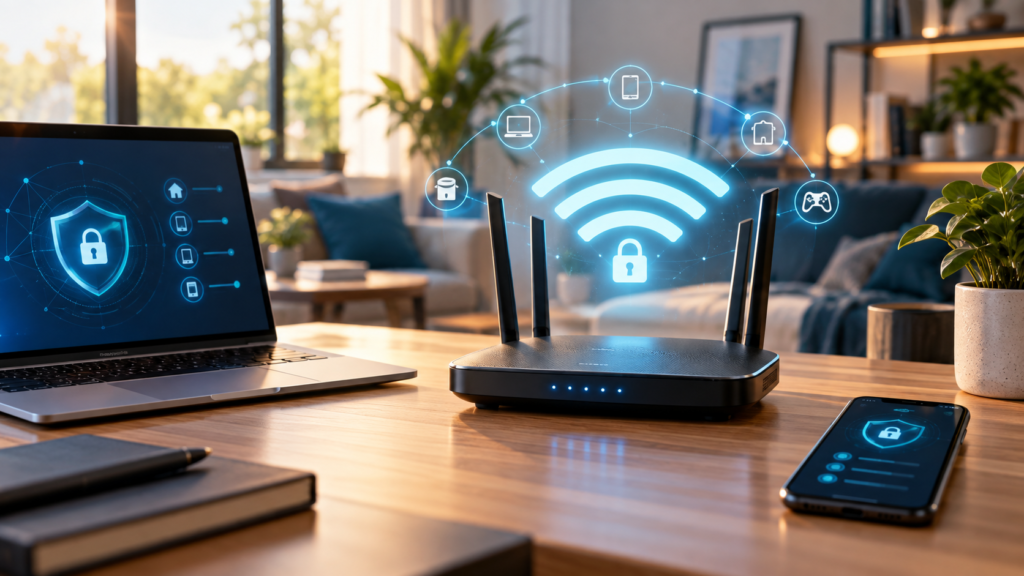
How to Secure Your Home Wi-Fi Network: 6 Key Steps
Your home Wi-Fi network is the gateway to nearly everything in your digital life. From personal banking to smart home devices, securing your home Wi-Fi network properly protects your privacy, prevents unauthorized access, and keeps malicious actors from exploiting your connection. Unfortunately, many routers ship with default settings that leave networks vulnerable to attacks. This guide walks you through six essential steps to lock down your wireless network and keep your data safe.
Key Takeaways
- Change your router’s default admin login to prevent unauthorized configuration changes
- Enable WPA3 or WPA2 encryption to protect your wireless traffic from interception
- Create a strong Wi-Fi password with at least 16 characters combining letters, numbers, and symbols
- Keep your router firmware updated to patch security vulnerabilities
- Set up a separate guest network to isolate visitors from your primary devices
- Disable unnecessary features like WPS and remote management to reduce attack surfaces
Change Your Router’s Default Login Credentials
The first and most critical step in securing your home Wi-Fi network is changing the default administrator username and password on your router. Manufacturers typically ship routers with generic credentials like “admin/admin” or “admin/password” that are publicly documented and easily exploited. Anyone who can access your router’s admin panel can change every security setting, view connected devices, and even redirect your internet traffic.
To change these credentials, open a web browser and enter your router’s IP address in the address bar. Common addresses include 192.168.1.1, 192.168.0.1, or 10.0.0.1. You can find the exact address printed on a label on your router or in the manufacturer’s documentation. Log in using the current credentials, then navigate to the administration or system settings section.
Look for options labeled “Administrator Password,” “Router Password,” or “System Password.” Create a unique, strong password that you don’t use anywhere else. Write it down and store it in a secure location, as you’ll need it whenever you need to adjust router settings. Some routers also allow you to change the username from “admin” to something less predictable, which adds another layer of protection against automated attacks.
Enable WPA3 or WPA2 Encryption
Wireless encryption scrambles the data transmitted between your devices and router, making it unreadable to anyone attempting to intercept your connection. Without proper encryption, neighbors or attackers within range can easily monitor your online activity, steal passwords, and access sensitive information. Modern routers support several encryption standards, but not all provide adequate protection.
WPA3 is the current gold standard for wireless security. It uses stronger encryption algorithms, protects against offline dictionary attacks, and provides forward secrecy to prevent past traffic from being decrypted even if someone discovers your password later. If your router was manufactured recently, check whether it supports WPA3 and enable it in the wireless security settings.
For older routers that don’t support WPA3, use WPA2 with AES encryption. This remains secure for most home networks and is compatible with virtually all devices manufactured in the past decade. Avoid WPA or WEP encryption, both of which have serious vulnerabilities that allow attackers to crack your network password in minutes. If your router only supports these outdated standards, consider upgrading to newer hardware.
To enable encryption, access your router’s admin panel and navigate to the wireless or Wi-Fi settings section. Look for options labeled “Security Mode,” “Encryption Type,” or “Wireless Security.” Select WPA3 Personal (or WPA2 Personal if WPA3 isn’t available), then save your changes. You’ll need to reconnect all your devices using the network password after making this change.
Create a Strong Wi-Fi Network Password
Your Wi-Fi password is the primary barrier preventing unauthorized users from accessing your network. A weak password can be cracked through brute-force attacks or dictionary attacks in a matter of hours, giving intruders access to everything on your network. Creating a genuinely strong password requires moving beyond simple words, common substitutions, and predictable patterns.
A secure Wi-Fi password should be at least 16 characters long and include a mix of uppercase letters, lowercase letters, numbers, and special symbols. Avoid using dictionary words, names, dates, or any information that could be guessed or found through social media. Instead, consider using a random passphrase made up of unrelated words, or generate a completely random string using a password manager.
For example, “TigerMountain47!” might seem strong at first glance, but it uses common words and predictable substitutions that sophisticated cracking tools can detect. A stronger alternative would be “Wx9$mK#pL2nQ@vT8” or a passphrase like “cloud-stapler-harvest-71-umbrella.” The longer and more random your password, the exponentially harder it becomes to crack.
When you change your Wi-Fi password, you’ll need to update it on every device that connects to your network. This inconvenience is a small price to pay for the security benefit. Store the password in a password manager or write it down and keep it in a secure physical location. Never share your primary network password casually, and change it immediately if you suspect it has been compromised.
Keep Your Router Firmware Updated
Router firmware is the underlying software that controls how your router operates, handles security protocols, and manages network traffic. Like any software, firmware contains bugs and vulnerabilities that attackers can exploit to compromise your network. Manufacturers regularly release firmware updates that patch these security holes, improve performance, and add new features.
Many people never update their router firmware because the process isn’t as visible or automatic as updates on phones and computers. This leaves routers running outdated software with known vulnerabilities that have been publicly documented and actively exploited. Checking for updates should be part of your regular network maintenance routine, ideally every few months.
To update your router firmware, log into the admin panel and look for sections labeled “Firmware Update,” “Router Update,” “System Upgrade,” or similar. Some routers will automatically check for available updates and display a notification. Others require you to manually check by clicking an option like “Check for Updates.” If an update is available, follow the on-screen instructions to download and install it.
During the update process, your router will restart and your internet connection will be temporarily interrupted. Don’t power off the router or disconnect it during the update, as this can corrupt the firmware and potentially brick the device. The update typically takes between 5 and 15 minutes. Some newer routers support automatic firmware updates, which you can enable to ensure your router stays current without manual intervention.
If you’re using an older router that no longer receives firmware updates from the manufacturer, you’re running hardware with known, unpatched vulnerabilities. In this case, upgrading to a newer router is the only way to maintain adequate security. Routers generally have a practical lifespan of three to five years before they become security liabilities.
Set Up a Separate Guest Network
A guest network is a separate Wi-Fi network that provides internet access while isolating guest devices from your primary network and personal devices. This isolation is crucial for security because it prevents visitors, contractors, or potentially compromised devices from accessing your computers, network storage, smart home devices, or other equipment on your main network.
When someone connects to your main network, their device can potentially see and interact with other devices on that network. If a guest’s phone or laptop is infected with malware, that malware could spread to your devices or attempt to access your files. A guest network prevents this by creating a separate, sandboxed connection that only provides internet access without any visibility into your internal network.
Most modern routers include a guest network feature that’s simple to enable. Access your router’s admin panel and look for a section labeled “Guest Network,” “Guest Access,” or “Guest Wi-Fi.” Enable the feature and create a separate network name (SSID) and password. Choose a different password than your main network, and make it something you’re comfortable sharing that won’t compromise your primary network security if it becomes widely known.
Configure the guest network to isolate devices from your main network and from each other. This option is sometimes called “Client Isolation” or “AP Isolation.” You can also set bandwidth limits on the guest network to prevent guests from consuming all your available internet speed. Consider disabling the guest network when you’re not actively hosting visitors to eliminate that potential access point entirely.
Guest networks are also useful for connecting IoT devices, smart TVs, and other equipment that may have weaker security or unnecessary access to your personal data. By placing these devices on a separate network, you limit the potential damage if one is compromised. This practice aligns with broader smart home security principles that emphasize network segmentation.
Disable Unnecessary Features and Services
Routers come with numerous features and services that many users never utilize, but each enabled feature represents a potential vulnerability that attackers can exploit. Disabling unnecessary functionality reduces your network’s attack surface and eliminates security holes that might otherwise be overlooked. This principle of minimizing exposed services is fundamental to network security.
Wi-Fi Protected Setup (WPS) is one of the most problematic features to leave enabled. WPS was designed to simplify connecting devices to your network by letting you press a button or enter an eight-digit PIN instead of typing the full password. Unfortunately, the PIN implementation has a critical flaw that allows attackers to crack it through brute-force in a relatively short time, often within hours. Once cracked, they gain full access to your network regardless of how strong your actual Wi-Fi password is.
To disable WPS, navigate to your router’s wireless settings and look for options labeled “WPS,” “Wi-Fi Protected Setup,” or “Push Button Configuration.” Turn off both PIN-based and button-based WPS. Some routers have separate toggles for each method. After disabling WPS, you’ll need to connect new devices by manually entering your Wi-Fi password, but the security improvement is well worth the minor inconvenience.
Remote management is another feature that should typically be disabled unless you have a specific need for it. When enabled, remote management allows you to access your router’s admin panel from anywhere on the internet, not just from devices connected to your local network. This creates a serious security risk because it exposes your router’s login page to the entire internet, making it vulnerable to brute-force attacks and exploitation of any admin panel vulnerabilities.
Check your router’s administration or system settings for options labeled “Remote Management,” “Remote Access,” or “WAN Administration,” and ensure they’re disabled. If you genuinely need remote access to your router, use a VPN connection to your home network instead, which provides encrypted access without exposing the admin panel publicly.
Universal Plug and Play (UPnP) is a convenience feature that allows devices on your network to automatically open ports on your router as needed. While this makes certain applications and gaming consoles work without manual port forwarding, it also allows any device or malicious software on your network to open ports without your knowledge, potentially exposing your network to outside attacks. Unless you experience specific compatibility problems with games or applications, consider disabling UPnP in your router’s advanced settings.
Finally, consider hiding your SSID broadcast if you want an additional layer of obscurity, though this shouldn’t be relied upon as a primary security measure. When SSID broadcast is disabled, your network name won’t appear in the list of available networks on devices. Users must manually enter the exact network name to connect. This won’t stop a determined attacker with the right tools, but it does make your network less visible to casual observers. Keep in mind that hiding your SSID can make connecting new devices slightly more complicated.
Additional Security Measures Worth Considering
Beyond the six essential steps outlined above, several additional measures can further strengthen your network security. MAC address filtering allows you to create a whitelist of specific devices permitted to connect to your network based on their unique hardware addresses. While MAC addresses can be spoofed by sophisticated attackers, this feature adds another hurdle that prevents casual unauthorized access.
Regularly review the list of devices connected to your network through your router’s admin panel. Most routers display connected devices with their names, IP addresses, and MAC addresses. If you spot unfamiliar devices, investigate immediately and change your Wi-Fi password. Some routers allow you to set up notifications when new devices connect, which can alert you to potential unauthorized access in real time.
Consider the physical security of your router as well. Place it in a secure location where guests and visitors can’t easily access the device or read the information label that often contains default credentials and configuration details. If you haven’t already, cover or remove any labels that display factory default passwords.
For networks with particularly sensitive security requirements, or if you experience persistent issues with your current router’s security features, upgrading to enterprise-grade equipment or a router with advanced security features may be worthwhile. Some modern routers include built-in intrusion detection, automatic security updates, and advanced firewall capabilities that provide additional protection beyond what consumer-grade equipment offers.
Frequently Asked Questions
How often should I change my Wi-Fi password?
Change your Wi-Fi password whenever you suspect unauthorized access, after sharing it with someone who no longer needs access, or if a device that had access is lost or stolen. For routine security maintenance, changing your password every 6 to 12 months is reasonable, though this is less critical than using a strong password in the first place and maintaining other security measures like firmware updates.
Will securing my network slow down my internet speed?
No. Enabling WPA2 or WPA3 encryption has minimal impact on performance with modern routers and devices. The processing overhead for encryption is negligible compared to your internet connection speed. In fact, preventing unauthorized users from accessing your network through proper security will help maintain your connection speed by ensuring bandwidth isn’t being consumed by unwanted devices.
Is it safe to use public Wi-Fi after securing my home network?
Securing your home network doesn’t make public Wi-Fi safer. Public networks remain vulnerable to various attacks regardless of your home setup. When using public Wi-Fi, avoid accessing sensitive accounts, consider using a VPN to encrypt your traffic, and ensure websites use HTTPS connections. The security measures for home networks and practices for public Wi-Fi are separate concerns that each require appropriate precautions.
Maintaining Your Network Security Over Time
Securing your home Wi-Fi network isn’t a one-time task but an ongoing process that requires periodic attention. Technology evolves, new vulnerabilities are discovered, and your network needs change as you add devices and users. Schedule a quarterly review of your network security settings to ensure everything remains properly configured and up to date.
During these reviews, check for firmware updates, verify that your encryption and authentication settings haven’t been reset, review connected devices for anything unfamiliar, and ensure that features like WPS and remote management remain disabled. If you’ve shared your guest network password with multiple people over time, consider changing it periodically to maintain control over who can access your network.
Stay informed about security news related to your router model. If a significant vulnerability is discovered, manufacturers typically announce it along with instructions for mitigation. Subscribe to your router manufacturer’s security announcements or check their website periodically for important updates. If you’re using a mesh system, similar practices apply, and you can learn more about setting up secure mesh networks.
Following these six key steps to secure your home Wi-Fi network significantly reduces your vulnerability to common attacks and unauthorized access. Changing default credentials, enabling strong encryption, using a robust password, keeping firmware updated, setting up guest networks, and disabling unnecessary features work together to create multiple layers of defense. While no network is completely invulnerable, these measures make your network a much harder target and protect your personal data, devices, and privacy from the most common threats. Taking an afternoon to properly configure these settings provides security benefits that extend for years to come.