How to Stop Apps From Running in the Background on Android
If your phone battery keeps dying before dinner or your mobile data disappears mid-month, learning how to stop apps from running in the background on Android is one of the fastest fixes you can try. Android lets apps sync, check for updates, and stay ready in memory, but poorly behaved apps can quietly drain power and data all day long.
You do not need third-party “task killer” apps or root access. Android includes built-in tools to see which apps are active, restrict their background behavior, and shut down anything you do not need. This guide walks through every method, from quick fixes like Force Stop to lasting options like battery restrictions and disabling apps entirely.
Key Takeaways
- Check battery, data, and memory usage first so you restrict the right apps
- Force Stop and closing apps from Recents are quick but temporary fixes
- Set problem apps to Restricted in their battery settings for lasting control
- Turn off background data and trim permissions to stop quiet data and location use
- Samsung Sleeping and Deep Sleeping apps automate background limits
- Restricted apps may delay notifications, so keep messaging and alarm apps Unrestricted
Why Android Apps Run in the Background and When You Should Stop Them
Android manages apps differently than you might expect. When you leave an app, the system usually keeps it cached in memory so it reopens instantly. A cached app is essentially frozen and uses almost no power. That is why aggressively closing every app often does nothing for battery life and can even make things worse by forcing apps to reload from scratch.
Real background activity is different. Some apps run foreground services, which is why you see persistent notifications like a music player’s controls or a fitness tracker’s “connected” banner. Others wake periodically to sync email, refresh a feed, back up photos, or check your location. Messaging apps stay lightly active so push notifications arrive instantly.
You should step in when an app drains a noticeable share of battery despite barely being used, consumes mobile data in the background, or runs constantly for no good reason. Games, shopping apps, social media apps, and apps you installed once and forgot are common offenders. If you are dealing with general power problems, it is also worth reading our guide on why your phone battery drains so fast, since runaway apps are only one possible cause.
On the other hand, leave messaging and calling apps, alarm and reminder apps, smartwatch companion apps, and navigation apps alone. Restricting these can cause missed calls, silent alarms, and dropped tracking.
Find Which Apps Use the Most Battery, Mobile Data, and Memory
Before restricting anything, spend two minutes identifying the real culprits. Guessing wastes time and can break apps you actually need.
Battery: On Pixel and most near-stock Android phones, go to Settings > Battery > Battery usage. On Samsung Galaxy phones, open Settings > Battery and tap the usage chart or View details. You will see apps ranked by consumption, often split between screen-on time and background use. An app with a high background share that you rarely open is a prime candidate for restriction.
Mobile data: On most phones, open Settings > Network & internet > SIMs (or Mobile network) > App data usage. Samsung users can find this under Settings > Connections > Data usage > Mobile data usage. Tap an app to see how much data it used in the foreground versus the background.
Memory: RAM details live inside Developer options under Running services or Memory > Memory used by apps, depending on your Android version. This view shows how much RAM each app holds and for how long. It is most useful on phones with limited memory, where background apps cause slowdowns and frequent app reloads.
Battery and data figures make more sense after a full day of normal use. If you check right after charging, the list may be short or dominated by whatever you opened last. Note the two or three apps that show up repeatedly with heavy background use, and focus your changes on those.
Force Stop an App and Close Apps From the Active Apps Panel
These are the quick, manual methods. They work immediately but are temporary, so treat them as a way to stop an app right now rather than a permanent fix.
Close Apps From the Recents or Active Apps Panel
Swipe up from the bottom of the screen and hold (gesture navigation) or tap the square Recents button (three-button navigation). Swipe an app’s card away to close it, or scroll to the end and tap Clear all or Close all if your phone offers it. Samsung Galaxy phones show a Close all button at the end of the app list, and some Samsung models also display an Active apps indicator on the navigation bar for quick access.
Removing an app from Recents closes its interface, but background services may keep running. Closing from Recents is best for frozen or misbehaving apps, not for permanently stopping background activity.
Stop Active Apps From the Quick Settings Panel
Android 13 and later include a list of apps running foreground services. Swipe down twice from the top of the screen to open the full Quick Settings panel. At the bottom, tap the label that shows how many apps are active, such as 2 active apps. Each app in the list has a Stop button that ends its current foreground service.
This panel is useful when a fitness, VPN, or media app keeps a persistent notification after you have finished with it. It is a faster route than digging through Settings, and it shows only apps that are doing ongoing work, so you are not guessing which ones are active. Like Force Stop, it does not prevent the app from starting the service again the next time you open it.
Force Stop an App
Force Stop kills all of the app’s processes, which makes it the stronger option:
- Open Settings and tap Apps, then See all apps.
- Select the app you want to stop.
- Tap Force stop, then confirm with OK.
A force-stopped app stays closed until you open it again, though many apps find ways to restart later. Ongoing tasks such as downloads, uploads, and scheduled alarms set by that app will stop. Avoid force-stopping system components you do not recognize, and note that repeatedly force-stopping an app can cause it to misbehave. If an app starts crashing after being stopped, our guide on why apps keep crashing on Android can help.
Restrict Background Battery Usage for Individual Apps
Per-app battery restriction is the most effective built-in way to stop background activity for good. Instead of manually killing an app, you tell Android to keep it asleep until you open it.
On Pixel and most modern Android phones:
- Go to Settings > Apps > See all apps and select the app.
- Tap App battery usage (or Battery, depending on the version).
- Choose Restricted instead of Optimized or Unrestricted.
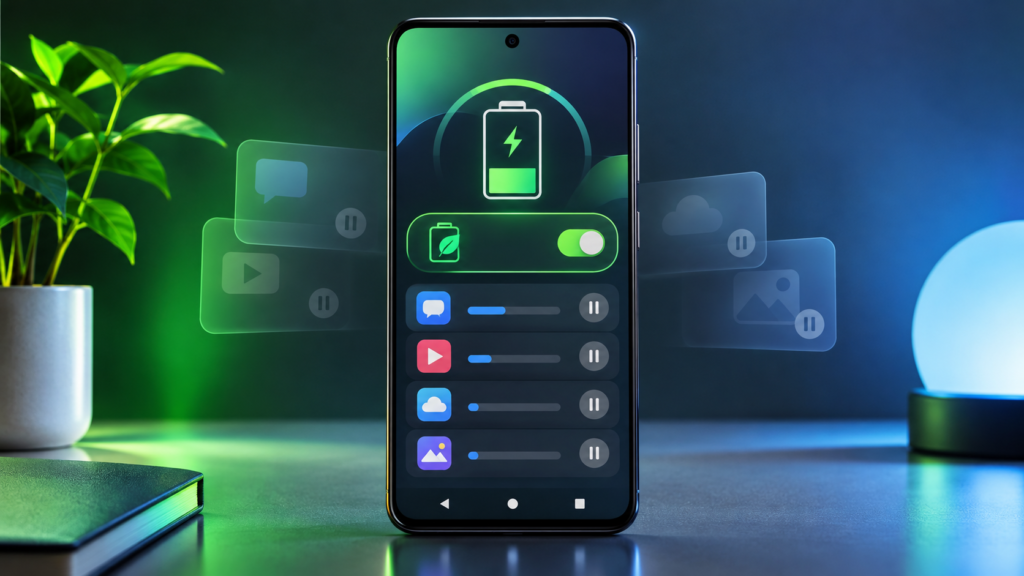
Restricted apps cannot run jobs, sync, or use the network while in the background. They still work normally when open, and high-priority push messages may still arrive, but routine background work stops. This is the ideal setting for apps you want installed but rarely use, such as travel apps, shopping apps, or games that insist on syncing.
The three options are worth understanding. Unrestricted lets the app run in the background without limits. Optimized, the default for most apps, lets Android decide how much background time the app gets based on your usage. Restricted blocks background work almost entirely. Most apps belong on Optimized, a few essential ones on Unrestricted, and only known offenders on Restricted.
Also check that Adaptive Battery is enabled under Settings > Battery > Adaptive preferences. Adaptive Battery learns which apps you use and automatically limits the rest, so it handles much of this work without any manual setup. Menu names vary slightly between manufacturers, but every recent Android version includes an equivalent per-app battery option.
Use Battery Saver for Short-Term Limits
When you need your phone to last through a long day rather than fixing one app, turn on Battery Saver under Settings > Battery > Battery Saver, or tap its tile in Quick Settings. Battery Saver cuts background activity for all apps at once, along with some visual effects and other power-hungry features. You can also schedule it to turn on automatically when the battery reaches a set percentage.
Pixel phones add Extreme Battery Saver, which pauses most apps and lets you choose the few that keep running. Samsung offers a similar Power saving mode under its battery settings. These modes are meant for temporary use. Leaving them on permanently delays syncing and notifications across every app, which is a heavier trade-off than restricting only the apps that cause problems.
Turn Off Background Data and Remove Unneeded Permissions
Some apps are less of a battery problem and more of a data problem. Background data lets them download content, refresh feeds, and phone home over your mobile connection even when you never open them.
To disable it per app, go to Settings > Apps > See all apps > [app name] > Mobile data & Wi‑Fi, then toggle off Background data. On Samsung phones, the same switch appears under Settings > Apps > [app name] > Mobile data > Allow background data usage. The app can still use data while you are actively using it. This switch controls mobile data, so the app may still sync in the background when you are on Wi‑Fi.
For a broader approach, enable Data Saver under Settings > Network & internet > Data Saver. This blocks background data for nearly all apps at once while you are on mobile data. You can then exempt essential apps, such as your messaging app, under the Unrestricted data option so they continue working normally.
Finally, review permissions. Open Settings > Apps > [app name] > Permissions and change location access to Allow only while using the app rather than all the time. Revoke microphone, camera, and nearby-device permissions the app does not genuinely need, since permission-driven activity often keeps apps awake. Many phones also offer an option like Remove permissions if app isn’t used or Pause app activity if unused, which automatically strips permissions from neglected apps. Xiaomi, Oppo, Vivo, and Huawei phones additionally include an Autostart toggle per app that prevents apps from launching themselves after a reboot.
Use Manufacturer Tools Such as Samsung Sleeping and Deep Sleeping Apps
Samsung Galaxy phones include extra background controls that go beyond standard Android. Open Settings > Battery > Background usage limits (on some One UI versions, it sits under Settings > Battery and device care > Battery). You will find three useful lists:
- Sleeping apps run only occasionally in the background and may receive updates and notifications with a delay.
- Deep sleeping apps never run in the background at all. They only work when you open them, which makes this the strongest built-in option for apps you want installed but dormant.
- Never sleeping apps are exempt from sleep rules, so add messaging, alarm, and smartwatch apps here.
Tapping Add inside Sleeping or Deep sleeping apps lets you pick apps manually, while the Put unused apps to sleep toggle lets Samsung handle it automatically based on how often you open each app.
Other manufacturers have equivalents. Xiaomi, Redmi, and Poco phones offer per-app background restriction plus an Autostart list under Security or Battery settings. Oppo, OnePlus, Vivo, and Realme devices aggressively manage background power and may prompt you when an app uses “high background power.” Some brands kill background apps so aggressively that legitimate apps break. The independent site Don’t Kill My App tracks which manufacturers are the worst offenders and documents vendor-specific fixes.
Disable or Uninstall Apps You No Longer Need
If an app is misbehaving in the background and you do not need it, the cleanest solution is removing it entirely. Long-press the app icon and choose Uninstall, or go to Settings > Apps > [app name] > Uninstall. You can also review all installed apps in the Play Store by tapping your profile picture and choosing Manage apps & device.
Preinstalled carrier and manufacturer apps often cannot be uninstalled, but most can be disabled. Open the app’s settings page and tap Disable. A disabled app cannot run, does not appear in your app drawer, and stops receiving updates. You may need to uninstall its updates first before the Disable button appears.
A disabled app can be turned back on from its settings page at any time, while uninstalling removes the app and its local data, so you would need to reinstall and set it up again. Each option also affects storage and system features differently. If you are unsure which route to take, our comparison of uninstalling versus disabling apps breaks down the trade-offs. As a rule of thumb, disable preinstalled apps you might want later and fully uninstall third-party apps you know you will not miss.
Troubleshooting Missed Notifications, Apps That Restart, and Developer Options Limits
Fixing Missed or Delayed Notifications
If you restricted an app and now its alerts arrive late or not at all, reverse the changes for that specific app. Set its battery usage back to Unrestricted, remove it from Samsung’s Sleeping and Deep sleeping lists, re-enable Background data, and add it to Data Saver’s Unrestricted data list. Some phones also require enabling the app’s Autostart permission. An app that is not allowed to run cannot deliver instant notifications, so keep unrestricted status for apps where timing matters.
Stopping Apps That Restart Themselves
Force Stop is temporary by design. Android lets apps schedule jobs, respond to system events, and wake for push messages, so a force-stopped app often reappears hours later. This is normal behavior, not a bug. For lasting results, use the Restricted battery setting, disable Autostart on phones that offer it, or disable or uninstall the app. An app with a persistent notification is running a legitimate foreground service, which is how Android expects always-on apps like fitness trackers to behave.
Developer Options Limits
Developer options include Background process limit, which caps how many processes can stay cached. Setting it to No background processes forces every app to fully restart when you open it. That usually makes things worse: apps reload constantly, music and messaging break, and battery life drops because reloading costs more power than caching. The setting also resets on every reboot.
The nearby Don’t keep activities toggle causes similar problems by destroying each screen the moment you leave it. A safer experimental option on newer phones is Suspend execution for cached apps, which freezes cached processes. If Developer options are not visible on your phone, our guide on how to enable Developer mode on Android walks through unlocking them. In general, stick with per-app battery restrictions and only touch developer settings for testing.
Frequently Asked Questions
Does swiping apps away in the Recents view save battery?
Usually not in a meaningful way. Apps sitting cached in memory use almost no power, and reopening them from scratch can use more. Swiping helps with frozen or glitchy apps, but for ongoing savings use the Restricted battery setting instead.
Why does an app start running again after I force stop it?
Force Stop only kills the app’s current processes. The app can still be relaunched by scheduled jobs, system events, or incoming push messages. To stop it permanently, set its battery usage to Restricted, disable its Autostart permission if your phone has one, or disable or uninstall it.
Will restricting background activity break WhatsApp or my alarms?
It can. Restricted apps may deliver notifications late, and alarms set inside a restricted third-party app may not fire. Keep messaging, calling, alarm, reminder, and wearable companion apps set to Unrestricted, and add them to the Never sleeping apps list on Samsung phones.
Should I install a task killer or RAM cleaner app?
No. Android’s built-in battery restrictions, Data Saver, and Force Stop already cover what these apps claim to do. A task killer closes cached apps that were using almost no power, which forces them to reload later, and the cleaner itself has to run in the background to work.
How do I know if my background restrictions are working?
Use your phone normally for a day or two, then return to the battery usage and app data usage screens. The apps you restricted should show little or no background activity. If an app still appears high on the list, check whether it is running a foreground service with a persistent notification, or consider disabling or uninstalling it.
Take Control of Background Apps
Stopping Android apps from running in the background comes down to three steps. Check the battery and data usage screens to find the real offenders, set those apps to Restricted or turn off their background data, and uninstall or disable anything you no longer need. Samsung’s Deep sleeping apps, Battery Saver, and the global Data Saver toggle give you stronger control when you need it.
Avoid constantly swiping everything away or force-stopping apps every day. That works against how Android manages memory and can cost you battery life rather than save it. Targeted restrictions on a handful of misbehaving apps will do far more for your phone’s battery, data, and speed than any blanket approach.