
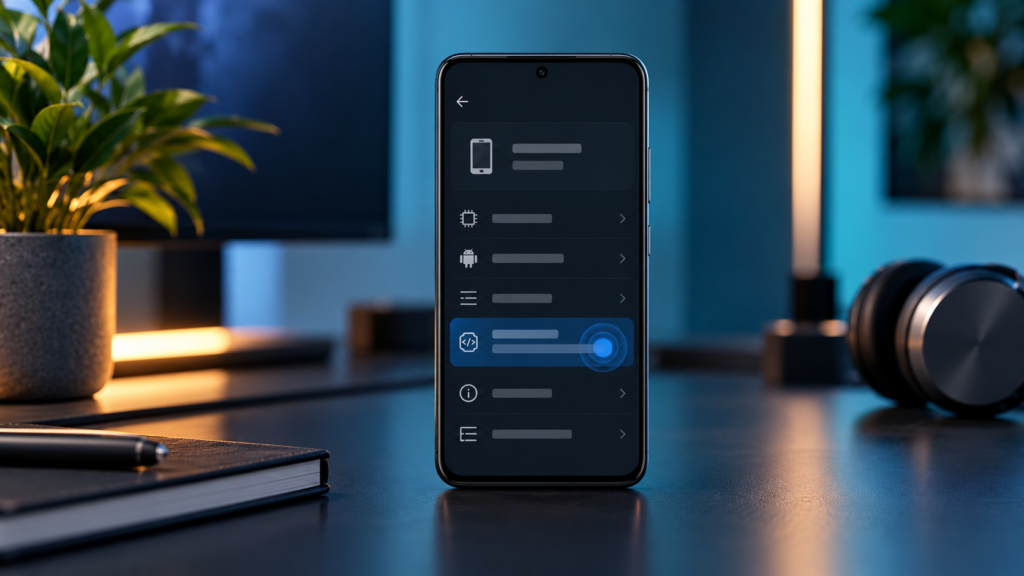
How to Enable Developer Mode on Android (Full Guide)
Developer mode on Android unlocks a hidden menu packed with advanced settings and diagnostic tools. Whether you’re troubleshooting performance issues, testing apps, or connecting your phone to development tools, learning how to enable developer mode on Android gives you greater control over your device. The process takes less than a minute and involves tapping a specific setting seven times to reveal these powerful options.
This guide walks you through everything you need to know about developer mode, from enabling it safely to understanding which settings matter most for everyday users and developers alike.
Key Takeaways
- Developer mode reveals a hidden settings menu with advanced Android features
- Power users gain access to USB debugging, animation controls, and system diagnostics
- Enable it by tapping the build number in About Phone seven times
- USB debugging and animation speed are the most commonly used options
- Most settings are safe to explore, but OEM unlocking and certain debugging options require caution
What Is Developer Mode on Android
Developer mode is a hidden settings menu within Android that provides access to advanced system controls and diagnostic tools. Google designed this feature primarily for app developers and software testers, but it includes many options that benefit power users and anyone who wants deeper control over their device.
When you enable developer mode, a new “Developer options” menu appears in your system settings. This menu contains dozens of toggles and controls that affect everything from animation speed to network behavior. Unlike rooting your phone, enabling developer mode doesn’t modify your system files or void warranties—it simply reveals settings that Android keeps hidden by default.
The feature exists on virtually every Android device, from budget phones to flagship models. Manufacturers sometimes customize the exact location of the build number you need to tap, but the underlying process remains consistent across brands including Samsung, Google Pixel, OnePlus, Motorola, and others.
Why You Should Enable Developer Mode
Most Android users never need developer options, but several practical scenarios make it worth enabling. The most common reason is USB debugging, which allows your phone to communicate with computers for file management, app installation, and advanced troubleshooting through Android Debug Bridge (ADB) commands.
Performance enthusiasts appreciate the ability to adjust or disable window animations, which can make older phones feel significantly faster. The animation scale settings let you speed up transitions between apps and screens or turn them off entirely for instant response times.
Developer mode also helps diagnose problems. You can view running services, check which apps consume resources, monitor CPU usage, and force apps to use specific graphics rendering methods. These diagnostic capabilities prove invaluable when troubleshooting battery drain, lag, or app crashes.
For those interested in app development, the menu provides essential tools including layout bounds visualization, pointer location tracking, and the ability to keep the screen on while charging. These features streamline the development and testing process considerably.
How to Enable Developer Mode Step-by-Step
Enabling developer mode requires accessing your build number and tapping it repeatedly. The exact path varies slightly between manufacturers, but the core process remains the same.
On Stock Android and Google Pixel Phones
Open the Settings app and scroll down to “About phone” at the bottom of the menu. Tap to enter, then look for “Build number” in the list—it’s usually near the bottom. Tap the build number seven times in quick succession. After the third or fourth tap, you’ll see a message counting down the remaining taps needed.
When you complete the seventh tap, Android displays a confirmation message saying “You are now a developer!” The Developer options menu now appears in your main Settings screen, typically just above “About phone” or within a “System” submenu depending on your Android version.
On Samsung Galaxy Devices
Samsung places the build number in a slightly different location. Open Settings and tap “About phone,” then tap “Software information.” The build number appears in this secondary menu. Tap it seven times to enable developer mode.
On Samsung devices, Developer options appears in Settings under the “Developer options” entry that surfaces after enabling, but some models place it within a “System” or “Additional settings” section. If you don’t see it immediately in the main Settings list, check these submenus.
On Other Android Manufacturers
OnePlus, Motorola, Xiaomi, and other manufacturers generally follow the stock Android pattern with minor variations. The build number typically lives in Settings → About phone, though some brands nest it one level deeper in “Software information” or “Version information.”
If you can’t locate the build number, use the search function in your Settings app. Type “build number” in the search bar, and Android should take you directly to the correct location regardless of your phone’s menu structure.
Entering Your PIN or Password
Most Android devices require you to enter your screen lock PIN, password, or pattern after the seventh tap to confirm the action. This security measure prevents unauthorized users from enabling developer options on your device. Enter your credentials when prompted to complete the process.
Key Developer Options You Should Know
The Developer options menu contains dozens of settings. Most users only need a handful of these options, while many are relevant only to app developers or system testers.
USB Debugging
USB debugging sits near the top of the Developer options menu and ranks as the most commonly used setting. When enabled, your Android device can communicate with a computer through ADB commands, allowing advanced file transfers, app sideloading, system backups, and troubleshooting operations.
This option remains off by default for security reasons. Enable it only when you need to connect your phone to development tools or perform advanced operations. When you connect your device to a new computer with USB debugging enabled, Android prompts you to authorize that specific computer, preventing unauthorized access.
Window Animation Scale, Transition Animation Scale, and Animator Duration Scale
These three settings control how quickly Android plays animations when you open apps, switch between screens, or navigate the interface. Each defaults to 1x speed. You can reduce them to 0.5x for snappier performance or turn them off completely by selecting “Animation off.”
Disabling or reducing animations makes your phone feel dramatically faster, especially on older or budget devices. The visual transitions disappear, and apps open instantly rather than sliding into view. Some users prefer the immediate response, while others find the lack of visual feedback disorienting.
Stay Awake
This toggle prevents your screen from sleeping while the device charges. It’s particularly useful when you’re monitoring processes, testing apps, or using your phone as a secondary display. The screen remains on as long as it’s plugged in, though this can accelerate screen burn-in on OLED displays if used excessively.
Force GPU Rendering
This option forces apps to use your phone’s graphics processor for 2D drawing operations that would normally use the CPU. On some devices, this improves performance in certain apps. On others, it increases battery consumption without noticeable benefits. The impact varies by device and app, making it worth testing if you experience lag in specific applications.
Show Layout Bounds and Pointer Location
These visual debugging tools overlay information on your screen. Show layout bounds draws boxes around every UI element, revealing how app layouts are structured. Pointer location tracks your finger movements and displays touch coordinates at the top of the screen. Both options help developers debug interfaces but serve little purpose for general users beyond satisfying curiosity about how apps are built.
OEM Unlocking
OEM unlocking allows you to unlock your device’s bootloader, which is necessary for installing custom ROMs, custom recovery environments, or rooting your phone. This setting should remain off unless you specifically intend to modify your device’s system software. Unlocking the bootloader typically voids warranties and can make your device less secure if not managed properly.
Common Uses for Developer Mode
Beyond the specific settings mentioned above, developer mode enables several practical use cases that extend what you can do with your Android device.
Sideloading Apps and Testing Software
With USB debugging enabled, you can install apps directly from your computer without going through the Google Play Store. This capability proves essential for beta testing apps before public release, installing apps from alternative sources, or running software that isn’t available in your region. Developers use this feature constantly to test apps they’re building.
Advanced Troubleshooting and System Diagnostics
When your phone behaves strangely, developer options provide diagnostic tools that help identify problems. The “Running services” section shows exactly which apps and system processes are active and how much memory they consume. The “Process stats” option reveals which apps use the most resources over time, helping you identify battery drains or performance bottlenecks.
You can also enable options to show CPU usage on screen, log system errors for analysis, or force apps to stay in memory. These tools help you understand what your device is doing beneath the surface.
Taking Bug Reports and Screen Recordings
Developer options include a “Take bug report” function that generates comprehensive diagnostic logs. When you report issues to app developers or device manufacturers, these logs provide detailed information that helps them identify and fix problems. The bug report captures system logs, running processes, and other technical details in a single package.
Customizing Your Android Experience
Several developer options let you adjust how Android behaves. You can change the display density to fit more content on screen, force dark mode on apps that don’t support it natively, or adjust the logger buffer sizes to capture more system information. These customizations help you tailor Android to your specific needs and preferences, similar to how you might optimize your smartphone habits for better productivity.
Safety and Security Considerations
Enabling developer mode itself poses no risk to your device. The act of revealing the menu doesn’t change any settings or weaken security. However, certain options within the developer menu require careful consideration before you enable them.
USB Debugging Security
USB debugging creates potential security vulnerabilities if left enabled permanently. A computer with authorized access to your phone can install apps, access files, and execute system commands without unlocking your screen. If someone gains physical access to both your phone and an authorized computer, they can potentially extract data or install malicious software.
Best practice involves enabling USB debugging only when you need it for specific tasks, then disabling it afterward. Android partially mitigates this risk by requiring you to authorize each computer individually and by showing a persistent notification when USB debugging is active.
Bootloader Unlocking Warnings
The OEM unlocking option deserves special attention. Unlocking your bootloader fundamentally changes your device’s security model. It allows anyone with physical access to install modified system software, potentially bypassing your lock screen and encryption. Most manufacturers void warranties when you unlock the bootloader, and some banking or security apps refuse to run on unlocked devices.
Only enable OEM unlocking if you specifically plan to unlock your bootloader and understand the implications. For the vast majority of users, this option should remain disabled.
Settings Safe to Explore
Most developer options won’t harm your device even if you enable them accidentally. Animation settings, visual debugging tools, and information displays are completely safe to experiment with. If something makes your phone behave strangely, you can simply toggle the setting back off or disable developer mode entirely.
The most you’ll typically risk is a temporary inconvenience—perhaps animations that look odd or on-screen overlays that clutter your display. These effects disappear as soon as you change the setting back. Just as it’s wise to practice good security habits with connected devices, approach USB debugging and bootloader options with caution while feeling free to explore visual and performance tweaks.
Disabling Developer Mode
If you decide you no longer need developer options, you can hide the menu again. Open the Developer options settings, and you’ll find a toggle at the very top of the screen. Turn this toggle off to disable developer mode. The Developer options menu disappears from your main Settings screen, though you can re-enable it anytime by tapping the build number seven times again.
Disabling the menu returns all settings to their defaults and removes access to developer features. This provides a clean slate if you experimented with settings and want to restore normal behavior.
Troubleshooting Common Issues
Most users enable developer mode without problems, but a few common issues can arise during or after the process.
Can’t Find the Build Number
If you can’t locate the build number in your About phone section, try these steps. First, use the search function in your Settings app—type “build number” to jump directly to the correct location. Second, check for a “Software information” or “Version information” submenu within About phone, as some manufacturers nest the build number one level deeper.
On certain custom Android interfaces, the build number might appear under different names like “Software version” or simply “Version.” Look for any field that displays a long string of numbers, letters, and periods—that’s typically your build number.
Nothing Happens After Seven Taps
If you tap seven times and don’t see the “You are now a developer” message, you might be tapping the wrong field or not tapping quickly enough. Make sure you’re tapping directly on the build number text or the row containing it. Taps need to happen within a few seconds of each other—if you pause too long between taps, Android resets the count.
Some phones require you to tap slightly to the right or left of the text rather than directly on it, depending on how the interface is structured. Try tapping different parts of the row if repeated attempts on the text itself don’t work.
Developer Options Disappeared
If Developer options was previously visible but has now vanished from your Settings menu, the toggle at the top of Developer options may have been turned off accidentally. You don’t need to tap the build number seven times again—simply go to Settings, scroll to the bottom, and look for Developer options in the list even though it might not be highlighted. Tap it, and you can turn the toggle back on at the top of the screen.
Some system updates reset developer options to the disabled state. After major Android updates, you may need to re-enable the menu by turning on the toggle or, in rare cases, tapping the build number seven times again.
Phone Acting Strange After Changing Settings
If your phone behaves oddly after modifying developer options, the quickest fix is to disable the entire menu using the toggle at the top of Developer options. This returns all settings to their defaults. If you remember which specific setting caused the problem, you can also navigate back to that setting and toggle it off individually.
For animation-related issues, return all three animation scale settings (window, transition, and animator duration) to 1x. For performance problems, turn off GPU rendering and any “strict mode” or visual feedback options you may have enabled.
USB Debugging Won’t Connect to Computer
When USB debugging is enabled but your computer doesn’t recognize your phone, several factors might be responsible. First, ensure you’ve authorized your computer when the “Allow USB debugging” popup appears on your phone screen. This authorization prompt appears the first time you connect to each new computer.
Second, verify that you’re using a data cable rather than a charge-only cable—some USB cables only carry power without data connections. Third, check that you’ve selected the correct USB mode on your phone. When you connect via USB, pull down your notification shade and look for a USB notification. Tap it and select “File Transfer” or “MTP” mode rather than “Charging only.”
If problems persist, try revoking USB debugging authorizations from within Developer options and reconnecting, which forces Android to generate a new authorization request.
Frequently Asked Questions
Does enabling developer mode void my warranty or harm my phone?
No, simply enabling developer mode and accessing the Developer options menu does not void warranties or cause any harm to your device. The menu only reveals settings that already exist in Android. However, specific actions you take within developer mode—particularly unlocking the bootloader using the OEM unlocking option—can void warranties depending on your manufacturer’s policies. Viewing and adjusting most developer settings carries no warranty implications.
Can I disable developer mode after enabling it?
Yes, you can disable developer mode at any time. Open the Developer options menu in your Settings, and use the toggle at the top of the screen to turn it off. This hides the menu from your Settings screen and returns all developer settings to their default values. You can re-enable it whenever needed by tapping the build number seven times again, or by simply turning the toggle back on if the menu is still accessible.
Will enabling USB debugging let someone hack my phone?
USB debugging creates a potential security risk only if someone gains physical access to both your phone and a computer you’ve previously authorized. Android requires you to explicitly authorize each computer that connects via USB debugging, and the authorization requires your phone to be unlocked. As long as you keep your phone secure and don’t authorize untrusted computers, USB debugging poses minimal risk. For maximum security, enable it only when needed and disable it afterward.
Conclusion
Enabling developer mode on Android takes just seconds and opens up a world of advanced features that give you greater control over your device. Whether you want to speed up animations for better performance, connect to development tools, or troubleshoot system issues, the Developer options menu provides powerful capabilities that go far beyond standard Android settings.
The process works consistently across virtually all Android devices—find your build number in Settings, tap it seven times, and enter your PIN when prompted. Most options in the menu are safe to explore, though USB debugging and bootloader settings deserve careful consideration before enabling them. Start with simple adjustments like animation speed, and you’ll quickly discover how developer mode enhances your Android experience without requiring technical expertise or risking your device’s stability.