
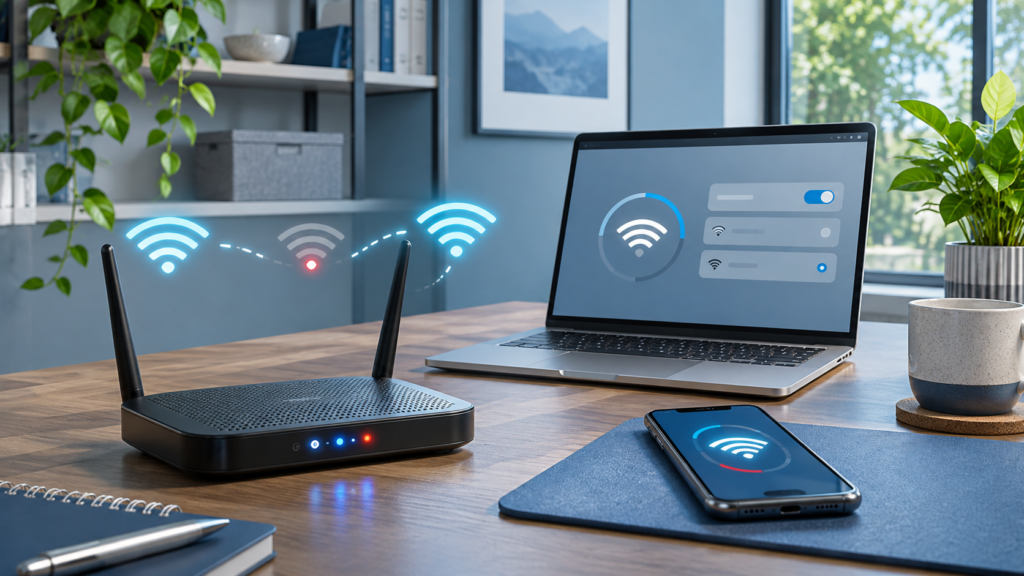
9 Ways to Fix Wi-Fi Disconnecting and Reconnecting
If your Wi-Fi keeps disconnecting and reconnecting every few minutes, the good news is that the cause is almost always fixable at home. Learning how to fix Wi-Fi disconnecting and reconnecting issues starts with identifying what’s actually dropping: it could be an overheating router, a weak signal, an outdated driver, or a power-saving setting quietly cutting your connection. The nine fixes below move from quick checks to deeper troubleshooting, so work through them in order and test your connection after each step.
Key Takeaways
- Power-cycle your modem and router in the correct order to clear stalled sessions
- Weak signal at the edge of coverage is a top cause of random disconnects
- Forgetting and re-adding the network repairs corrupted saved profiles
- Switching bands or picking a cleaner channel reduces congestion drops
- Outdated network adapter drivers frequently cause repeated disconnects
- Power-saving and auto-switching features can drop Wi-Fi without warning
- Router firmware updates and the right security mode stabilize connections
- Interference and too many connected devices can overwhelm a router
- Network resets, factory resets, and ISP checks are the final escalation steps
1. Restart Your Router, Modem, and Device the Right Way
A proper restart is the fastest fix for an unstable Wi-Fi connection because it clears the most common culprits at once: memory leaks in the router, stalled DHCP sessions, and modems that have fallen out of sync with your internet provider. The order you power things back on matters more than most people realize.
- Unplug both your modem and router from power. If you have a single combined gateway from your ISP, unplug that unit.
- Wait 30–60 seconds so residual power drains and the modem fully releases its connection.
- Plug the modem back in first and wait until its status lights stabilize, usually one to two minutes.
- Plug the router back in and wait for it to broadcast your network again.
- Restart the laptop, phone, or tablet that’s been dropping, then reconnect.
If the disconnects stop for a day and then return, the restart treated the symptom rather than the cause. For a deeper walkthrough, see our guide on restarting a Wi-Fi router correctly, then continue with the fixes below.
2. Check Signal Strength and Reposition Your Router
Wi-Fi doesn’t fail gracefully — when your signal drops below a certain threshold, your device disconnects entirely and then reconnects when the signal recovers. That cycle looks exactly like random dropping, especially in rooms at the edge of your coverage area.
Walk around your home with your phone or laptop and watch the Wi-Fi indicator. On Windows, you can also open a command prompt and run netsh wlan show interfaces to see your signal as a percentage; anything consistently below about 40 percent is unstable territory. Pay attention to whether disconnects cluster in specific rooms or at specific distances from the router.
Placement fixes are free and often dramatic. Move your router to a central, elevated location — a shelf rather than the floor — and keep it out of cabinets and away from thick walls, large metal appliances, and aquariums, all of which absorb or reflect the signal. If your home is large or has multiple floors and no single location covers everything, setting up a mesh Wi-Fi network will give you consistent coverage instead of one router struggling to reach every corner.
3. Forget the Wi-Fi Network and Reconnect From Scratch
Your device stores a saved profile for every network it joins, including the password, security type, and connection details. When that profile becomes corrupted — or when you change something on the router like the password or security mode — your device may enter a connect-and-drop loop as it tries to authenticate with outdated information.
Removing the profile and reconnecting forces a clean negotiation. Here’s how on each major platform:
- Windows 11: Go to Settings → Network & internet → Wi-Fi → Manage known networks, select your network, and click Forget. Reconnect and re-enter the password.
- macOS: Open System Settings → Wi-Fi, click Details next to your network, and choose Forget This Network.
- iPhone or iPad: Go to Settings → Wi-Fi, tap the (i) icon beside your network, and tap Forget This Network.
- Android: Open Settings → Network & internet → Internet, tap the gear next to your network, and tap Forget. Menu names vary slightly by manufacturer.
This fix takes under a minute and resolves a surprising share of cases where Wi-Fi disconnecting and reconnecting started right after a router change or password update.
4. Switch Between 2.4 GHz and 5 GHz or Change the Wi-Fi Channel
The 2.4 GHz band travels farther and passes through walls better, but it’s crowded — in most regions it only has three non-overlapping channels (1, 6, and 11), and it’s shared with your neighbors’ routers. The 5 GHz band is faster with far more channels, but its range is shorter. Newer Wi-Fi 6E and Wi-Fi 7 routers add a 6 GHz band that’s even less congested.
Use the symptoms to pick the right band. If disconnects happen in rooms far from the router, the 2.4 GHz band will usually hold a steadier connection despite being slower. If drops happen close to the router in a dense apartment building, congestion is the likely cause and 5 GHz or 6 GHz will be cleaner. Some routers merge both bands under one network name using band steering; if a device flaps between bands, try giving each band a separate name and connecting manually.
To change the channel itself, sign in to your router’s admin page — typically 192.168.1.1 or 192.168.0.1 in a browser — and look under Wireless settings. A free Wi-Fi analyzer app on Android or Windows shows which channels your neighbors are using so you can pick the emptiest one. One often-missed detail: routers set to “Auto” channel can briefly drop every connected device when they hop channels, so locking in a fixed, clean channel often stops mysterious whole-house disconnects.
5. Update Network Adapter Drivers and Your Operating System
If only one computer keeps dropping while everything else stays connected, suspect the network adapter driver. Drivers manage the conversation between your operating system and the Wi-Fi hardware, and a buggy or outdated one can drop the connection under load or after waking from sleep.
On Windows 11, right-click the Start button and open Device Manager, expand Network adapters, right-click your wireless adapter, and choose Update driver → Search automatically. If the disconnects began right after an update, try Roll Back Driver in the same Properties window instead. Also check Windows Update for optional driver updates, and visit your laptop manufacturer’s support site — vendors like Dell, HP, and Lenovo publish tested driver versions for specific models.
On a Mac, Wi-Fi drivers ship inside macOS itself, so keeping the system updated via System Settings → General → Software Update is the whole job. The same applies to phones and tablets: install pending Android or iOS updates, since connectivity fixes are a routine part of those releases. A common beginner mistake is updating only one side of the equation — update the device and the router (next section) before ruling out software.
6. Disable Power-Saving and Auto-Switching Features That Drop Wi-Fi
Laptops and phones aggressively manage radios to save battery, and sometimes the management is too aggressive. The classic symptom: Wi-Fi drops after the device sits idle, sleeps, or switches to battery power.
On Windows, open Device Manager, right-click your Wi-Fi adapter, choose Properties, and on the Power Management tab uncheck “Allow the computer to turn off this device to save power.” Next, open Control Panel → Power Options → Change plan settings → Change advanced power settings, find Wireless Adapter Settings, and set Power Saving Mode to Maximum Performance. While you’re in the adapter’s advanced properties, look for a Roaming Aggressiveness option — on Intel adapters, a high setting makes the card constantly hunt for a better access point, which causes drops in homes with a single router. Set it to Low or Medium.
Phones have their own switching behaviors. Many Android devices offer “switch to mobile data” or adaptive connectivity features that toggle radios aggressively — Samsung calls its version Intelligent Wi-Fi. On iPhone, Wi-Fi Assist at the bottom of Settings → Cellular quietly pushes traffic to cellular when Wi-Fi weakens, which can look like constant disconnecting. Temporarily disable these to test. Third-party VPN and security apps can also drop and re-establish connections; disable them briefly to isolate whether they’re involved.
7. Update Router Firmware and Review Key Router Settings
Router firmware is the operating system inside your router, and manufacturers ship updates that fix stability bugs, patch security holes, and improve how the router handles many simultaneous clients. A router running firmware from several years ago is a prime suspect for unexplained drops.
Sign in to your router’s admin page or companion app and look for a Firmware Update or Router Update section. Many modern mesh systems and ISP gateways update automatically, but standalone routers often need a manual check. While you’re in the settings, review a few items that commonly cause instability:
- Security mode: WPA2/WPA3 mixed or “transition” mode confuses some older devices into repeated drops. Test with WPA2-only or WPA3-only to see if stability improves.
- Band steering / Smart Connect: as noted earlier, a single network name for all bands can make some clients flap. Separate names are a useful diagnostic.
- Auto channel selection: set a fixed channel rather than letting the router hop.
- DHCP lease time: unusually short leases can cause devices to drop while renewing. The default is usually fine, but it’s worth checking on older routers.
Apple publishes a clear reference on recommended settings for Wi-Fi routers and access points that applies to any router brand, not just Apple hardware — it’s a solid checklist for getting these options right. Write down any setting you change so you can revert if it makes things worse.
8. Reduce Interference and Limit the Number of Connected Devices
Wi-Fi signal interference is an invisible cause of drops. Microwave ovens, cordless phones, baby monitors, and Bluetooth devices all compete in the 2.4 GHz range — if your disconnects happen while the microwave runs, that’s your answer. Even a USB 3.0 port near your router can radiate noise. Keep the router a few feet away from these sources.
Device count matters too. Every phone, TV, camera, smart bulb, and plug holds a session on your router, and budget routers from a few years ago start struggling somewhere around two dozen active clients. Sign in to your router’s client list and count what’s actually connected — most people are surprised. Disconnect gadgets that don’t need to be online, and if you spot devices you don’t recognize, change your Wi-Fi password immediately since they could be freeloaders consuming bandwidth.
If congestion is unavoidable — a busy household streaming, gaming, and video calling simultaneously — prioritizing traffic helps. You can set up QoS on your router to guarantee bandwidth for video calls and gaming so heavy downloads elsewhere don’t knock devices offline. If your router is more than five or six years old, an upgrade to a modern Wi-Fi 6 or 6E model handles dense device loads far better.
9. Reset Network Settings, Factory Reset the Router, or Contact Your ISP
When nothing else works, escalate in three stages. First, reset network settings on the affected device — this wipes saved Wi-Fi networks, Bluetooth pairings, and VPN configurations, so have your Wi-Fi password ready.
- Windows 11: Settings → Network & internet → Advanced network settings → Network reset.
- iPhone: Settings → General → Transfer or Reset iPhone → Reset → Reset Network Settings.
- Android: Settings → System → Reset options → Reset Wi-Fi, mobile & Bluetooth (paths vary by manufacturer).
Second, factory reset the router via the pinhole reset button (hold for 10–15 seconds) or the admin page. This erases everything — your network name, password, port forwards, and any ISP login credentials — so gather your setup information first. Third, isolate whether the problem is Wi-Fi or the internet itself: plug a computer directly into the router or modem with an Ethernet cable. If the wired connection stays rock solid while wireless devices drop, the issue is your Wi-Fi radio, interference, or router. If everything drops including wired, the fault is upstream — contact your ISP, ask them to check your line’s signal levels and outage history, and request a gateway replacement if yours is old or rental equipment.
Frequently Asked Questions
Why does my Wi-Fi keep disconnecting on only one device?
When a single device drops while everything else stays connected, the cause is almost always on that device: an outdated network driver, an aggressive power-saving setting, a corrupted saved Wi-Fi profile, or failing Wi-Fi hardware. Work through fixes 3, 5, and 6 on that specific device first.
How do I know if the problem is my router or my ISP?
Run the Ethernet test: connect a computer by cable and see if it drops too. If wired is stable, it’s your Wi-Fi or router. If wired also drops — or if every device in the house disconnects at the same moment — the problem is your modem or your provider’s line, and it’s time to call the ISP.
Will a Wi-Fi extender fix constant disconnects?
Only if weak signal is the root cause. An extender placed where the signal is already poor just rebroadcasts a bad connection. If your drops happen near the router, an extender won’t help — and a mesh system is generally a more reliable upgrade than a single extender anyway.
Conclusion
Fixing Wi-Fi that disconnects and reconnects constantly is a process of elimination: start with a proper power cycle, confirm your signal is strong where you actually use your devices, and repair the connection profile before digging into drivers, channels, and router settings. Most readers solve the problem within the first four fixes. If you’ve reached the reset stage and drops persist across wired and wireless alike, the fault lies with your line or aging hardware — and a call to your ISP or a newer router will finally put the issue to rest. If your connection is now stable but sluggish, our guide on why your Wi-Fi is slow covers the next set of optimizations.

Pingback: Why Your Chromebook Keeps Disconnecting from Wi-Fi: 5 Fixes - Today Tech Tips