
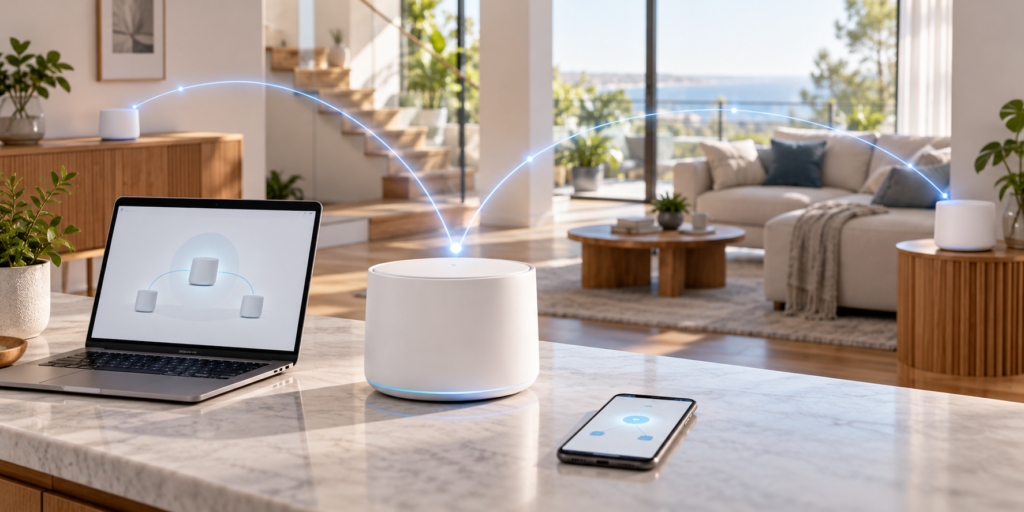
How to Set Up a Mesh Wi-Fi Network: Complete Guide
Setting up a mesh Wi-Fi network can transform your home internet experience by eliminating frustrating dead zones and providing seamless coverage in every room. Unlike traditional routers that broadcast from a single point, mesh systems use multiple nodes working together to blanket your entire space with reliable wireless connectivity. Whether you’re dealing with thick walls, multiple floors, or a large property, learning how to set up a mesh Wi-Fi network is simpler than you might think and doesn’t require advanced technical knowledge.
This guide walks you through every step of the process, from understanding how mesh systems work to optimizing your network for peak performance. You’ll learn how to plan your coverage, position your nodes strategically, and configure settings that ensure every device in your home stays connected.
Key Takeaways
- Mesh systems eliminate dead zones by using multiple nodes that communicate with each other
- Proper planning and node placement are critical for optimal coverage
- The primary router connects to your modem and serves as the network foundation
- Additional nodes extend coverage to distant areas of your home
- Configuration through mobile apps makes setup accessible for beginners
Understanding Mesh Wi-Fi Systems
A mesh Wi-Fi system consists of a main router that connects directly to your modem, plus one or more satellite nodes placed throughout your home. These devices work together as a unified network, rather than requiring separate network names for each access point. When you move from room to room, your devices automatically connect to the nearest node without dropping the connection or requiring manual switching.
Traditional routers broadcast Wi-Fi from a single location, which means signal strength decreases as you move farther away or encounter obstacles like walls and floors. Mesh networks solve this limitation by creating multiple broadcast points that communicate with each other through a process called backhauling. Each node maintains a strong connection to at least one other node, creating a web of coverage that adapts to your home’s layout.
Most modern mesh systems operate on dual-band or tri-band frequencies. Dual-band systems use both 2.4 GHz and 5 GHz bands, while tri-band systems add an additional 5 GHz or 6 GHz band dedicated to communication between nodes. This dedicated backhaul band prevents the nodes from competing with your devices for bandwidth, resulting in faster overall speeds throughout your network.
The intelligence built into mesh systems automatically manages which band and node each device connects to, optimizing performance without requiring you to make manual adjustments. This seamless roaming capability makes mesh networks particularly valuable for streaming video, video conferencing, and gaming in different rooms.
Planning Your Mesh Network Coverage
Before purchasing or installing your mesh system, create a simple floor plan that identifies areas with weak or no Wi-Fi signal. Walk through your home with your current network and note where connectivity drops or becomes unreliable. Pay special attention to areas with thick walls, multiple floors, or significant distance from your existing router.
Most mesh systems include two or three nodes in their starter packages, with coverage ratings typically ranging from 3,000 to 6,000 square feet for a three-node system. However, these estimates assume open floor plans with minimal interference. If your home has brick walls, metal framing, or multiple levels, you may need additional nodes to achieve complete coverage.
Consider where you’ll place nodes before installation. The primary router needs to connect to your modem via Ethernet cable, so it should be located near your internet entry point. However, try to position it in a central area rather than a basement or closet if possible, as this improves overall signal distribution. Additional nodes should be placed roughly halfway between the primary router and the dead zones you want to cover, not at the extreme edges of your property.
Account for high-traffic areas where multiple devices connect simultaneously. Rooms with smart TVs, gaming consoles, home offices, or smart home hubs benefit from having a node nearby. If you’re looking to extend coverage outdoors, check out our guide on how to extend Wi-Fi range to backyard for additional strategies that complement mesh networks.
Unboxing and Preparing Your Equipment
When you unbox your mesh system, you’ll typically find the router nodes, power adapters, at least one Ethernet cable, and a quick start guide. Some manufacturers include additional cables or mounting hardware. Verify that all components are present before beginning installation, and identify which node is designated as the primary router if they’re labeled differently.
Download the manufacturer’s mobile app before starting the physical setup. Most mesh systems from brands like Eero, Google Nest Wifi, Netgear Orbi, and TP-Link Deco require their proprietary apps for initial configuration. Create an account if you don’t already have one, as you’ll need it to manage your network settings and access advanced features.
Gather information you’ll need during setup, including your internet service provider’s connection details if you have a static IP or special configuration requirements. Have your desired network name and password ready—choose a strong password that combines uppercase and lowercase letters, numbers, and symbols. Avoid using personal information or common words that are easy to guess.
Clear the areas where you plan to place nodes. They need adequate ventilation and shouldn’t be enclosed in cabinets or placed directly against walls. Keep nodes away from other electronic devices that might cause interference, such as microwaves, baby monitors, or cordless phones operating on the 2.4 GHz frequency.
Installing the Primary Mesh Router
Start by powering down your existing router and modem. Disconnect the Ethernet cable from your old router and connect it to the WAN or Internet port on your new mesh router. This port is usually labeled and may be a different color than the other Ethernet ports. Plug the mesh router into a power outlet and wait for it to boot up, which typically takes one to two minutes.
Watch the LED indicator on the router. Most systems use colored lights to communicate status—often white or blue for ready, amber for booting, and red for errors. Consult your quick start guide for the specific LED meanings for your model. Once the router indicates it’s ready, open the manufacturer’s mobile app on your smartphone.
Follow the app’s guided setup process. You’ll typically need to scan a QR code printed on the router or enter a setup code manually. The app will detect your mesh router and guide you through creating your network name (SSID) and password. Some systems allow you to import settings from your previous router by scanning its QR code or connecting temporarily to your old network.
The app will run a connection test to verify your internet is working properly. If the test fails, check that the Ethernet cable is securely connected to both your modem and router. You may need to power cycle your modem by unplugging it for 30 seconds, then plugging it back in and waiting for it to fully restart before your mesh router can establish a connection. For more information on router connectivity issues, see our article on how to restart a Wi-Fi router.
Adding Mesh Nodes to Extend Coverage
Once your primary router is online and functioning, begin placing additional nodes. Start with nodes in areas that are moderately distant from the main router rather than jumping immediately to the farthest dead zones. This ensures each node maintains a strong connection to the network backbone before extending to more remote areas.
Plug in the first satellite node and wait for its LED indicator to signal it’s ready for pairing. Open your mesh system’s app and select the option to add a node or extend coverage. The app will search for the new node and guide you through the pairing process, which usually completes in under a minute.
After pairing, the app typically provides feedback on connection quality between the new node and the existing network. If the connection is weak or marginal, try relocating the node closer to the primary router or to another already-connected node. Optimal placement usually means the node can “see” at least one other node without too many walls or floors in between.
Repeat this process for each additional node, working your way outward from the primary router toward the edges of your coverage area. Some systems recommend installing all nodes first and then optimizing placement afterward, while others prefer the incremental approach. Follow your manufacturer’s specific recommendations for best results.
Test coverage after adding each node by walking to the previously problematic areas with a device connected to your mesh network. Stream a video or run a speed test to verify you’re getting acceptable performance. If certain areas still show weak signals, you may need to adjust node placement or add additional nodes to fill the gaps.
Configuring Your Mesh Network Settings
With your hardware installed, dive into the app settings to optimize your network configuration. Start with basic security by ensuring WPA3 encryption is enabled if your system supports it, or at minimum WPA2. These protocols protect your network from unauthorized access far better than older WPA or WEP standards.
Consider creating a guest network for visitors. This separate network allows guests to access the internet without giving them access to your smart home devices, network storage, or other connected equipment. Most mesh systems make guest network creation simple through a toggle switch in the app, and you can set the guest network to automatically disable after a certain period.
Review your band steering and channel selection settings. Modern mesh systems typically handle this automatically, but some allow manual control if you encounter interference from neighboring networks. Band steering pushes capable devices to the 5 GHz band to reduce congestion on the slower 2.4 GHz band, while automatic channel selection finds the least crowded frequencies.
Enable parental controls if you have children in the home. Most mesh apps include scheduling features that let you pause internet access for specific devices during homework time or bedtime. Some systems also offer content filtering to block inappropriate websites across all connected devices or on a per-device basis.
Check for firmware updates in your app’s settings. Manufacturers regularly release updates that improve performance, security, and stability. Enable automatic updates if available, or set a reminder to check monthly. Keeping your mesh system updated protects against newly discovered vulnerabilities and often adds new features.
Optimizing Performance and Speed
After initial setup, take time to optimize your mesh network for maximum performance. Run speed tests from different locations throughout your home using the same device to identify any remaining weak spots. Compare these results to the speed you’re paying your internet service provider for—you should get close to your subscribed speeds near any node.
If speeds are significantly lower than expected, check for sources of interference. Mesh nodes should be positioned in open spaces rather than inside cabinets or behind furniture. Keep them at least a few feet away from other wireless devices, metal objects, and thick walls. Even moving a node a few feet can sometimes make a substantial difference in performance.
Use Ethernet backhaul if your home has existing network cabling. Instead of nodes communicating wirelessly, you can connect them via Ethernet cables for maximum speed and reliability. This is particularly effective for nodes that are far from the primary router or separated by multiple walls. Most mesh systems automatically detect wired backhaul and adjust their configuration accordingly.
Prioritize bandwidth for specific devices or applications if your mesh system supports Quality of Service (QoS) features. This ensures that critical applications like video calls or gaming receive adequate bandwidth even when other devices are streaming or downloading. Some systems learn usage patterns over time and optimize automatically without manual prioritization.
Monitor your network regularly through the mesh app. Most apps display which devices are connected, how much bandwidth each is using, and whether any nodes are experiencing connectivity issues. This information helps you identify bandwidth hogs or devices that might have connectivity problems. If you notice persistent slow speeds, read our troubleshooting guide on why is my Wi-Fi slow for additional diagnostic steps.
Troubleshooting and Maintenance Tips
Even well-configured mesh networks occasionally experience issues. If devices can’t connect or speeds suddenly drop, start by checking the status lights on your nodes. Red or amber lights typically indicate connectivity problems between nodes or with your internet connection. Try power cycling the affected node by unplugging it for 10 seconds, then plugging it back in.
If a specific device struggles to maintain a connection while others work fine, the issue likely lies with the device rather than your mesh network. Restart the problematic device and verify it’s running the latest software updates. Some older devices don’t handle seamless roaming well and may need manual reconnection when moving between nodes. Consider updating the device’s network drivers if it’s a computer, or checking for firmware updates if it’s a smart home device.
Node placement issues reveal themselves over time as you use your network in different situations. If you consistently experience dropouts in a particular room, use your mesh app’s node testing feature to check signal strength. You may need to add another node or relocate an existing one to provide better coverage in that area. Remember that seasonal changes can affect Wi-Fi—foliage outside windows grows denser in summer, and holiday decorations with metallic elements can create unexpected interference.
Keep your network secure by regularly reviewing the list of connected devices in your mesh app. If you spot unfamiliar devices, change your network password immediately and enable MAC address filtering if your system supports it. Also review your smart home device connections periodically, as these can sometimes exhibit unusual behavior if they’re not properly configured. For comprehensive protection strategies, check out our article on smart home security tips.
Set a maintenance schedule to review your network quarterly. Check for firmware updates, verify all nodes are functioning properly, and run speed tests to ensure consistent performance. Clear out old guest network passwords if you’ve shared them broadly, and update your main network password annually as a security best practice.
If problems persist despite troubleshooting, contact your mesh system manufacturer’s support team. Most major brands offer phone, chat, or email support, and many issues can be resolved remotely by having support staff examine your network configuration through the app. Some problems may require hardware replacement if a node is defective, which is typically covered under the manufacturer’s warranty.
Frequently Asked Questions
How many mesh nodes do I need for my home?
Most homes under 2,000 square feet work well with a two-node system, while homes between 2,000 and 4,000 square feet typically need three nodes. Larger homes or those with challenging layouts like multiple stories, brick walls, or metal framing may require four or more nodes. Start with your manufacturer’s recommended coverage estimate, then add nodes if you discover dead zones after installation.
Can I use my existing router with a mesh system?
While technically possible to keep your old router active, it’s not recommended. Running both creates a “double NAT” situation that can cause connectivity issues with gaming, video calls, and smart home devices. Instead, put your existing router in bridge mode or replace it entirely with the mesh system. Most internet service providers allow you to use your own equipment instead of their provided router.
Will a mesh system work with all my smart home devices?
Mesh networks are compatible with smart home devices, but some older devices only work on 2.4 GHz networks. Ensure your mesh system broadcasts both 2.4 GHz and 5 GHz bands, which most modern systems do automatically. A few devices may struggle with the seamless roaming feature, in which case you can create a separate 2.4 GHz-only network specifically for those devices. Many mesh systems include this option in their advanced settings.
Conclusion
Setting up a mesh Wi-Fi network dramatically improves whole-home coverage and eliminates the frustration of dead zones and dropped connections. By following these steps—from planning your coverage and positioning nodes strategically to configuring security settings and optimizing performance—you create a reliable wireless network that seamlessly supports all your devices. The initial setup takes less than an hour for most systems, and the mobile app-based management makes ongoing maintenance straightforward even for those without technical expertise.
Remember that mesh networks are flexible systems that you can adjust over time. As your needs change or you discover areas that need better coverage, simply add another node and let the system automatically incorporate it into your network. Regular maintenance, including firmware updates and periodic speed checks, ensures your mesh network continues delivering excellent performance for years to come.