
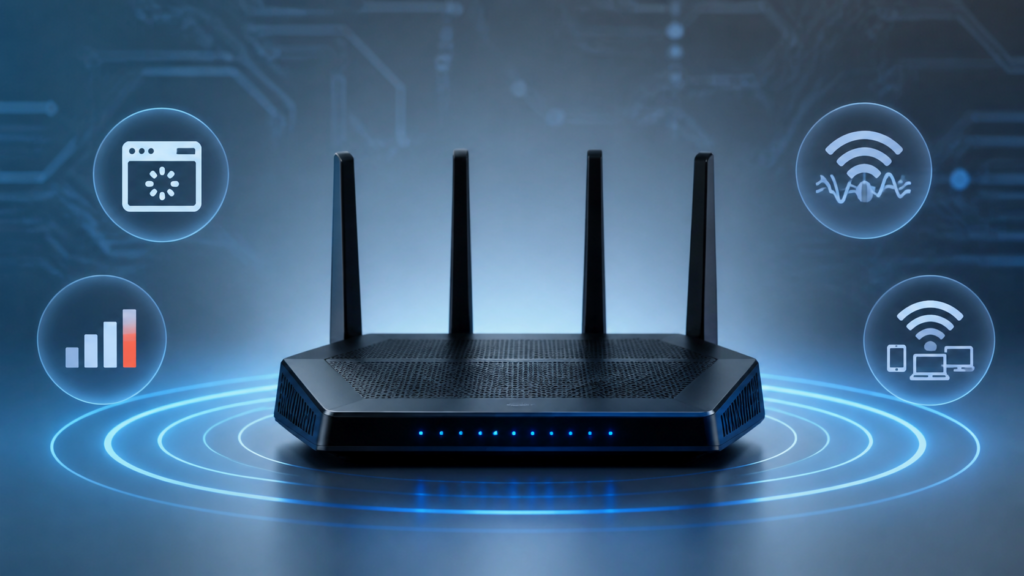
Why Is My Wi-Fi Slow? 8 Common Causes and Fixes
Why Is My Wi-Fi Slow? How to Diagnose and Fix Your Home Internet
Few things are as universally frustrating as a sluggish home network. Whether a web page refuses to load during a remote work meeting, a movie buffers right at the climax, or an online game lags uncontrollably, poor network performance disrupts daily life. If you have ever asked yourself why is my Wi-Fi slow, you are far from alone. Slow speeds can stem from a wide variety of sources, ranging from poor physical router placement to neighborhood bandwidth congestion or even Internet Service Provider throttling.
Diagnosing and fixing a sluggish internet connection does not require an advanced degree in networking. By systematically troubleshooting your hardware, environment, and plan settings, you can often restore your connection to its full potential.
Step 1: Run an Accurate Internet Speed Test
Before you begin moving equipment or calling your provider, you need to establish a baseline of your current performance. A reliable internet speed test measures your actual download speed, upload speed, and ping (latency). To ensure your results are accurate, connect a laptop directly to your router with an Ethernet cable if possible, or stand close to the router for a wireless test. Close out any heavy background downloads or streaming apps before you begin the test.
Compare your test results against the tier you pay for on your monthly bill. If your test results match your plan, but your devices still crawl, the issue is likely local Wi-Fi interference or device-specific congestion rather than your service provider. If your speeds are a fraction of what you pay for, your network hardware or outside line needs attention.
Step 2: Check for Common Hardware and Placement Culprits
Physical obstructions and improper hardware positioning are the leading causes of weak wireless signals in US homes. Understanding how your signal travels helps you optimize your layout for better coverage.
The Importance of Optimal Router Placement
Where you place your equipment matters immensely. Many people hide their routers inside media cabinets, behind heavy furniture, or tucked away in a basement utility closet. However, wireless signals struggle to penetrate thick walls, metal appliances, concrete, and large mirrors.
For the best router placement for whole house coverage, position your equipment in a central location within your home, ideally elevated on a shelf or desk rather than sitting directly on the floor. Keeping the router out in the open allows the radio waves to propagate evenly in all directions.
Clearing the Router Cache
Routers are essentially specialized computers running dedicated operating systems. Over weeks or months of continuous operation, background processes can bog down system memory, leading to sluggish performance or dropped packets. A simple reboot clears the router cache and forces the device to seek out less congested wireless channels.
To perform a clean power cycle:
- Unplug the power cord from the back of your modem and your router.
- Wait approximately 30 to 60 seconds to let the internal capacitors drain completely.
- Plug the modem back in first and wait a minute or two for the connection lights to stabilize.
- Plug the router back in and allow another minute for the wireless broadcast to resume.
Step 3: Analyze Bandwidth and Frequency Bands
Modern home networks typically broadcast two distinct frequency bands: 2.4 GHz and 5 GHz. Knowing the difference between 2.4 and 5 GHz wifi speed can help you assign your household devices to the correct lane.
- 2.4 GHz Band: This frequency offers a wider physical range and penetrates walls better, but it has lower top speeds and is prone to interference from household items like microwaves, Bluetooth devices, and baby monitors.
- 5 GHz Band: This frequency provides much faster data rates, but its shorter waves struggle to travel long distances or pass through solid walls.
If you experience a slow internet connection troubleshooting scenario, make sure stationary devices like smart TVs and desktop computers are connected to the 5 GHz band, while smart home appliances and distant devices utilize the 2.4 GHz band.
Step 4: Investigate Specific Connection Mysteries
Sometimes performance issues affect only a single device or manifest only during specific hours of the day. Pinpointing these patterns helps narrow down the true source of your frustration.
Why Is My Wi-Fi Slow on My Phone Only?
If your laptop or streaming box runs smoothly while your smartphone struggles to load simple text pages, the issue is likely isolated to the phone itself. Try toggling the phone’s Wi-Fi switch off and back on, forgetting the network and reconnecting with your password, or restarting the phone entirely. Occasionally, background software glitches or outdated operating system patches interfere with wireless radio performance on mobile devices.
How to Fix Slow Wi-Fi at Night
If your connection crawls reliably every evening between 7 PM and 11 PM, you are likely experiencing neighborhood congestion. During these peak hours, many people in your local area are streaming movies, playing online games, and downloading large files, which saturates local cable nodes or fiber pathways. While you cannot upgrade neighborhood infrastructure yourself, switching your devices to the 5 GHz band or upgrading your service plan tier can sometimes bypass local bottlenecks.
Why Is My Wi-Fi Signal Keeping Dropping in One Room?
Dead zones happen when distance or physical barriers prevent the wireless signal from reaching specific corners of your home. If a bedroom or home office always suffers from a weak signal, consider whether a wireless extender or upgrading to a modern multi-node mesh network is necessary to bridge the coverage gap.
Why Is My Internet Speed So Slow All of a Sudden?
A sudden drop in performance often points to a temporary service outage from your provider, a failing modem, or a background device downloading a massive software update without your knowledge. Check your device download queues to ensure an automatic operating system update or game patch isn’t hogging your available bandwidth.
Step 5: Assess ISP Performance and Throttling
If you have rebooted your equipment, tested speeds near the router, and still experience poor performance, the issue may lie with your Internet Service Provider (ISP). FCC broadband standards outline expectations for connection reliability, but local infrastructure issues can still degrade service.
Wondering how to check if ISP is throttling my internet? Throttling occurs when a provider intentionally slows down your connection based on the type of data you are using or because you exceeded a soft data cap. You can test for throttling by using a VPN (Virtual Private Network). A VPN encrypts your web traffic so your provider cannot see what websites or services you are accessing. If your speeds improve dramatically while running a speed test through a VPN, your ISP may be throttling specific types of traffic.
Frequently Asked Questions
Why is my Wi-Fi slow even though I pay for fast internet?
Paying for a fast plan does not guarantee fast Wi-Fi at your device. Bottlenecks can occur due to physical distance from the router, thick walls, outdated network hardware, wireless interference from neighboring networks, or too many devices sharing the connection simultaneously.
Does the location of my router really affect internet speed?
Yes, router placement has a massive impact on performance. Wireless signals weaken significantly as they travel through walls, floors, and large metal objects. Placing your router out in the open in a central location maximizes coverage.
How often should I restart my router?
There is no strict rule, but restarting your router and modem once a month is a healthy maintenance habit. It clears out accumulated system cache, drops lingering background errors, and helps the hardware select cleaner wireless channels.
What is the difference between the 2.4 GHz and 5 GHz Wi-Fi bands?
The 2.4 GHz band covers a wider area and penetrates walls easily, but runs at slower speeds. The 5 GHz band delivers much faster speeds but has a shorter range and struggles to pass through solid obstacles.
Can too many connected devices slow down my Wi-Fi?
Yes. Every active smartphone, computer, streaming stick, and smart home appliance consumes a portion of your available bandwidth. When dozens of devices demand data at the same time, network congestion slows down response times for everyone.
How do I know if my router is too old?
If your router is more than five to seven years old, it likely lacks support for modern wireless standards like Wi-Fi 6. Older hardware struggles to handle multi-gigabit speeds and heavy multi-device households efficiently.
Should I use a Wi-Fi extender or a mesh system?
Traditional Wi-Fi extenders repeat the existing signal, which often cuts your wireless speed in half. Mesh systems use multiple interconnected nodes to blanket your entire home in strong, seamless coverage without sacrificing speed, making them ideal for larger US homes.
Pingback: How to Transfer Photos from iPhone to Windows PC: 5 Ways