How to Change Default Apps in Windows 11 (Full Guide)
Few things are more annoying than double-clicking a photo and watching it open in an app you never use, or clicking a link in a document and seeing the wrong browser launch. Learning how to change default apps in Windows 11 puts you back in control — the operating system lets you decide exactly which program opens every file type, link, and protocol on your PC. The process is more granular than it was in older versions of Windows, but once you know where to look, it takes only a minute or two. This guide walks through every method, from the Settings app to right-click shortcuts, plus what to do when Windows refuses to save your choices.
Key Takeaways
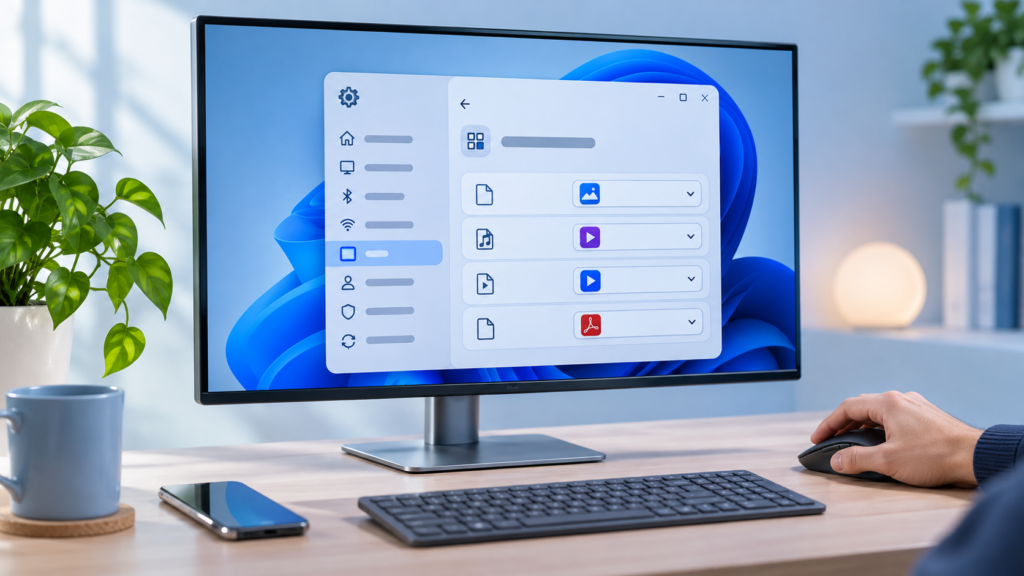
- All default app controls live in Settings > Apps > Default apps — open it via Start search or the ms-settings:defaultapps command
- Search a file extension like .pdf or a link type like mailto to change file associations in seconds
- A “Set default” button assigns your browser to HTTP, HTTPS, .htm, and .html with one click
- Right-click a file and use Open with or Properties to change its default app without opening Settings
- Defaults that won’t stick are usually caused by Windows updates, app updates, or per-user account settings
Accessing the Default Apps Settings in Windows 11
Everything related to file type associations now lives on one page in the Settings app. The old “Default Programs” panel in Control Panel redirects here, so Settings is the only place you need to go. There are three quick ways to open the page:
- Click the Start button, then Settings, and go to Apps > Default apps.
- Alternatively, open Start and type default apps, then click the Default apps system settings result.
- For the fastest route, press Windows key + R, type
ms-settings:defaultapps, and press Enter.
Once the page loads, you’ll see a search box at the top for file types and link types, followed by a list of installed apps under “Set defaults for applications.” Scroll to the bottom and you’ll also find links to browse complete lists of file types and link types, plus a button that resets everything to Microsoft’s recommended defaults.
One thing worth knowing upfront: default apps are stored per user account. If several people share your PC, each person needs to set their own defaults after signing in — changing them on your account won’t affect anyone else’s.
How to Set Default Apps by File Type or Link Type
The search box at the top of the Default apps page is the quickest way to change file associations in Windows 11. Instead of hunting through app lists, you tell Windows exactly which extension or protocol you want to reassign.
- Open Settings > Apps > Default apps.
- Click the search box labeled for entering a file type or link type.
- Type the extension, including the dot — for example, .pdf, .jpg, or .mp4. For link types, type the protocol name such as mailto or HTTP.
- Windows shows the app currently assigned to that type. Click it.
- In the dialog that appears, select the app you want to use instead and confirm.
Practical examples: search .pdf and switch it from Microsoft Edge to Adobe Acrobat Reader if you prefer a dedicated PDF viewer. Search mailto to set your default email app — clicking an email link anywhere in Windows will then launch Outlook or whichever mail client you choose. Search .mp4 to send video files to VLC instead of Media Player.
If you’d rather browse than search, scroll to the bottom of the Default apps page and click Choose defaults by file type. This opens a long alphabetical list of every registered extension on your system; click the app icon next to any extension to change it. The Choose defaults by link type list works the same way for protocols.
Keep in mind that an app can only appear in the picker if it’s installed and has registered itself as capable of handling that type. If your preferred program doesn’t show up, it may need to be reinstalled or updated — more on that in the troubleshooting section below.
How to Set Defaults by App Instead of File Type
Searching by extension is great for one-off changes, but sometimes you want to see everything a single program can handle. This is especially useful right after installing a new app — for example, a media player like VLC that supports dozens of formats.
- Go to Settings > Apps > Default apps.
- Scroll through the app list, or use the search box under “Set defaults for applications” to find the app by name.
- Click the app’s entry to open its defaults page.
- You’ll see a list of every file type and link type the app can handle, along with the program currently assigned to each. Click any entry to reassign it to your chosen app.
For some apps — particularly browsers — a Set default button appears at the top of this page, letting you claim the most common types in one click. Most other apps don’t offer this button, so you’ll need to click each file type individually. It’s more tedious than the Windows 10 approach, but it also prevents apps from silently grabbing dozens of associations without your knowledge.
A sensible workflow is to set defaults by app for programs you want handling many formats, then use the file type search to fix the handful of extensions where you want a different tool — say, keeping Photoshop for .psd files while Photos handles everyday .jpg and .png images.
How to Change the Default Web Browser in Windows 11
Changing your default browser is the most common reason people visit this page, and it’s the task that changed most compared with Windows 10. A browser isn’t a single file association — it’s responsible for the HTTP and HTTPS protocols plus extensions like .htm, .html, .svg, and more.
Here’s the fastest method on current versions of Windows 11:
- Install the browser you want to use — Chrome, Firefox, Brave, or any other.
- Open Settings > Apps > Default apps.
- Find and click your browser in the app list.
- At the top of the page, click the Set default button. This assigns HTTP, HTTPS, .htm, and .html to your browser in one step.
If you don’t see a Set default button, click each entry on the browser’s page — HTTP, HTTPS, .htm, and .html — and select your browser for each one. It takes a few extra clicks but achieves the same result.
Two quirks are worth knowing. First, the Set default button typically doesn’t cover PDF files, so Edge may remain your default PDF viewer even after switching browsers — search .pdf separately if you want to change that too. Second, certain Windows features such as links in the Widgets board can still open in Edge regardless of your choice, because Microsoft hardcodes some system surfaces to its own browser.
Finally, when Chrome or Firefox asks to become your default and you click “yes,” it will usually open this same Settings page rather than flipping the switch itself. That’s by design — Windows requires you to confirm default apps yourself — so just click Set default when the page opens.
How to Change Default Apps Using the Open With Menu and File Properties
You don’t always need the Settings app. If a file is right in front of you, File Explorer offers two shortcuts that change file associations just as effectively.
Using the Open With Menu
- Right-click the file and hover over Open with.
- If your desired app appears in the submenu, click it — but note this opens the file once without changing the default.
- To set a permanent default, click Choose another app instead.
- Select the app from the dialog, then click Always to make it the default for that extension, or Just once for a single use. On some builds you’ll see a checkbox labeled “Always use this app to open” the file type — tick it before clicking OK.
If none of the listed apps fit, the Open With dialog also lets you browse your PC for a program’s executable or search the Microsoft Store for compatible software.
Using File Properties
- Right-click the file and choose Properties.
- On the General tab, look for the Opens with line and click Change.
- Pick the app you want, then click OK or Apply.
Both methods carry one important caveat: they change the association for every file with that extension, not just the file you right-clicked. Choosing “Always” for a single .jpg means all .jpg files open in that app from now on. Beginners often miss this and are surprised later — if you only want a one-time exception, use “Just once” or pick the app from the Open with submenu directly.
How to Reset Default Apps to Microsoft Recommended Settings
If your associations have become a tangled mess — or you simply want a clean slate — Windows 11 includes a single reset option that restores Microsoft’s recommended defaults in one click.
- Open Settings > Apps > Default apps.
- Scroll to the bottom of the page.
- Next to Reset all default apps, click the Reset button.
This returns file and link associations to Microsoft’s own apps — Edge for browsing and PDFs, Photos for images, Media Player for music and video, and Outlook for email links — for your user account only. It doesn’t uninstall or damage any third-party apps; they simply lose their file associations until you reassign them.
The reset is genuinely useful in two situations: when you’re troubleshooting strange behavior (files opening in random programs, or associations that refuse to change), and when you’re setting up a fresh account and want to start from a known baseline before customizing.
Troubleshooting: When Windows 11 Won’t Save Your Default App Choices
Most default-app problems trace back to a handful of causes. Here’s why defaults get changed or refused, and how to fix each situation.
Why Your Defaults Keep Reverting
- Windows updates: Feature updates occasionally rebuild file association data, which can flip some types back to Microsoft apps. Re-set your defaults after major updates.
- App updates: When a program updates, it may re-register its file types or prompt you to claim defaults again. Some apps are aggressive about this.
- Per-user accounts: Defaults apply per account. If you sign into a different profile — or Windows creates a temporary one after a glitch — you’ll see fresh defaults.
- Apps can’t set themselves: Windows deliberately prevents programs from hijacking associations. If an app’s “make default” button seems to do nothing beyond opening Settings, that’s normal — confirm the change yourself on the page it opens.
Fixes to Try
If your choice won’t stick, set it via the file type search method described above — it’s the most reliable path because you’re editing the association directly rather than relying on an app’s request. Restart the PC afterward so the change registers everywhere.
If your preferred app doesn’t appear in the picker at all, it likely hasn’t registered for that file type. Reinstalling or repairing the app usually fixes this; as a workaround, use Open with > Choose another app and browse to the program’s .exe file to create the association manually.
On work or school devices, your organization may enforce default apps through management policies — in that case no setting on your end will override it, and you’ll need to ask your IT administrator. For stubborn system-level corruption, reset everything to Microsoft recommended defaults first, then rebuild your preferences on top. If you plan to dig deeper into system files or the registry, create a system restore point first so you can roll back if something goes wrong.
Finally, Windows occasionally nudges you to switch back to Edge or Microsoft’s recommended settings. These are suggestions, not errors — but if they get tiresome, disabling Windows tips and suggestions cuts down on the prompts. For issues that persist beyond this guide, Microsoft’s official Windows support site is the best escalation path.
Frequently Asked Questions
Why does Windows 11 keep changing my default apps back?
The usual culprits are Windows feature updates and app updates, which can rebuild file association data or re-register file types. Defaults are also stored per user account, so signing into a different profile shows different settings. Re-set your choices using the file type search in Settings > Apps > Default apps after any major update.
Can I set default apps for all users on the PC at once?
Not through the Settings app — defaults are per user, so each account configures its own. Administrators on managed machines can export a default associations XML file and deploy it via DISM or group policy, but there’s no simple toggle for everyday multi-user PCs.
Do I need administrator rights to change default apps?
No. Changing which app opens a file type on your own account requires no admin approval. However, installing a new program to use as the default — say, a different browser or PDF reader — typically does require administrator permission.
Take Control of Your Default Apps
Windows 11’s approach to default apps is more deliberate than older versions, but it gives you precise control once you learn the two core methods: searching by file type for quick fixes, and browsing by app when you want to claim many associations at once. Pair those with the right-click Open With shortcut and the reset button, and you can handle any file association scenario — and troubleshoot it when Windows pushes back.
Once your files open the way you want, it’s worth exploring other ways to shape Windows around how you work, such as customizing your Windows 11 taskbar for faster access to the apps you just set as defaults.