How to Split Screen on Android: Full Step-by-Step Guide
Learning how to split screen on Android lets you view and use two compatible apps at the same time. You can read a message while checking a calendar, watch a video while browsing, or compare information without repeatedly switching between apps. The exact controls vary between standard Android phones, Samsung Galaxy devices, tablets, and foldables, but the basic process usually starts from the recent apps screen.
This guide explains how to start Android split screen mode, resize each window, switch apps, leave the layout, and fix common problems when the option is missing or unavailable.
Key Takeaways
- Check whether your phone and both apps support split screen before troubleshooting the controls.
- Use the recent apps screen to open two apps at once on most Android phones.
- Look for the app icon, app menu, or a manufacturer-specific gesture when the standard method differs.
- Drag the divider to resize split-screen windows and use the active app controls to manage them.
- Restart, update, and test different apps when split screen is missing, disabled, or unstable.
1. Check Android Split-Screen Compatibility and Prepare Your Apps
Before trying to activate split screen, confirm that your device supports the feature and that both apps are suitable for a two-window layout. Android split screen is widely available on modern phones and tablets, but support can vary by Android version, device manufacturer, screen size, and software configuration.
Some apps deliberately prevent themselves from opening in split screen. Games, camera apps, authentication screens, banking apps, and apps that require the full display may behave this way. An app can also open in split screen but have a poor layout, with buttons hidden, text compressed, or video playback paused.
Check device and app support
- Install any pending Android system updates offered by your device.
- Update the two apps through the official app store.
- Open each app normally once to confirm that it works correctly.
- Choose apps that benefit from a larger shared workspace, such as a browser and notes app.
- Close apps you do not need so the recent apps screen is easier to navigate.
You do not usually need to enable a separate “split screen” setting first. On many devices, the option appears when you open the overview or recent apps screen and tap an app’s icon. However, some manufacturers add their own multitasking tools, so the labels and gestures may differ.
Prepare the right app combination
For a simple test, try a browser with a notes app, email with a calendar, or a messaging app with a calculator. These combinations are more likely to support multitasking than apps that use the entire display for games or immersive media.
If one app refuses to join the layout, test another app before assuming your phone is malfunctioning. This distinction matters: an unsupported app affects only that app, while a device-level problem usually affects many different app combinations.
Split screen can also use more memory, processing power, and battery than displaying one app. If apps repeatedly reload or close, close unnecessary background apps and try a less demanding combination. For additional background-app guidance, see how to stop apps from running in the background on Android.
2. Open Two Apps in Split-Screen Mode Using Recent Apps
The recent apps screen, also called the overview screen, is the most generally applicable way to start Android split screen mode. The buttons may look different depending on whether your phone uses three-button navigation, two-button navigation, or gesture navigation, but the basic idea is the same.
Start split screen from the recent apps screen
- Open the first app you want to use.
- Open the recent apps screen. With gesture navigation, swipe up from the bottom and hold briefly. With navigation buttons, tap the overview or recent apps button, if available.
- Find the first app in the list of recent apps.
- Tap the app’s icon at the top of its preview card. Do not tap the large preview itself yet.
- Choose the option labeled Split screen, Open in split screen view, or similar wording.
- Select the second app from the recent apps list, or choose another app from the app list if your device presents one.
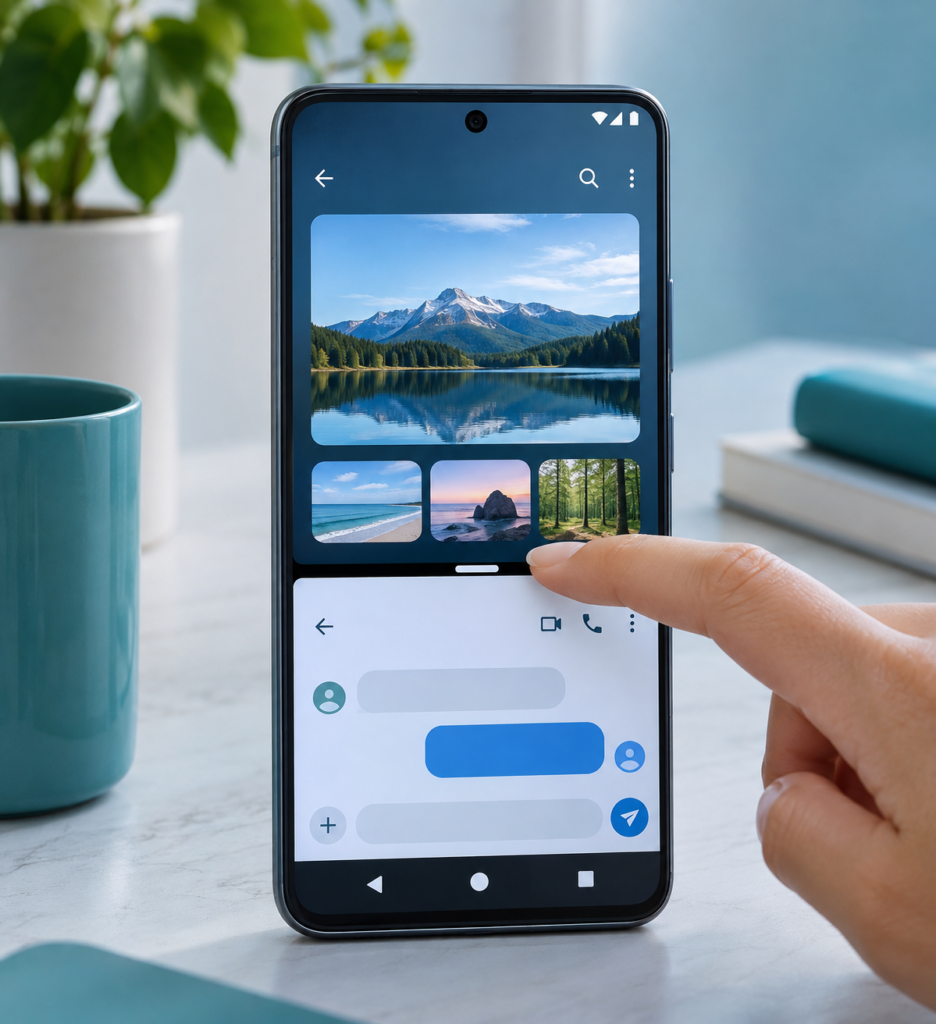
Once the second app opens, the display will show both apps separated by a divider. On a phone held vertically, the windows commonly appear one above the other. Rotating the device may place them side by side, although this depends on the device and the apps.
If you do not see a split-screen command after tapping the app icon, look for a menu button or a three-dot control. Some Android interfaces put multitasking commands inside that menu rather than displaying them directly.
Choose the second app carefully
The second app may appear in the recent apps carousel, but it does not have to be one you used immediately before. On some phones, you can scroll through recent apps and select one. Other interfaces show an app drawer or a searchable list after you activate the first half of split screen.
If the first app disappears when you select the second one, repeat the process more slowly. Make sure you selected the split-screen command rather than simply reopening the app. The first app should remain in one portion of the display while you choose its companion.
Split screen is different from simply switching between recent apps. Switching shows one app at a time, while split screen keeps both app windows visible and lets you interact with either one.
3. Use Gestures or App Icons to Activate Split Screen on Different Android Phones
Android manufacturers often customize multitasking controls. The standard recent-apps method is a good starting point, but a Samsung Galaxy phone, a phone using gesture navigation, and an Android tablet may expose the feature in slightly different places.
Use gesture navigation
On phones with gesture navigation, swipe upward from the bottom edge and pause until the recent apps cards appear. Then tap the icon for the app you want to keep on screen and select the split-screen command if it is offered.
A quick swipe without pausing usually takes you to the home screen instead of opening the overview screen. Begin the gesture at the bottom edge, move upward slowly, and hold for a moment. If the gesture still does not work, check whether your phone uses navigation buttons instead.
Use navigation buttons
With three-button navigation, tap the overview button, which is often represented by a square or three vertical lines. Locate the first app, tap its icon, and choose the split-screen option. The wording and icon design can differ, so focus on the command associated with displaying two apps rather than on a particular symbol.
Some devices with older navigation layouts may use a long press on the overview button to start split screen. This behavior is not universal, so if holding the button does nothing, use the app icon menu in the recent apps screen instead.
Use Samsung split screen controls
On many Samsung Galaxy devices, open the recent apps screen, tap the icon above an app preview, and choose Open in split screen view or a similarly named command. Select the second app when prompted. Samsung may also provide additional multitasking tools through Edge panels or a taskbar on supported devices.
Samsung’s software can offer app pairs, which save two apps together for quick future access. The exact availability and location of app-pair controls depend on the Galaxy model and software interface. If you do not see an app-pair option, you can still start the two apps manually through recent apps.
Try the app icon menu
When an app is open, return to the recent apps screen and press its icon rather than the middle of the preview. A menu may contain commands such as app information, lock, open in pop-up view, or split screen. Choose only the split-screen command; pop-up view creates a floating window and is a different multitasking mode.
Not every device exposes the same menu. If tapping an icon only opens the app, try tapping the small icon above the card, opening the app’s three-dot menu, or checking the manufacturer’s multitasking settings. Avoid changing advanced developer settings just to find split screen because those settings can affect other device behavior.
4. Resize, Switch, and Manage Apps in the Split-Screen Layout
After two apps are open, the divider between them controls how much space each app receives. Learning to manage that divider makes multitasking more practical, especially on a small phone display.
Resize split-screen windows
- Locate the horizontal or vertical divider between the two apps.
- Touch and hold the divider handle or line.
- Drag it toward the app that needs less space.
- Release it when the other app has enough room to use comfortably.
On a portrait-oriented phone, dragging the divider upward gives the lower app more space, while dragging it downward gives the upper app more space. In landscape orientation, the divider usually moves left or right. Some devices offer only a few predefined proportions instead of completely free resizing.
If the divider will not move, touch the center of the divider rather than the edge of an app window. A thick case or screen protector can sometimes make edge gestures less reliable. Rotate the device once and try again if the layout appears stuck.
Switch between the two apps
Tap anywhere inside the app you want to use. The selected app becomes active, allowing you to scroll, type, tap buttons, or play supported media. You can usually interact with only one app at a time, so tapping the other window moves focus to it.
The keyboard may temporarily cover part of the layout when you type. This is normal. Tap a blank area, use the keyboard’s close control, or press the back gesture once if you need to see more of both windows. Be careful with repeated back presses because the back command may navigate inside the active app or eventually close it.
Replace one app without closing both
Some Android interfaces let you replace one half of the layout by opening the recent apps screen and selecting another app. The existing app may stay in place while the new app takes over the other half. If that does not work on your device, exit split screen and start again with the app you want to replace.
When you need to copy information between apps, use the normal copy-and-paste commands. For example, you can copy a tracking number from email and paste it into a browser while both apps remain visible. Some apps support drag-and-drop, but this is not available in every app combination or on every Android device.
Save frequent app combinations when available
Samsung and some other Android interfaces may let you save frequently used pairs as an app pair or shortcut. This is useful for combinations such as a calendar and email app or a browser and notes app. If your phone does not offer this feature, there is no problem with creating the layout manually through recent apps.
Do not confuse an app pair with a folder on the home screen. A folder groups app icons, while an app pair launches two apps together in a multitasking layout. The option may also disappear after a system update or may be limited to certain device types.
5. Exit Split Screen and Return to a Single-App View
When you finish multitasking, you can return to the normal single-app view by moving the divider completely toward one app. This method is generally faster than opening a settings menu.
Close one side of the layout
- Touch and hold the divider between the two apps.
- Drag it all the way toward the app you want to close.
- Release the divider when the other app fills the display.
On some devices, the divider includes a close control or handle that you can drag to the top, bottom, left, or right edge. The app on the side receiving the divider is usually dismissed from the split-screen session, while the other app remains open.
You can also press the home button or swipe to the home screen. This ends the visible split-screen layout, but both apps may remain in the recent apps list. If you return to the recent apps screen later, the device may restore the previous pair or show each app separately.
Close both apps completely
If you want to end the session and remove both apps from recent use, open the recent apps screen and swipe the app cards away. Some devices also provide a Close all command. Use it only when appropriate, since clearing every recent app can make it slower to return to your normal work.
Closing recent apps is not usually required simply because you used split screen. Android manages memory automatically, and repeatedly force-closing apps can be less convenient than leaving frequently used apps available. If a particular app is frozen or repeatedly crashes, use the app’s normal troubleshooting steps instead. You can also review why apps keep crashing on Android and how to fix them.
6. Troubleshoot Missing, Unavailable, or Broken Split-Screen Options
The split-screen command can be missing for several reasons. The app may not support multitasking, the device may be using a restricted interface, or the recent apps screen may not be showing the correct menu. Work through the following checks before changing advanced settings.
The split-screen option is missing
- Open the recent apps screen and tap the app icon above the preview, not the preview itself.
- Look inside a three-dot or more-options menu.
- Try a different app combination, such as a browser and notes app.
- Restart the phone and test again.
- Install available system and app updates.
- Check the manufacturer’s support documentation for its multitasking controls.
If split screen works with one app but not another, the second app is probably restricting the feature. This is common with apps that need exclusive access to the camera, display, security controls, or a full-screen interface.
An app will not enter split screen
Some apps are designed to work only in a single window. You may see no split-screen command, or the command may appear but fail when selected. Try updating the app and testing it with a different partner, but do not assume there is a phone setting that can make every app compatible.
Videos and games can also behave differently after entering split screen. A video may pause, switch to a smaller player, or refuse to resize. This is controlled by the app and its support for Android’s windowing behavior.
Split screen keeps closing or apps reload
First, reduce the workload. Close other demanding apps, lower the number of browser tabs, and try two lightweight apps. A phone with limited available memory may reload an app when you switch between windows, particularly if one app is processing video or using a large webpage.
Make sure the phone is not overheating or nearly out of storage. Installing system updates can also resolve stability problems, but update behavior differs by manufacturer. If the problem affects many apps, restart the device and check whether normal single-app use is also unstable.
If the display rotates unexpectedly, turn off automatic rotation temporarily and keep the phone in the orientation that gives you the best layout. Rotation support is controlled by both the device and the apps, so a particular combination may not maintain the same arrangement in portrait and landscape.
The divider or touch controls do not work
Clean and dry the screen, remove anything that interferes with edge touches, and try touching the divider handle directly. If other parts of the display also fail to respond, the issue may be related to the screen or touch layer rather than split screen itself.
Check whether an accessibility feature, screen overlay, or floating tool is covering the controls. Temporarily close overlays and test again. Avoid installing third-party multitasking tools until you have confirmed that the built-in feature is unavailable, because additional overlay apps can create new touch and performance problems.
7. Use Split Screen Effectively on Android Tablets and Foldable Devices
Android tablets and foldable phones generally provide more room for multitasking than standard phones. Their larger displays make it easier to read both windows, resize apps, and work in landscape orientation. The steps still commonly begin with recent apps, but some devices add a taskbar, persistent dock, or dedicated multitasking controls.
Split screen on Android tablets
On a tablet, open the first app and display the recent apps or overview screen. Tap the app icon and choose the split-screen command, then select the second app. Depending on the tablet interface, you may also be able to drag an app from a taskbar or dock to one side of the display.
Use landscape orientation when both apps contain wide content, such as a spreadsheet and a browser. Portrait orientation can be better for reading an article while keeping a narrow notes window visible. Move the divider until text and controls are large enough to use without constant zooming.
Tablet interfaces may support additional window arrangements, including floating windows or multiple app pairs. These are not identical to standard Android split screen, so use the layout that keeps the controls accessible and does not make either app too cramped.
Split screen on foldable phones
Foldable devices can offer a larger inner screen for two apps, while the outer screen may behave more like a conventional phone. Open split screen on the larger display when possible, then rotate or fold the device only after both apps are loaded. Changing the device’s shape can cause apps to resize, reload, or leave the layout.
Some foldables provide manufacturer-specific app pairs, taskbars, or drag-and-drop shortcuts. These features can make it quicker to launch common combinations, but availability varies by model. If a saved pair does not open correctly, remove it and create the layout again manually.
Make larger-screen multitasking more comfortable
- Use a stable orientation instead of repeatedly rotating the device.
- Give the app that needs the most reading or typing space the larger portion.
- Use a keyboard or stylus if the device supports one and you are doing extended work.
- Save app pairs only for combinations you use regularly.
- Keep sensitive information private when two apps are visible in public.
Split screen is convenient, but it can expose information from both apps at the same time. Be careful when opening messages, financial information, passwords, or authentication codes in a public place. Close the layout or return to a single app before handing the device to someone else.
Frequently Asked Questions
Does every Android phone support split screen?
No. Support depends on the Android version, phone manufacturer, screen size, and software configuration. Even when the phone supports split screen, individual apps can block the feature or provide a limited layout.
Why can’t I split screen two apps?
One or both apps may not support split screen, or the command may be hidden in the app icon menu on the recent apps screen. Test a browser with a notes app, restart the phone, update the software, and check whether the option appears for other app combinations.
Can I use three apps in split screen?
Standard Android split screen normally displays two apps. Some tablets, Samsung devices, and foldables offer additional floating-window or multi-window features, but those are manufacturer-specific and may not work like three equal split-screen panels.
Conclusion
To split the screen on most Android phones, open the first app, go to the recent apps screen, tap its app icon, choose the split-screen command, and select a second app. From there, drag the divider to resize the windows, tap either app to switch focus, and move the divider to an edge when you want to return to a single-app view.
If the option is unavailable, test different apps before changing advanced settings. Updates, a restart, and a lightweight app combination often identify whether the problem is caused by the device or by an app that does not support Android split screen.