
Why Does My WiFi Keep Disconnecting? 8 Causes and Fixes
If you keep asking why does my WiFi keep disconnecting, the cause is almost always one of eight things: a router that needs a restart, a weak signal, interference, too many devices, a provider or modem fault, a glitchy phone or laptop, a Windows adapter setting, or outdated router firmware. If every device in your home drops, start at the top of this list. If only one phone, laptop or PC drops, jump to items 6 and 7.
A connection that cuts out for a few seconds and then returns is hard to pin down. A video call freezes, a game lags, or your phone says it is connected while nothing loads. The causes range from a dusty router to a power-saving checkbox, so random guessing can eat a whole evening.
This guide orders the eight fixes from easiest to hardest, so you can stop the moment the connection holds. Each item shows what the problem looks like and gives exact steps for routers, phones and Windows PCs. Today Tech Tips writes these walkthroughs for everyday users, not network engineers.
1. Restart your router and modem
What it looks like
Routers often run for weeks without a break. That is how small software glitches and memory problems pile up until the connection starts dropping. A router stuffed in a closed cabinet or a dusty corner can also overheat, and a hot router drops connections. Check for these signs:
- Every device drops, not just one.
- Wi-Fi works again for a while after you unplug the router.
- The router feels hot or sits on carpet or in a cabinet with no airflow.
- The drops got worse gradually over weeks.
Restarting the modem and then the router rules out the cheapest cause in about five minutes.
How to fix it
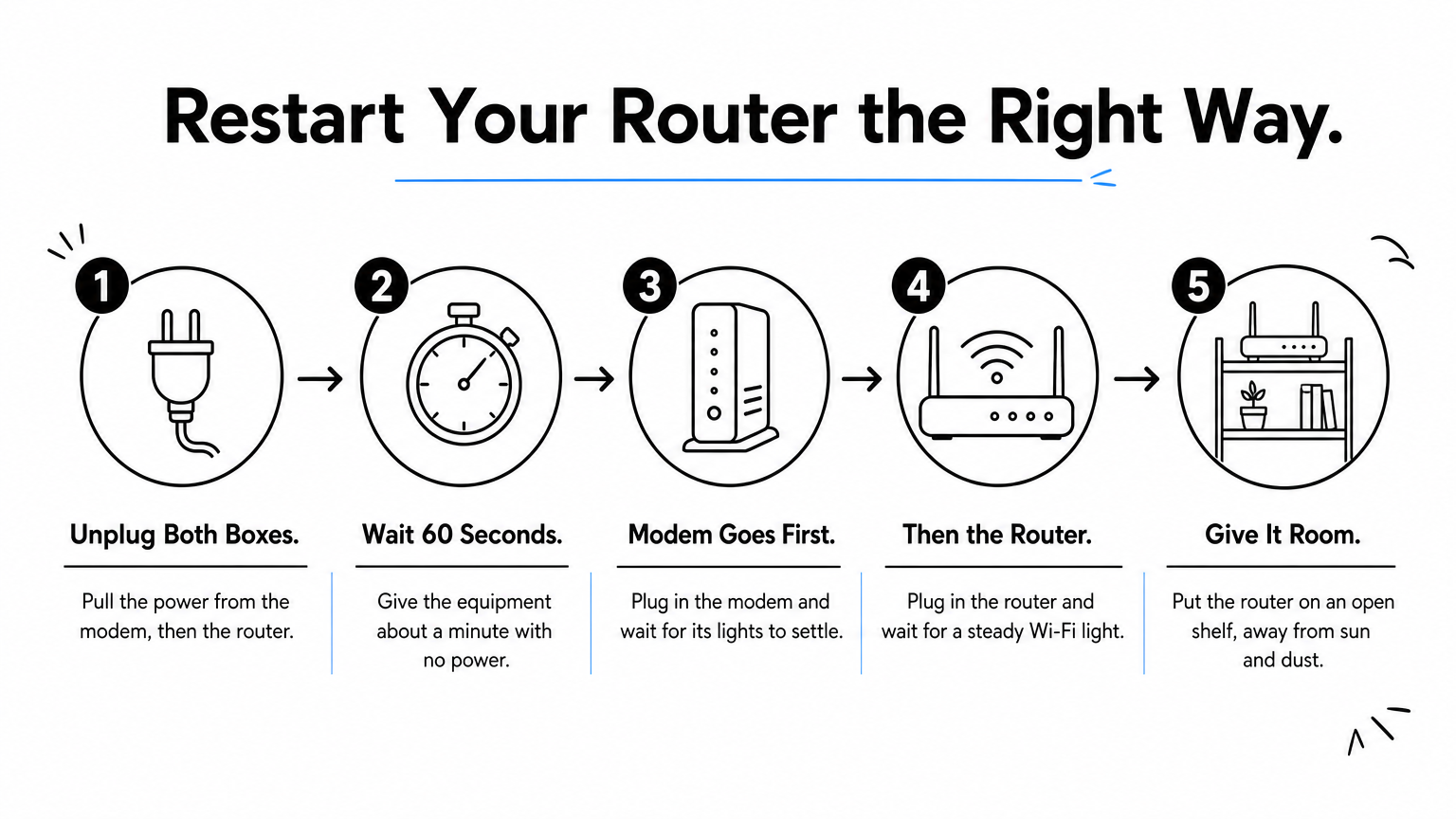
Power cycle the equipment in the right order. Restart the modem first, then the router, because the router needs a working modem connection to start cleanly. Do not press the small reset button on the back. That wipes your settings and your Wi-Fi password, and it is not the same as a restart.
- Unplug the power cable from the modem, then from the router. If you have one combined gateway from your provider, unplug that single box.
- Wait about 60 seconds.
- Plug the modem in and wait until its lights settle, which can take a few minutes.
- Plug the router in and wait for the Wi-Fi light to come on steady.
- Move the router to an open shelf, away from radiators, direct sun and dust, and wipe its vents.
2. Fix a weak signal and bad router placement
What it looks like
Wi-Fi gets weaker with distance and with every wall it crosses. Dense materials hurt the most, and a router tucked in a corner or behind furniture wastes much of its range. The telltale sign is a connection that holds near the router and drops in certain rooms, such as an upstairs bedroom or a home office at the far end of the house.
| Obstruction | Why it hurts | What to do |
|---|---|---|
| Concrete, brick or stone walls and floors | Absorb a large share of the signal | Keep the router on the same floor as your main devices |
| Metal furniture, appliances and cabinets | Block and reflect the signal | Never place the router behind or inside them |
| Tile in kitchens and bathrooms | Dense material that weakens the signal | Keep the router out of those rooms |
| Fish tanks and other large bodies of water | Water absorbs Wi-Fi signal | Keep the router well away |
| Mirrors | Reflect the signal | Avoid placing the router next to them |
A router in the middle of your home, up on a shelf, beats the same router in a corner on the floor.
How to fix it
Placement costs nothing, so try it before you buy anything. Walk through your home with your phone and watch the signal bars to find where the connection weakens. Then move the router toward the center of the space you use most, raised and in the open.
- Put the router at shelf height or higher, not on the floor and not inside a cabinet.
- Keep it away from metal objects, mirrors, tile and water.
- Test the rooms that dropped before. If one still fails, add a mesh system, or place a Wi-Fi extender about halfway between the router and the weak spot.
- For a desktop, console or TV in a far room, run an Ethernet cable instead and skip Wi-Fi altogether.
3. Reduce interference and crowded channels
What it looks like
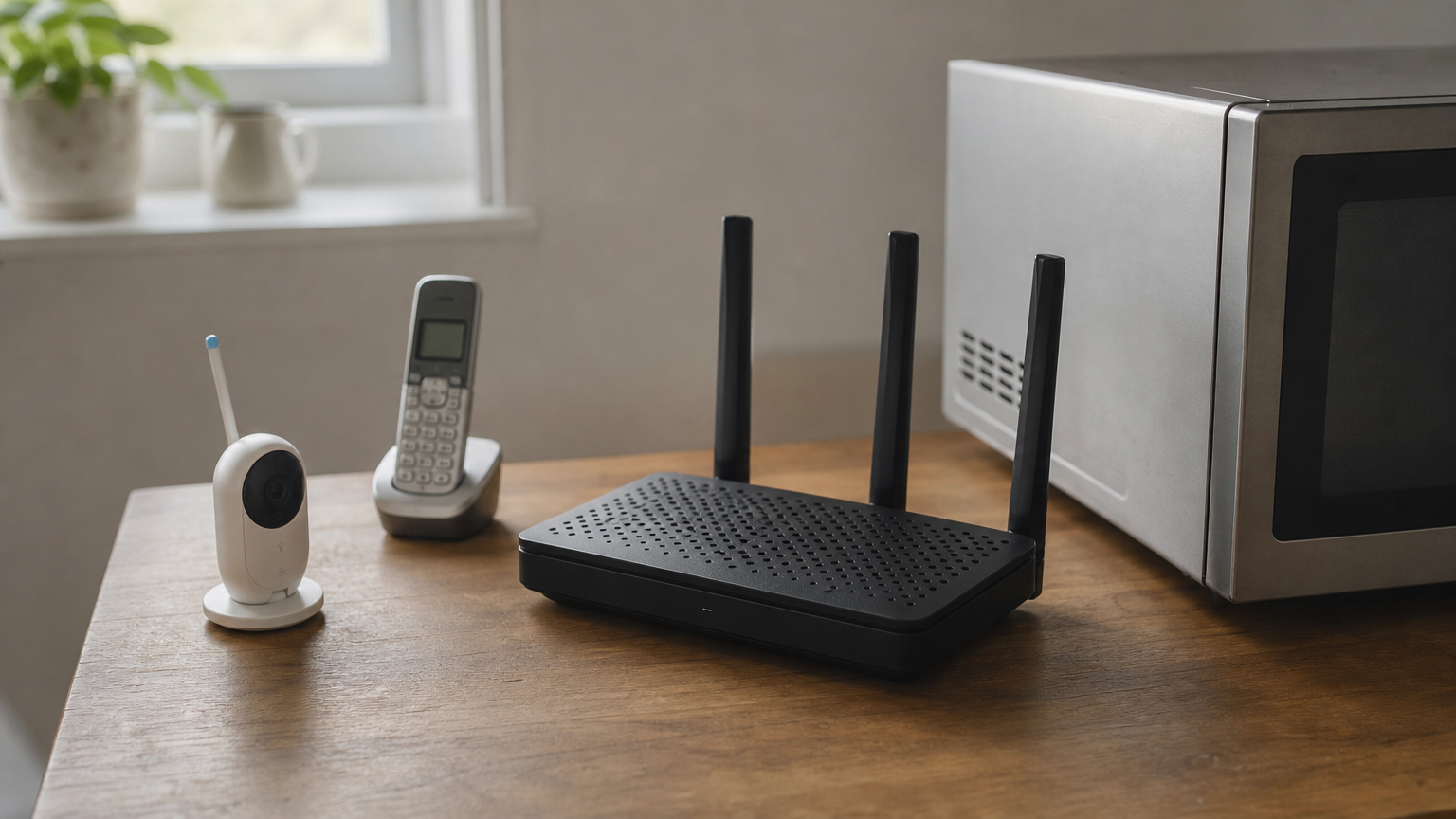
Your router shares its radio space with microwave ovens, cordless phones, baby monitors, Bluetooth gadgets and every neighbor’s router. The 2.4 GHz band is the most crowded. Interference tends to cause short drops that fix themselves, and the connection can fail even when you sit next to the router. If the drops line up with the microwave running or with busy evening hours in an apartment building, interference is a strong suspect.
| Feature | 2.4 GHz | 5 GHz |
|---|---|---|
| Range | Longer, passes through walls better | Shorter |
| Speed | Lower | Higher |
| Interference | Crowded by appliances and neighbors | Fewer sources |
| Best for | Far rooms and many smart home gadgets | Phones, laptops and streaming near the router |
If a short drop happens near the router, suspect interference before you suspect distance.
How to fix it
Move devices that sit close to the router onto 5 GHz, and keep 2.4 GHz for far rooms and gadgets that only support it. On 2.4 GHz, channels 1, 6 and 11 do not overlap, so one of them is usually the cleanest choice. A free Wi-Fi analyzer app on your phone can show which channels your neighbors use.
- Log in to your router. The address, username and password are usually printed on a sticker on the router.
- Open the Wi-Fi or wireless settings.
- Give the 2.4 GHz and 5 GHz bands different names, such as HomeWiFi and HomeWiFi-5G, so you control which one each device joins.
- Set the 2.4 GHz channel to 1, 6 or 11, whichever is least busy.
- Move cordless phone bases, baby monitors and the microwave away from the router.
4. Stop too many devices from crowding your network
What it looks like
Every phone, TV, console, camera and smart plug takes a share of your router’s attention and your plan’s speed. A budget router can struggle with many active devices, and a slow plan can run out of bandwidth for a busy household. Common signs are drops in the evening, during a video call, or when someone starts a big download.
A quick rule of thumb is to reserve about 100 Mbps for each person who uses the internet at the same time, then add it up. A household of four needs about 4 × 100 = 400 Mbps, so a 300 Mbps plan falls short. Treat that as a starting estimate, because light users need less and heavy gamers or 4K streamers need more.
If the drops arrive at the same time every day, look at what else starts at that time.
Think about when the kids get home, when cloud backups run, when game consoles update overnight, and whether your router has a scheduled reboot in its admin page. Provider maintenance windows can also fall at a regular hour.
How to fix it
Lighten the load first, then spend money only if it still fails. Wired connections free up Wi-Fi for everything that has to be wireless.
- Pause large downloads, backups and console updates while you work or play.
- Plug your TV, console and desktop into the router with Ethernet cables.
- Move visitors and smart gadgets to a guest network.
- Check the router’s connected-devices list and remove devices you do not recognize.
- If it still crowds, move to a faster plan or a newer router. Wi-Fi 6 or newer routers handle many devices at once better than older models.
5. Check your provider, modem and cables
What it looks like
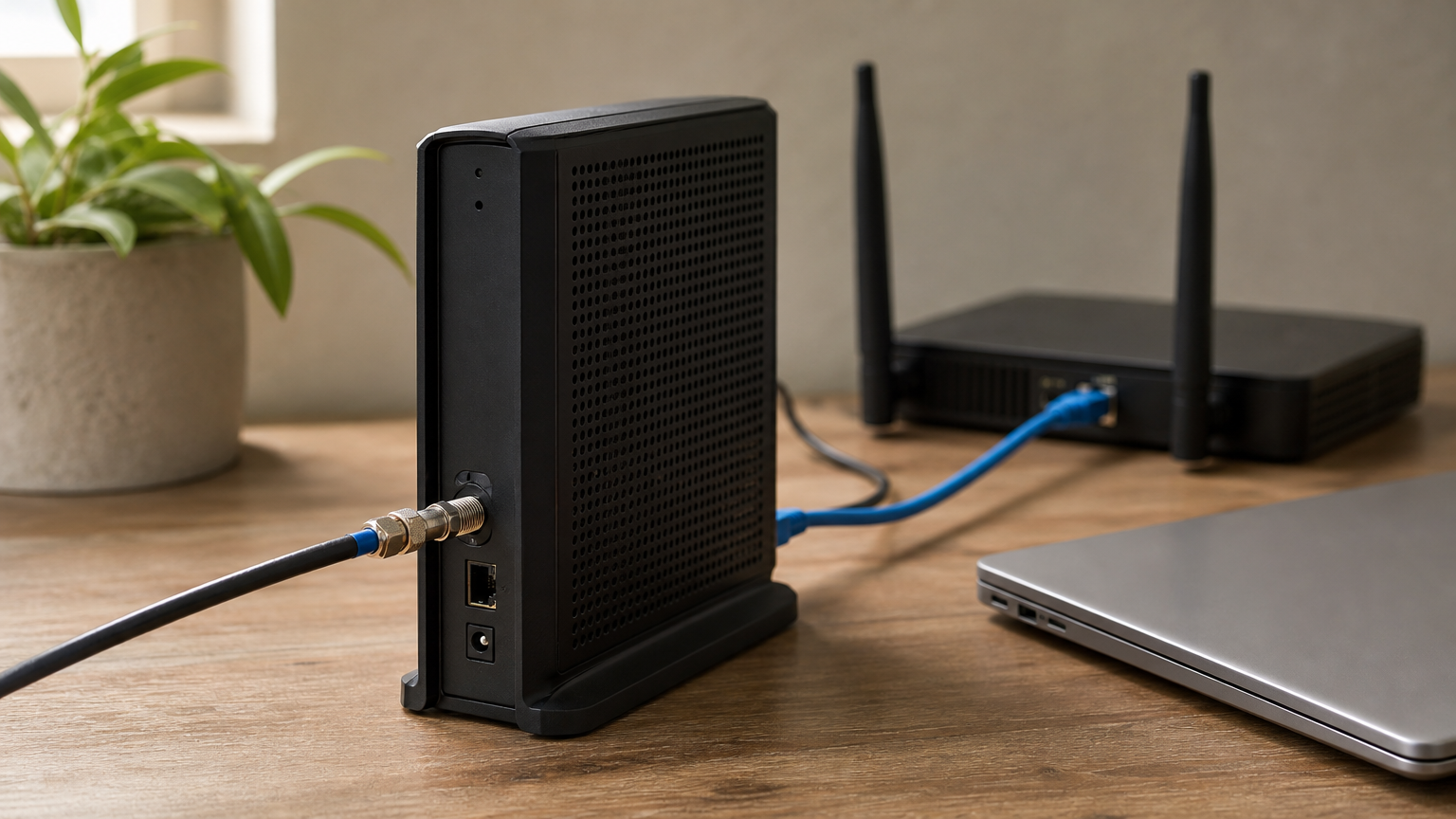
Sometimes Wi-Fi is fine and the internet behind it is not. If your phone says it is connected but nothing loads, or you see "no internet," the problem often sits between your modem and your provider. A quick test settles it: plug a laptop into the router with an Ethernet cable. If the wired connection drops too, Wi-Fi is not the culprit. Look for these signs:
- Every device loses internet at once.
- The modem’s internet or online light blinks, changes color or turns off.
- Your phone on mobile data works while Wi-Fi shows no internet.
- A wired computer drops as well.
A drop that also hits a wired computer is not a Wi-Fi problem, so stop tuning Wi-Fi.
How to fix it
Rule out an outage, then check the physical parts. Damaged or loose cables are a classic cause of intermittent drops because a loose cable can still pass a weak signal until it moves slightly.
- Check your provider’s app, website or status page for outages in your area.
- Make sure coaxial cables are screwed on snugly at the modem and the wall. Ethernet cables should click into place.
- Look for kinks, tears and chew marks, and swap the Ethernet cable between modem and router for a spare.
- Call your provider. Ask them to check your line’s signal levels and to look up past drops at your address.
- If you own your modem, ask whether it is still registered and compatible with your service. If drops continue, request a technician visit.
6. Stop your phone or laptop from hopping networks
What it looks like
When only one device drops, look at that device. Phones and laptops jump between saved networks, bands and mesh nodes whenever the signal dips. You feel that as a few seconds of lost connection followed by a reconnect. A corrupted saved network profile, an outdated operating system, or a VPN or security app that clashes with Wi-Fi can cause the same symptom. Signs include:
- Other devices stay stable while this one drops.
- It drops while you walk around the house.
- The drops began after an operating system update.
- The drops stop when the VPN is off.
If one device drops while everything else stays online, fix the device, not the router.
How to fix it
Work through these steps in order. They apply to iPhone, Android and laptops, though menu names vary a little by version and phone maker.
- Fully restart the device. Do not just put it to sleep.
- Install pending operating system updates.
- Forget the network and rejoin with the password. On iPhone, go to Settings > Wi-Fi, tap the info icon next to the network name, then tap Forget This Network. On Android, go to Settings > Network & internet > Internet, tap the gear next to the network, then choose Forget.
- Forget old saved networks, such as an office, a neighbor’s or an old extender, so the device does not hop to them.
- Turn off your VPN for a test. If the drops stop, update the VPN app or try another server.
- Check the setting that switches to mobile data when Wi-Fi is weak. On iPhone it is Wi-Fi Assist under Cellular. Android phones have a similar option with a name that varies by maker. It can make Wi-Fi look like it is dropping when it is really handing off.
7. Fix Wi-Fi adapter settings on your Windows PC
What it looks like
If a PC loses Wi-Fi while your phone stays connected, the Wi-Fi adapter settings or driver are the usual suspects. Windows can switch the adapter off to save power, and a buggy or outdated driver can drop the connection at random. This is the likely answer to why your PC keeps disconnecting from Wi-Fi. Signs include:
- The laptop drops after waking from sleep or while on battery.
- Windows shows connected but reports no internet.
- Other devices on the same Wi-Fi stay stable.
When a PC drops and a phone does not, the adapter’s power setting and driver come first.
How to fix it
These steps match Windows 11, and each one builds on the last. Try them in order and test the connection after each.
- Turn off adapter power saving. Right-click Start, open Device Manager, expand Network adapters, right-click your Wi-Fi adapter and choose Properties. On the Power Management tab, uncheck "Allow the computer to turn off this device to save power," then click OK.
- Update the driver. In Device Manager, right-click the adapter, choose Update driver, then Search automatically. Windows often says the best driver is already installed, so also check your laptop maker’s support page for a newer one. If the drops began after an update, open the adapter’s Properties, go to the Driver tab and click Roll Back Driver.
- Run the troubleshooter at Settings > System > Troubleshoot > Other troubleshooters, and click Run next to Network and internet.
- As a last step, reset the network at Settings > Network & internet > Advanced network settings > Network reset > Reset now.
Before the reset, keep your Wi-Fi password handy. It removes saved Wi-Fi networks and resets network components, so VPN software may need setting up again.
8. Update router firmware and replace aging gear
What it looks like
Router firmware is the software that runs the device. Outdated firmware leaves bugs unfixed, and an old router may not cope with the number of devices or the speed you now use. A weak Wi-Fi password adds another risk, since strangers on your network use bandwidth. Suspect this when:
- Drops hit all devices with no clear pattern.
- Items 1 through 5 did not help.
- The router is several years old and has never been updated.
- You see unknown devices in the router’s device list.
If a patient pass through items 1 to 7 changed nothing, the router itself is next.
How to fix it
Update first, replace only if drops continue. Never power off the router during a firmware update, because that can leave it unusable.
- Log in to the router, or open its app, and find the firmware or update section. Install any available update.
- Set the security mode to WPA3 if all your devices support it, otherwise WPA2. Use a strong, unique password, then reconnect your devices.
- Remove unknown devices from the connected list.
- If the router is old and still drops, replace it. Choose Wi-Fi 6 or newer, and make sure its ports match your plan, since a router with only Gigabit Ethernet ports cannot carry a 2 Gbps plan.
- If your provider supplied the router, ask them to send a replacement.
Where to go from here
Most drops come down to a short list of causes. If every device drops, work through the restart, placement, interference, congestion and provider checks. If only one device drops, fix the device or the Windows adapter. Go in order, test after each change, and change one thing at a time so you know what worked.
If you finish all eight and the connection still fails, call your provider and ask for a line test or a technician visit, since some faults only show on their equipment. For more step-by-step fixes for routers, phones and smart home gear, browse the Wi-Fi and networking guides at Today Tech Tips.