4 Screenshot Shortcuts in Windows and What Each One Does
The fastest screenshot shortcut in Windows is Win + Shift + S. It lets you drag a box around any part of the screen and copies the result to your clipboard. If you want the whole screen saved as a file with no extra steps, press Win + PrtScn. For the whole screen on the clipboard, use PrtScn. For only the window you are working in, use Alt + PrtScn.
A good pick depends on two questions: how much of the screen you need, and whether you want a file or something to paste. Win + Shift + S suits anyone who wants a cropped, editable shot. Win + PrtScn suits people who take many full-screen captures and want them filed automatically. PrtScn and Alt + PrtScn suit anyone pasting straight into an email, chat or document.
Most people know the Print Screen key, press it, and then wonder where the image went. Nothing appears because that key only copies. This guide covers four shortcuts that work on Windows 10 and 11, with what each one captures, where it saves, and when to use it. A comparison table at the end helps you pick one and stop thinking about it.
1. Win + Shift + S for any part of the screen
Win + Shift + S opens the Snipping Tool overlay so you can capture exactly the area you want and copy it to the clipboard. It is the best all-round choice because you decide what to capture before anything is taken, so there is little to crop afterward.
Win + Shift + S is the one shortcut worth memorizing, because it handles almost every screenshot you will need.
How it works
The screen dims and a small toolbar appears at the top. Pick a mode, then drag or click. The modes are rectangle, freeform, window and full screen.
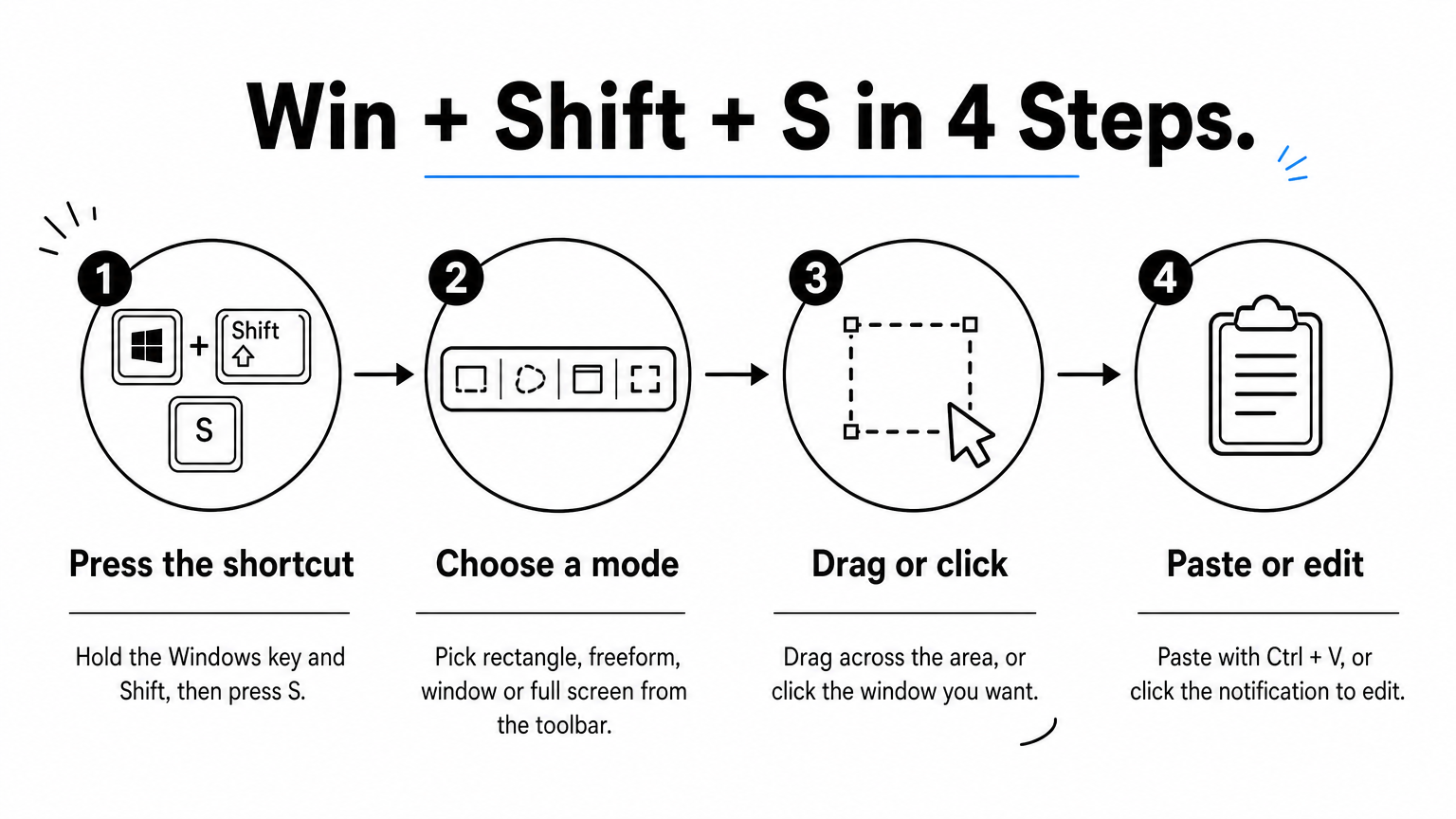
- Press the Windows key + Shift + S.
- Choose a mode from the toolbar.
- Drag across the area, or click the window you want.
- Paste with Ctrl + V, or click the notification that appears to edit the image.
Where it saves and who it suits
The capture goes to your clipboard first. Click the notification and it opens in Snipping Tool, where you can draw, crop and save. Microsoft’s Snipping Tool documentation says snips are saved to your Screenshots folder automatically, and you can change that under the tool’s Settings. On Windows 10 you may need to save manually with Ctrl + S.
This one suits nearly everyone, especially anyone sharing a small piece of a page. On Windows 11, Snipping Tool can also pull text out of an image, and Win + Shift + R records a video clip of a selected area.
2. PrtScn for the whole screen
PrtScn copies your entire screen to the clipboard and does nothing visible. There is no file, no sound and no confirmation. If you use more than one monitor, all displays are captured as one wide image.
PrtScn takes the picture, but you still have to paste it somewhere before it exists as a file.
How it works
The key may be labeled PrtScn, PrtSc or Print Scrn. On some laptops it shares a key with another function, so you may need to hold Fn as well.
- Press PrtScn.
- Open Paint, Word, an email or a chat window.
- Press Ctrl + V to paste.
- In Paint, press Ctrl + S to save it as a file.
Where it saves and who it suits
It saves nowhere by default. The image sits on the clipboard until you copy something else, which replaces it, so paste straight away. On some PCs, PrtScn opens the Snipping Tool overlay instead. To change that, open Settings, go to Accessibility, then Keyboard (Ease of Access on Windows 10), and look for the Use the Print screen button to open screen capture switch.
This shortcut suits quick pastes into a message when you want everything on screen. It also answers the common question of how to capture a screen without opening Snipping Tool: PrtScn plus Paint does it.
3. Alt + PrtScn for the active window
Alt + PrtScn captures only the window that is currently in focus and copies it to the clipboard. You get the title bar and borders, but not your taskbar or whatever else is open behind it.
Alt + PrtScn is the cleanest way to grab one app without cropping out the clutter around it.
How it works
The window must be active, meaning it is the one you clicked last. If you capture the wrong window, click your target first and try again.
- Click the window you want to capture.
- Press Alt + PrtScn (add Fn if your laptop needs it).
- Paste into Paint, an email or a chat with Ctrl + V.
Where it saves and who it suits
Like plain PrtScn, it saves only to the clipboard. Nothing lands in a folder until you paste and save it yourself. Pasting into an app that keeps its own copy, such as an email draft, is the easiest way to keep the image.
It suits error messages, settings dialogs and support requests. It also keeps your desktop icons, notifications and other open tabs out of the picture, which matters when you share a screenshot with someone outside your household or office.
4. Win + PrtScn for an instant saved file
Win + PrtScn captures the full screen and saves it as a PNG file with no pasting. The screen dims for a moment to confirm the capture. It is the right choice when you want a stack of screenshots waiting in a folder.
If you want a file and not a clipboard image, Win + PrtScn is the only shortcut here that skips the paste step.
How it works
There is nothing to choose. The whole screen is captured at once, and you find the file afterward.
- Press the Windows key + PrtScn. On some laptops, press Windows + Fn + PrtScn.
- Wait for the brief dimming.
- Open File Explorer, then Pictures, then Screenshots.
Where it saves and who it suits
Files go to Pictures\Screenshots and are named Screenshot (1), Screenshot (2) and so on. If OneDrive backs up your Pictures folder, the Screenshots folder may sit inside OneDrive instead.
This shortcut suits anyone documenting a process, filing bug reports or writing a tutorial. The trade-off is that it grabs everything. Check for private notifications and open tabs before you share the file, and crop it if needed.
Which screenshot shortcut should you use?
Use Win + Shift + S when you need part of the screen, Win + PrtScn when you want a file, Alt + PrtScn for one window, and PrtScn for a quick full-screen paste. Every shortcut for taking a screenshot on Windows falls into one of those jobs.
Choose by the result you need: a cropped image, a pasted image, or a saved file.
Side-by-side comparison
| Shortcut | What it captures | Where it goes | Paste needed? |
|---|---|---|---|
| Win + Shift + S | Rectangle, freeform, window or full screen | Clipboard, then Snipping Tool | Yes, unless you save from Snipping Tool |
| PrtScn | Entire screen, all monitors | Clipboard only | Yes |
| Alt + PrtScn | Active window | Clipboard only | Yes |
| Win + PrtScn | Entire screen | Pictures\Screenshots | No |
| Win + Alt + PrtScn | Active game window (Xbox Game Bar) | Videos\Captures | No |
The last row is a bonus for gamers. It needs Xbox Game Bar enabled in Settings, and it saves the game window as a file without interrupting play.
Pick by task
- Sending one error message to support: Alt + PrtScn, then paste into the email.
- Sharing part of a web page: Win + Shift + S, drag, paste.
- Writing a 12-step how-to: Win + PrtScn once per step. You end up with 12 PNG files in one folder, which beats 12 rounds of pasting and saving.
- Grabbing everything quickly: PrtScn, then Ctrl + V.
When a shortcut does nothing
If PrtScn seems dead, check the Fn key first and try Fn + PrtScn. Then check the Print screen setting described earlier, because it may be sending the key to Snipping Tool. If a menu disappears when you press a shortcut, open Snipping Tool and use its Delay option (Alt + D) to set a delay of up to 5 seconds, then open the menu before the timer ends.
People also ask which Ctrl keys take a screenshot. Ctrl does not capture anything by itself. Ctrl + V pastes a clipboard capture, and Ctrl + S saves one in Snipping Tool or Paint.
The shortcut to memorize first
Start with Win + Shift + S, because it covers most screenshot needs. Add Win + PrtScn when you want files saved without extra steps. PrtScn and Alt + PrtScn are there for quick pastes of the full screen or a single window.
Once these four are in muscle memory, screenshots take about two seconds. For more plain-language Windows help, browse the step-by-step guides at Today Tech Tips.