How to Block Spam Calls on iPhone and Android Safely
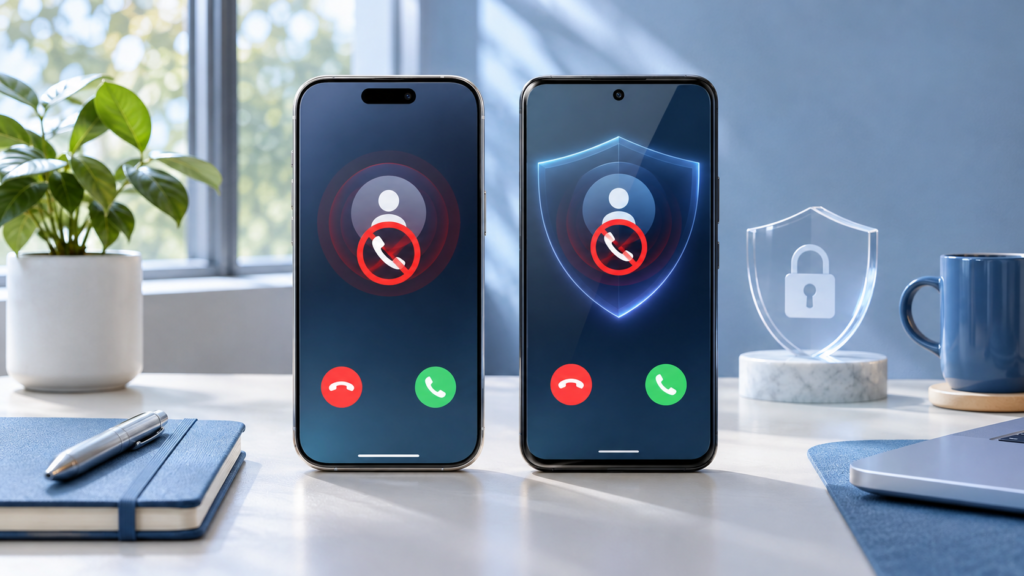
Learning how to block spam calls on iPhone and Android can make your phone quieter, safer, and easier to use. Both platforms let you block individual numbers, while newer call-screening and spam-filtering features can identify or silence larger groups of unwanted callers.
No single setting stops every scam call. The most effective approach combines your phone’s built-in controls, your mobile carrier’s spam protection, careful reporting, and a few habits that prevent scammers from getting more information about you. The steps below explain what to do on each platform and how to avoid blocking calls you still need.
Key Takeaways
- Recognize the difference between spam, robocalls, and dangerous phone scams
- Block individual unwanted numbers on an iPhone
- Use Silence Unknown Callers and iPhone spam filters carefully
- Block numbers and enable caller ID and spam protection on Android
- Report unwanted calls and reduce the chance of future scams
1. Identify Spam Calls Before Blocking Them
Spam calls are unwanted calls sent in bulk, often for advertising, surveys, debt collection, or automated messages. Robocalls use a recorded message or an automated system, while scam calls attempt to trick you into revealing information, sending money, installing software, or handing over control of an account.
A suspicious call may display a warning such as “Spam,” “Scam Likely,” or “Potential Fraud,” but caller ID labels are not perfect. Phone numbers can be spoofed, which means a caller may make the call appear to come from a local number, a familiar company, or even your own area code.
Common signs of a spam or scam call
- The caller pressures you to act immediately or threatens a penalty.
- You are asked for a password, one-time verification code, payment card number, or bank details.
- The caller claims to represent your bank, government agency, phone company, or a delivery service but cannot verify the reason for calling.
- An automated message tells you to press a key to speak with an agent or stop future calls.
- The caller asks you to move the conversation to a messaging app, send cryptocurrency, buy gift cards, or install remote-access software.
- The number repeatedly calls from slightly different local numbers.
Do not rely only on the number shown on screen. If a caller claims to represent an organization, end the call and contact that organization using the number in its official app, on a statement, or on its verified website. Do not call back using a number provided during a suspicious call.
Why blocking one number is not always enough
Blocking an individual number prevents that particular number from reaching you in the usual way, but it does not stop the same caller from using another number. Large spam operations may rotate through many numbers or spoof a new caller ID for every attempt.
For that reason, individual blocking works best for persistent numbers, abusive callers, or businesses that continue contacting you. For high-volume spam, combine it with silence or filtering features, carrier spam filters, and careful handling of unknown calls.
Before deleting evidence, save important details such as the displayed number, date, time, voicemail, and the caller’s claimed organization. This information can help your carrier or the appropriate consumer-protection agency investigate the call.
2. Block Individual Spam Numbers on an iPhone
Blocking a number on an iPhone is useful when the same caller repeatedly contacts you. You can block a number from the Phone app, FaceTime, Messages, or Contacts. The wording may vary slightly between iOS releases, but the basic process is similar.
Block a number from the Phone app
- Open the Phone app.
- Tap Recents and find the unwanted call.
- Tap the information button next to the number or contact.
- Scroll down and select Block Caller or the equivalent blocking option.
- Confirm the action if your iPhone asks you to do so.
The blocked caller is not normally notified that you blocked them. Depending on how the caller reaches you, calls may be sent to voicemail, and messages or FaceTime attempts may not appear in your normal conversations. Blocking is not the same as deleting the call from your history, so remove the entry separately if you want a cleaner Recents list.
Block a caller from Messages or FaceTime
If the person contacted you by text message, open the conversation and tap the contact or number at the top. Look for the information screen and choose the option to block the caller. In FaceTime, open the call history, select the information button beside the caller, and use the blocking option.
Blocking a contact generally applies across Apple communication services associated with that caller. However, it does not automatically block the person from contacting you through every third-party app, email address, or different phone number. You may need to use the privacy and blocking controls inside those services as well.
Review blocked contacts on an iPhone
To check or remove blocked entries, open the iPhone’s Settings app and look for the Phone, Messages, FaceTime, or privacy-related blocking settings. Apple has adjusted the organization of these controls across iOS versions, so the fastest method may be to use the Settings search field and search for “blocked contacts” or “blocking.”
Review this list if an important caller says they cannot reach you. A business number may have been blocked accidentally, or you may have blocked one number that belongs to a company’s larger pool of outgoing numbers. Unblocking a number does not restore calls or messages that were sent while it was blocked.
3. Silence Unknown Callers and Filter Suspected Spam on an iPhone
Individual blocking is not practical when spam callers constantly change numbers. iPhone includes features that can silence calls from people who are not known to you, and some carriers or call-identification services can identify suspected spam before you answer.
Use Silence Unknown Callers carefully
Look in the iPhone’s Phone settings for Silence Unknown Callers. When enabled, calls from numbers that are not recognized as known contacts or recent interactions can be silenced and sent to voicemail instead of ringing normally. They may still appear in your call history, allowing you to review them later.
This setting can significantly reduce interruptions, but it may also silence legitimate calls. Examples include a doctor’s office calling from a new number, a school using an unlisted line, a delivery driver, or an employer’s phone system. Save important numbers to Contacts before turning the feature on, and check voicemail regularly.
Some iPhone versions also provide options for screening or categorizing calls from unknown numbers. Read the description shown on your device before enabling a feature, because “silence,” “screen,” and “identify” do not necessarily behave the same way. If you are waiting for an important call, temporarily turn off the strictest setting or ask the caller to leave a voicemail.
Filter or identify suspected spam calls
Depending on your carrier, region, and installed services, iPhone may support caller identification or spam filtering from a carrier app or a third-party call-blocking app. These services compare incoming numbers with databases of reported or suspected spam numbers.
To manage supported identification services, open the Phone settings and look for Call Blocking & Identification or a similarly named section. You may need to install and enable the carrier or app’s extension before it can label calls. Only enable services from providers you trust, and review what access the app requests.
Caller ID databases can produce false positives. A legitimate business may use a number that has been reported by mistake, while a new scam number may not yet be recognized. Treat a warning as a reason to be cautious, not as absolute proof of who is calling.
Keep important callers reachable
Make sure family members, healthcare providers, schools, workplaces, and other essential contacts are saved with the correct number. If a company uses multiple numbers, save the numbers it has officially provided rather than relying on a caller ID name that could be spoofed.
Do not add every unknown number to your Contacts simply to make it ring. That can reduce the usefulness of unknown-caller protection. Instead, let unexpected callers leave a voicemail and verify their identity independently before returning the call.
4. Block Individual Spam Numbers and Enable Spam Protection on Android
Android phones include number blocking and spam detection, but the exact controls depend on the phone manufacturer, Android version, carrier, and default Phone app. The steps below describe the Google Phone app, which is common on Pixel and other Android devices. Samsung Galaxy and other phones may use different labels or place the settings in a different location.
Block a number in the Google Phone app
- Open the Phone app.
- Open the recent calls list or locate the number in your call history.
- Tap the unwanted call or the information button beside it.
- Choose Block, Block/report spam, or a similar option.
- Confirm the choice.
If you receive a call that Android has already labeled as suspected spam, the call details may offer a direct option to report and block it. Reporting helps improve spam identification, while blocking prevents that particular number from calling you through the normal phone service.
To block a number that is not in your recent history, open the Phone app’s settings and look for Blocked numbers. From there, you can add a number manually or review numbers already blocked. The location of this option differs on customized Android interfaces, so use the Settings or Phone app search function if you cannot find it.
Turn on caller ID and spam protection
On phones using the Google Phone app, open the Phone app settings and look for Caller ID & spam. If available, turn on the option to identify callers and suspected spam. Some devices also offer a setting to filter or automatically reject suspected spam calls.
Read the wording carefully before choosing the strongest filter. A label may allow the call to ring so you can decide whether to answer, while a filter may prevent the phone from ringing or send the call away automatically. You can usually review filtered calls in the call history or voicemail, but the exact behavior varies.
Google Pixel phones may also offer Call Screen or related call-screening features in supported countries and languages. Call screening can ask an unknown caller why they are calling before you decide whether to answer. Availability and behavior depend on the device, software, language, and region, so do not assume that every Android phone has the feature.
Samsung and other Android phones
Samsung Galaxy phones may provide spam and scam protection through the Samsung Phone app, a carrier service, or an integrated caller identification provider. Open the Phone app, check its call settings, and look for options related to caller ID, spam protection, blocking, or scam calls.
Other manufacturers may use their own Phone app or allow you to choose a default phone application. If you cannot find the controls described above, search the phone’s Settings app for “spam,” “blocked,” “caller ID,” or “call screening.” Avoid installing random apps that promise to block every scam call, especially if they request access to contacts, text messages, or extensive account data without a clear reason.
5. Use Carrier Tools and Reputable Call-Blocking Apps
Mobile carriers often provide their own spam call protection. Depending on the carrier and plan, the service may label suspicious calls, block known scam numbers, divert unwanted calls, or let you report numbers through a carrier app. Some features are included, while others may require a paid add-on.
Check your carrier’s official website or mobile app for terms such as spam protection, scam blocking, caller ID, or robocall blocking. Confirm whether the service works on your specific plan and whether it blocks calls automatically or only labels them. If you change carriers, review these settings again because protection does not necessarily transfer with your phone.
When a third-party app makes sense
A reputable call-blocking app can be useful if you receive a large volume of calls or want a searchable database of reported numbers. Before installing one, check the developer, privacy policy, subscription terms, recent reviews, and requested permissions.
Call-identification apps may need access to incoming call information so they can label numbers. That access can be sensitive. Choose a provider with a clear explanation of how it handles phone numbers, contacts, and usage data, and avoid apps that make unrealistic promises such as blocking every unwanted call.
Use only one primary call-filtering service at first. Running multiple overlapping filters can make it difficult to determine which service blocked a legitimate call, and some apps may conflict with one another. Test the service with a known contact and review its blocked-call history before relying on it.
Do not confuse caller ID with authentication
A caller ID name or logo can be helpful, but it does not prove that the caller is genuine. Spoofed numbers and fake business names can make a fraudulent call look trustworthy. Never provide sensitive information solely because a phone screen displays a familiar organization.
If an incoming call concerns your bank, email account, mobile plan, or government benefits, independently open the organization’s official app or website. Sign in there or call the published customer-service number rather than continuing a suspicious inbound conversation.
6. Report Spam Calls, Avoid Scams, and Protect Your Number
Blocking stops or reduces contact on your device, but reporting can help carriers and authorities identify larger campaigns. Use the reporting option in your Phone app when it is available, and report serious fraud through the appropriate consumer-protection or law-enforcement channel in your country.
When reporting, include the number shown, the date and time, whether the call was automated, what the caller claimed, and whether you lost money or disclosed information. Do not include passwords, full payment details, or other sensitive information in a report unless the official reporting service specifically requires it.
What to do during a suspicious call
- Do not press buttons to “remove yourself” from a robocall unless you understand the service and trust the caller. An active response can sometimes confirm that a number is answered.
- Do not argue with the caller or reveal personal details to prove your identity.
- Never share a one-time passcode, password, remote-access code, or security answer over an unexpected call.
- Do not install an app because an unsolicited caller says your phone or computer is infected.
- End the call if the person creates urgency, threatens arrest, demands secrecy, or insists on an unusual payment method.
If you already shared account information, contact the affected organization through an official channel immediately. Change the exposed password from a trusted device, sign out of unfamiliar sessions where possible, and contact your bank or card provider if financial information was involved. If you sent money, act quickly because recovery options may depend on the payment method and timing.
Reduce exposure of your phone number
Be selective about where you publish your mobile number. Avoid posting it publicly on social media, online listings, discussion forums, or websites unless it is necessary. When a service offers a choice, use account messaging or email for routine notifications instead of allowing every company to call.
Review privacy settings on shopping, delivery, travel, and social apps. Remove your number from old accounts you no longer use, and do not enter it into questionable forms that promise prizes, coupons, technical support, or free products.
Registering with an official do-not-call program may reduce legitimate telemarketing in some regions, but it cannot stop every scammer or illegal caller. Treat it as one layer of protection rather than a replacement for phone filters and cautious behavior.
7. Troubleshoot Blocked Calls, Voicemail, False Positives, and Settings
A blocked number is still getting through
First, confirm that you blocked the correct number and that the caller is not using a different number. Spoofing and number rotation are common reasons repeated calls continue. Check the blocked list in your Phone settings and update your phone software if the blocking feature appears to be malfunctioning.
Also check whether the contact is reaching you through a different service, such as FaceTime, Messages, WhatsApp, or another calling app. Blocking a number in the system Phone app may not block an account or number inside a third-party service.
Unknown calls are being silenced when you need them
If a legitimate caller never makes your phone ring, review Silence Unknown Callers, spam filtering, call-screening, and carrier settings. Save important contacts, then test the phone with a call from someone who is not in your Contacts. If the problem continues, disable one filter at a time to identify which control is responsible.
Ask important organizations to leave a voicemail with a callback reference, or use their official app to arrange contact. This is safer than disabling every protection permanently just because one expected call was filtered.
Voicemail is full or suspicious messages are piling up
Spam calls may leave silent messages, long recordings, or instructions to call back. Delete unwanted voicemails and empty the deleted voicemail area if your carrier retains deleted messages. Do not follow links or call numbers included in suspicious voicemail messages without independent verification.
If you rely on voicemail for unknown callers, check it regularly. A silence feature is less useful if legitimate messages remain unheard for days.
A legitimate caller was labeled as spam
False positives can happen because caller ID systems rely on reports, reputation databases, and carrier information. If a known business is repeatedly mislabeled, save its verified number, tell the organization that its calls are being flagged, and check whether your carrier or call-blocking app provides a way to correct a label.
Do not automatically whitelist every caller who claims to be legitimate. Verify the organization independently before adding a number to an exception list, especially if the caller requests payment or account information.
Settings changed after replacing or resetting your phone
Blocked contacts, carrier filters, and call-screening preferences may not all transfer in the same way when you move to a new phone. After a phone upgrade, restore, SIM change, or eSIM activation, review your Phone settings and carrier app again.
Before resetting an old device, make sure important contacts and other data are backed up. Our guide to backing up an Android or iPhone can help you prepare for a reset or phone replacement. If you are moving to a new device, review the call-blocking settings after the transfer rather than assuming every preference followed automatically.
Frequently Asked Questions
Does blocking a spam number stop all calls from that scammer?
No. It usually blocks that specific number, but scammers can spoof or rotate numbers. Use individual blocking for repeat callers and combine it with spam filtering, carrier protection, and cautious handling of unknown calls.
Is it safe to answer a call marked as spam?
Answering does not automatically compromise your phone, but you should not provide sensitive information, press unexpected buttons, install software, or follow payment instructions. If the caller claims to represent a real organization, hang up and contact it through an official channel.
Will Silence Unknown Callers block calls from everyone who is not in my Contacts?
It can silence calls from unfamiliar numbers, but the exact behavior depends on the iPhone settings and recent interactions recognized by the device. Save important contacts and check voicemail regularly before relying on the feature.
Conclusion
The best way to block spam calls on iPhone and Android is to use several layers of protection. Block persistent numbers individually, enable the appropriate unknown-caller or spam-filtering feature, check your carrier’s tools, and consider a reputable call-blocking app only after reviewing its privacy practices.
Remember that caller ID is a warning system, not proof of identity. Report suspicious calls, protect your phone number, and independently verify any request for money, passwords, security codes, or account access. These steps will not eliminate every unwanted call, but they can greatly reduce interruptions while helping you avoid the scams that matter most.