How to Fix Wi-Fi Interference From Microwaves and Appliances
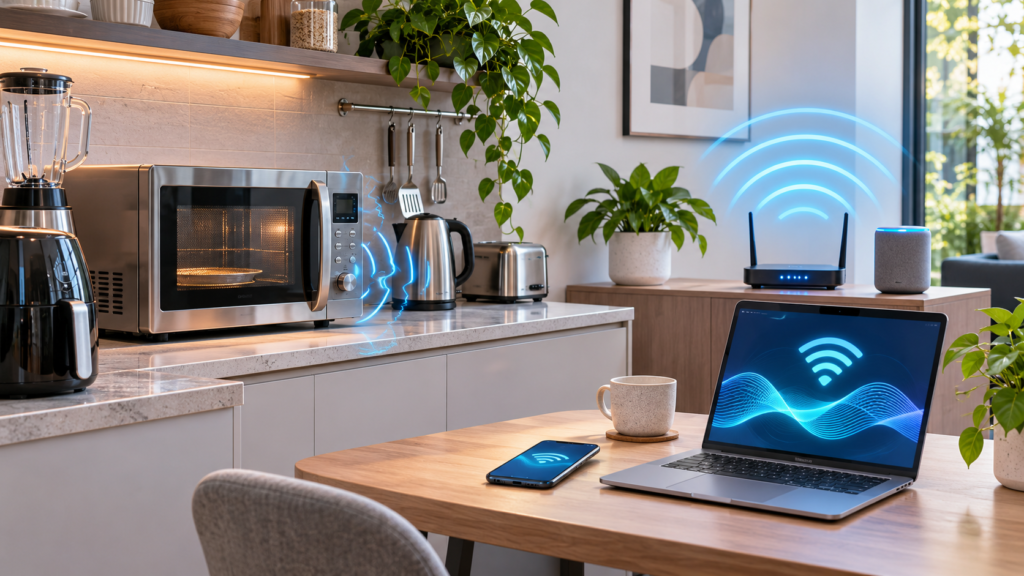
You start the microwave to reheat leftovers, and the video call in the next room freezes. A few minutes later, everything works again. This is one of the most common home networking complaints, and it is usually easy to fix. This guide explains how to fix Wi-Fi interference from microwave and other appliances, starting with why it happens, how to confirm the cause, and which changes reliably stop the dropouts.
Most appliance interference affects the 2.4 GHz Wi-Fi band. You can often solve it without new equipment by changing a band or channel, or by moving the router a few feet. If those changes are not enough, a small hardware change usually finishes the job.
Key Takeaways
- Microwave ovens operate near 2.4 GHz, the same frequency range used by many Wi-Fi networks
- Test with the appliance on and off before changing settings, so you know the appliance is really the cause
- Moving devices to the 5 GHz or 6 GHz band is the most effective fix for microwave interference
- Devices that must stay on 2.4 GHz work best on channel 1, 6, or 11 with a 20 MHz channel width
- Keeping your router away from the kitchen and large metal appliances reduces both interference and signal blockage
Why Microwaves and Household Appliances Interfere With Wi-Fi
Wi-Fi uses several frequency bands, and the oldest and most widely supported one is the 2.4 GHz band. Many routers and nearly every smart plug, older laptop, and budget smart home gadget use it. The problem is that 2.4 GHz is an unlicensed band, so many other devices share it, including microwave ovens.
The 2.4 GHz Band
Microwave ovens heat food with radio energy at about 2.45 GHz. That frequency falls inside the range used by 2.4 GHz Wi-Fi. A microwave produces far more power than a router. It is designed to keep that energy inside a shielded metal box, but the shielding does not have to be perfect.
Microwave Oven Leakage
A small amount of energy normally escapes around the door seal and viewing window. This low-level leakage is within safety limits for a working oven, but it can still be strong enough to overwhelm nearby Wi-Fi signals. Your router and devices notice the noise, slow down, retry transmissions, or briefly lose connection. Older ovens, ovens with worn door seals, and ovens close to the router tend to cause more trouble.
Why Interference Is Often Temporary
Microwave interference has a clear sign: it stops when the microwave stops. If your connection recovers as soon as the timer ends, interference is very likely the cause. Problems that continue all day usually come from something else, such as weak coverage, network congestion, or an issue with your internet provider. Our guide on common causes of slow Wi-Fi covers those other causes.
How to Confirm Appliance Interference
Before you change any router settings, take a few minutes to confirm that an appliance is really the cause. This prevents wasted effort. It also gives you a baseline, so you can measure whether each fix actually helps.
Tracking When Drops Happen
For a few days, keep a simple log of when your connection slows or drops. Note the time, the device affected, the room you were in, and what was running in the house. Patterns appear quickly. For example, drops might happen at lunchtime, when a baby monitor switches on in the evening, or whenever someone uses a cordless handset.
Running Speed and Ping Tests With the Appliance On and Off
Use a device in the room where problems occur, ideally between the router and the suspected appliance. Run a speed test with the appliance off and write down the download speed, upload speed, and latency. Then turn the appliance on and run the test again. For a microwave, heat a cup of water rather than running it empty, because running a microwave empty can damage it.
A ping test can show interference even more clearly. On Windows, open Command Prompt and type ping -t followed by your router’s IP address. On macOS, open Terminal and type ping followed by the address. Watch the response times while the appliance runs. Sudden spikes or “request timed out” messages that match the appliance’s run time strongly point to interference.
Using Wi-Fi Analyzer Apps
A Wi-Fi analyzer app shows which channels nearby networks use and how strong each signal is. Android has several analyzer apps available. Apple restricts Wi-Fi scanning on iPhone, but Apple’s AirPort Utility app includes a Wi-Fi scanner that you can turn on in its settings. On Windows, the command netsh wlan show networks mode=bssid lists nearby networks and their channels. Macs include a scan tool in Wireless Diagnostics.
Most analyzers show other Wi-Fi networks but cannot detect non-Wi-Fi noise such as a microwave. Use the analyzer to find crowded channels, and use your on-off tests to identify appliances.
Common Interference Culprits Beyond the Microwave
The microwave gets the blame most often, but many other household devices share or disturb the same airwaves.
- Older cordless phones: Some older models operate at 2.4 GHz or 5.8 GHz. These can interfere with 2.4 GHz Wi-Fi or with the upper channels of the 5 GHz band.
- Baby monitors: Many audio and video monitors transmit continuously at 2.4 GHz. That constant transmission can be more disruptive than a microwave that runs for only a few minutes.
- Bluetooth devices: Bluetooth also uses 2.4 GHz. It hops between frequencies to avoid collisions, so a single pair of headphones rarely causes problems. Several active Bluetooth devices close to a laptop or router can add noticeable noise.
- Wireless cameras and video senders: Analog wireless cameras and wireless HDMI or AV transmitters can occupy a large part of the band.
- Zigbee hubs and devices: Zigbee smart home gear uses the 2.4 GHz band. Many hubs let you change the Zigbee channel so it overlaps less with your Wi-Fi.
- Electrical noise sources: Faulty power supplies, some LED drivers, motors in blenders or vacuum cleaners, and failing fluorescent fixtures can produce radio noise. This noise is usually weaker and more local, but it can affect a device placed right next to the source.
Use the same on-off method for each suspect. Unplug one device at a time and watch whether your ping times settle down.
Move Devices to the 5 GHz or 6 GHz Band
The most reliable fix for microwave interference is to move your important devices off 2.4 GHz entirely. Microwave ovens do not operate in the 5 GHz or 6 GHz bands. These bands also have more channels and less crowding.
Dual-Band vs Tri-Band Routers
A dual-band router broadcasts on 2.4 GHz and 5 GHz. Tri-band routers add a third radio. Depending on the model, that radio is either a second 5 GHz radio or a 6 GHz radio. Check your router’s specifications or admin page to see which bands it supports. Most routers made in the last decade support at least 5 GHz.
Splitting or Combining SSIDs
Many routers combine all bands under one network name and use “band steering” to decide which band each device uses. This is convenient, but band steering sometimes leaves a laptop or TV on 2.4 GHz. If that happens, look in your router’s wireless settings for an option to give each band its own name (SSID), such as “HomeNet” and “HomeNet-5G.” Then connect your laptops, phones, TVs, and game consoles to the 5 GHz network.
Be aware that many smart plugs and other smart home devices only support 2.4 GHz. If you rename the 2.4 GHz network, those devices may need to be set up again. Our guide on reconnecting smart home devices to a new Wi-Fi network walks through that process. Keeping the original name on the 2.4 GHz band avoids the problem entirely.
Wi-Fi 6E and Wi-Fi 7 Considerations
The 6 GHz band is available only on Wi-Fi 6E and Wi-Fi 7 routers, and your devices must also support Wi-Fi 6E or Wi-Fi 7 to use it. The band is very clean because older devices and household appliances cannot use it. Wi-Fi 7 also supports Multi-Link Operation, which lets compatible devices use more than one band at once. This can help a connection ride through short bursts of interference on one band. Availability of the 6 GHz band also depends on your country’s regulations.
Range Trade-Offs
Higher frequencies do not pass through walls and floors as well as 2.4 GHz does. A device two rooms away may get a weaker 5 GHz signal and an even weaker 6 GHz signal. If a distant device keeps falling back to 2.4 GHz, improving your coverage is often the better fix than staying on the crowded band. Repositioning the router or adding a mesh node, both covered below, can help.
Change Your 2.4 GHz Wi-Fi Channel and Channel Width
Some devices must stay on 2.4 GHz. For those devices, tuning the channel settings reduces how much interference they experience. Changing a channel will not stop a microwave, because a microwave’s energy can spread across much of the band. Channel tuning does reduce overlap with neighboring networks and other 2.4 GHz devices, which gives your network more headroom when the microwave runs.
Using Non-Overlapping Channels 1, 6, and 11
The 2.4 GHz band is divided into channels that overlap with their neighbors. In North America, channels 1, 6, and 11 are the only common choices that do not overlap each other. Picking a channel between them, such as 3 or 9, means your network collides with networks on two channels instead of one. Use your analyzer app to see which of the three is least crowded.
Some users find that channel 1 is slightly less affected by their particular microwave. Results vary from oven to oven, so test each option rather than assuming.
Choosing 20 MHz Width
Some routers allow a 40 MHz channel width on 2.4 GHz. This doubles the theoretical speed, but it takes up most of the usable band and makes collisions with other signals far more likely. In busy homes and apartment buildings, setting 2.4 GHz to 20 MHz usually gives a more stable connection. Save the wider channels for 5 GHz and 6 GHz.
When Auto Channel Selection Helps
Many routers scan the airwaves and choose a channel automatically. This works well when neighboring networks change often. Some routers only scan at startup, though, and may not react to a microwave that runs briefly. If automatic mode keeps landing on a poor channel, set a fixed channel and retest. To change these settings, log in to your router’s admin page or app and look in the wireless or Wi-Fi settings. The exact labels vary by manufacturer.
Reposition Your Router and Appliances
Distance is one of the most effective and least expensive fixes. Interference weakens quickly as you move away from its source. Moving the router or the appliance even a short distance can make a noticeable difference.
Distance From the Kitchen
Avoid placing your router on a kitchen counter or on the other side of a wall from the microwave. Also avoid placing it so that the kitchen sits directly between the router and the rooms where you work or stream. If the router must stay near the kitchen because of where your internet line enters the house, try moving the microwave to a different counter instead.
Elevation
Place the router up high, such as on a shelf or mounted on a wall, rather than on the floor or inside a cabinet. A central, elevated position spreads coverage more evenly. It also helps the signal pass over furniture and large appliances.
Line-of-Sight Obstacles
Water, brick, concrete, and mirrors all weaken Wi-Fi signals. Aquariums and water heaters are common hidden obstacles. When the signal is already weak, a little interference is enough to cause a dropout. When the signal is strong, the same interference may go unnoticed.
Keeping Routers Away From Metal and Large Appliances
Refrigerators, washing machines, and metal filing cabinets reflect and block Wi-Fi signals. Keep at least a few feet between the router and any large metal object. Do not hide the router behind a TV either.
Upgrade or Replace Problem Hardware
If settings and placement do not solve the problem, the next step is to replace the device causing interference or change how your devices connect.
Testing a Microwave for Excessive Leakage Safely
If one microwave disrupts Wi-Fi across the whole house, its door seal or shielding may be worn. You may have seen the trick of placing a phone inside the oven and calling it. That is not a reliable leakage test, because it uses different frequencies and tells you nothing about safety. Inexpensive consumer leakage meters also vary widely in accuracy.
Look for visible signs instead: a damaged door, a bent hinge, a door that does not close firmly, or a dirty or damaged seal. Never open the microwave casing. The internal components can hold a dangerous electrical charge even when the oven is unplugged. If you suspect a problem, stop using the oven and contact the manufacturer or a qualified appliance technician. The U.S. Food and Drug Administration’s microwave oven safety information explains the leakage limits and what to do about a damaged oven. Often, replacing an old microwave with a new model solves the Wi-Fi problem completely.
Switching to Cordless Phones on Non-Wi-Fi Frequencies
Many newer cordless phones use DECT, which operates outside the Wi-Fi bands. In the United States, these phones are commonly labeled DECT 6.0. Replacing an older 2.4 GHz or 5.8 GHz phone with a DECT model removes that source of interference. The same approach works for baby monitors: models that use DECT or connect through your own Wi-Fi tend to cause fewer problems than older analog monitors that transmit constantly.
Mesh Systems
A mesh Wi-Fi system places several access points around your home, so every device stays close to a strong signal. Strong signals tolerate interference much better than weak ones. Mesh systems also help devices stay on 5 GHz farther from the main router. Our guide to setting up a mesh Wi-Fi network covers node placement and setup.
Ethernet for Fixed Devices
Desktop PCs, game consoles, streaming boxes, and smart TVs rarely move. Connecting them with an Ethernet cable makes them completely immune to wireless interference. It also frees up airtime for your wireless devices. If running cable is impractical, powerline or MoCA adapters can carry the connection over your home’s electrical wiring or coaxial cable instead. Powerline adapters can be affected by electrical noise, so test their performance in your home.
Troubleshooting Persistent Interference
If drops continue after you have tried the steps above, the appliance may only be part of the problem. Work through these checks.
Updating Router Firmware
Router manufacturers release firmware updates that fix bugs, improve stability, and sometimes improve automatic channel selection. Check your router’s app or admin page for an update option, or look for firmware on the manufacturer’s support site. Restart the router after updating. Our guide on how to restart a Wi-Fi router explains the correct way to do it.
Checking Neighbor Network Congestion
In apartments and dense neighborhoods, dozens of networks may share the same channels. If your analyzer shows many strong networks on every 2.4 GHz channel, the band is simply saturated. In that case, moving devices to 5 GHz or 6 GHz matters more than any channel change.
Ruling Out ISP Issues
Connect a laptop to the router with an Ethernet cable and run a speed test. If the wired connection also slows down or drops, the problem is not Wi-Fi interference. It may be your modem, the line to your home, or your internet provider. Check your modem’s status lights and contact your provider if the wired connection keeps failing.
When to Call a Professional
Consider professional help in two situations: your home is large or built with materials that block signals, or you cannot find a source of interference that affects every device. A network installer can survey your home with professional tools, find noise sources, and recommend where to place access points or run cable. Call an appliance technician for any microwave with physical damage to its door or seal.
Frequently Asked Questions
Is it dangerous if my microwave interferes with Wi-Fi?
Not necessarily. Even a microwave that works properly and meets safety limits can release enough low-level energy to disrupt a nearby 2.4 GHz connection. Interference alone does not mean the oven is unsafe. If the oven is damaged, the door does not close properly, or the interference has suddenly become much worse, stop using it and have it inspected.
Will a microwave interfere with 5 GHz Wi-Fi?
Microwave ovens operate around 2.45 GHz, so they do not directly interfere with 5 GHz or 6 GHz Wi-Fi. This is why moving devices to those bands is usually the most effective fix. A device far from the router may still switch back to 2.4 GHz automatically, so check which band your device is using.
Why does only one device drop when the microwave runs?
That device is probably connected to 2.4 GHz, sits between the microwave and the router, or already has a weak signal. Check its connection details. Move it to 5 GHz if it supports that band, or bring it closer to the router or a mesh node. If it drops at other times too, our guide on why Wi-Fi keeps disconnecting covers other causes.
Conclusion
Wi-Fi interference from microwaves and other appliances is frustrating, but it follows a clear pattern and is usually easy to fix. Start by confirming the cause with on-off tests. Then move your important devices to 5 GHz or 6 GHz, set any devices that must stay on 2.4 GHz to channel 1, 6, or 11 with a 20 MHz width, and keep the router away from the kitchen and large metal appliances.
If problems continue, replace outdated cordless phones or baby monitors, consider a mesh system for stronger coverage, and connect stationary devices with Ethernet. Make one change at a time and retest after each, so you can see which fix worked.