
How to Disable Windows Tips and Suggestions
Windows is designed to help users discover features and capabilities through built-in tips, suggestions, and recommendations. While these prompts can be useful for newcomers, they often become intrusive for experienced users who prefer a cleaner, distraction-free interface. If you’re looking to disable Windows tips and suggestions, you’ll find multiple settings scattered across different areas of the operating system. This guide walks you through every method to turn off these notifications and recommendations, giving you complete control over your Windows experience.
Whether you’re annoyed by lock screen tips, Start menu app suggestions, or taskbar recommendations, you can disable each type individually or remove them all at once. The process varies depending on your Windows edition and how deeply you want to customize your system.
Key Takeaways
- Windows tips appear in multiple locations including the lock screen, Start menu, taskbar, and notification center
- The Settings app provides the primary method to disable most tips and suggestions for all users
- Lock screen tips can be disabled separately through personalization settings
- Group Policy Editor offers centralized control for Windows Pro and Enterprise editions
- Registry modifications provide the most comprehensive control but require careful execution
Understanding Windows Tips and Suggestions
Windows tips and suggestions appear throughout the operating system in several distinct forms. The lock screen displays tips about Windows features and keyboard shortcuts. The Start menu shows app suggestions and recommendations based on your usage patterns. The taskbar includes promoted apps and Microsoft services. Notification toasts periodically suggest features you haven’t tried or settings you might want to enable.
Microsoft uses these prompts to increase feature discovery and engagement with Windows capabilities. The system tracks your behavior and attempts to surface relevant suggestions, though the relevance often misses the mark for power users. Understanding where these tips originate helps you target the specific settings that control them.
Some suggestions are tied to your Microsoft account and sync across devices, while others are local to your current installation. Personalized recommendations use anonymized diagnostic data to determine which tips appear, though you can disable this data collection as part of your privacy settings. Each type of suggestion has its own toggle, which means disabling one category won’t automatically silence the others.
Disabling Tips Through Windows Settings
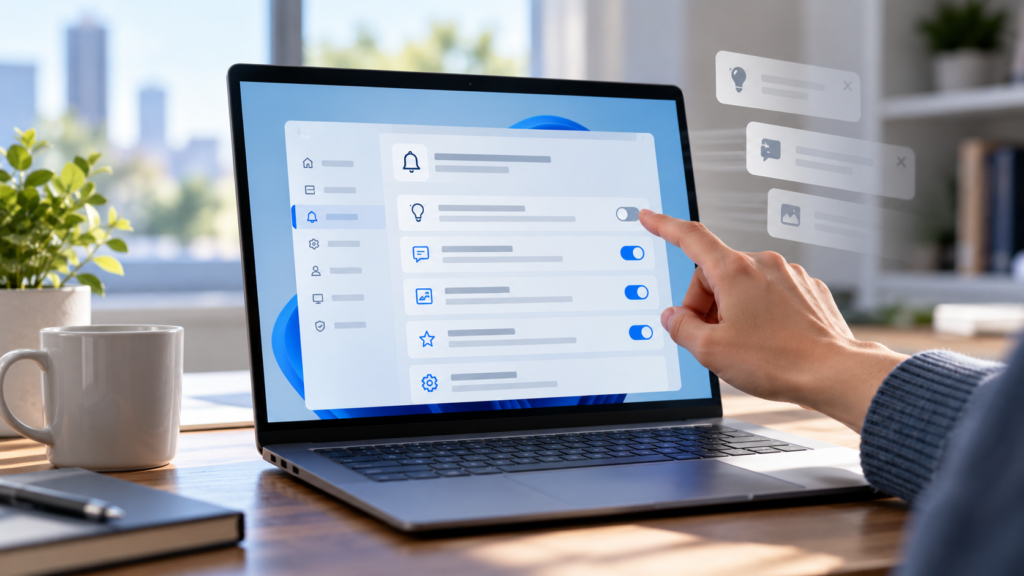
The Settings app consolidates most tip and suggestion controls in one location. Open Settings by pressing Windows + I, then navigate to System and select Notifications. Scroll down to find the section labeled “Additional settings” where you’ll see several relevant options.
Uncheck Show the Windows welcome experience after updates and when signed in to show what’s new and suggested. This prevents Windows from displaying full-screen tips after major updates. Next, disable Suggest ways to get the most out of Windows and finish setting up this device. This toggle controls the periodic suggestions that appear in notifications and the Settings app itself.
If you want to disable notifications from specific apps that generate tips, scroll up to the “Notifications from apps and other senders” section. Find entries like “Windows Tips” or “Get tips and suggestions when using Windows” and toggle them off. Some installations may not show a dedicated Windows Tips app, as this functionality is integrated directly into the notification system.
For a broader approach, navigate to Settings > Privacy & security > General. Here you’ll find options related to personalized content. Disable Let apps show me personalized ads by using my advertising ID and Let Windows improve Start and search results by tracking app launches. While these settings don’t exclusively control tips, they reduce the data Windows uses to generate personalized suggestions. Similar to managing other Windows features, you can also disable startup apps in Windows 11 to reduce system notifications at boot time.
Turning Off Lock Screen Tips and Tricks
Lock screen tips appear before you sign in, displaying rotating messages about Windows features, keyboard shortcuts, and system capabilities. To disable these, open Settings > Personalization > Lock screen. Look for the option labeled Get fun facts, tips, and more from Windows and Cortana on your lock screen and toggle it off.
On some Windows installations, this setting may appear as Show lock screen tips, tricks, and more. The exact wording varies between Windows versions, but the functionality remains the same. Once disabled, your lock screen will display only your selected background image and basic status information like time, date, and network connectivity.
If you want to further simplify your lock screen, consider changing the background from Windows Spotlight to a static picture or slideshow. Windows Spotlight automatically downloads curated images and often includes promotional content for apps and services. Selecting Picture or Slideshow as your background type eliminates this variable content entirely.
Some users report that lock screen tips reappear after major Windows updates. If this happens, revisit the lock screen settings to confirm your preferences. Windows occasionally resets certain personalization options during feature updates, treating them as new configuration opportunities rather than preserved user choices.
Disabling Start Menu Suggestions
The Start menu displays app suggestions in the “Recommended” section, showing recently opened files and promoted applications. To disable these suggestions, open Settings > Personalization > Start. You’ll see several toggles that control Start menu behavior.
Turn off Show recommendations for tips, shortcuts, new apps, and more. This removes the suggested apps and promotional content from the Start menu. If you want to completely hide the Recommended section, disable Show recently added apps and Show most used apps as well. With all three toggles off, the Recommended section shrinks significantly or disappears entirely depending on your Windows build.
For users who want a completely static Start menu, you can also disable Show recently opened items in Start, Jump Lists, and File Explorer under Settings > Privacy & security > General. This removes the dynamic content from Start menu recommendations, though it also affects Jump Lists in the taskbar and File Explorer’s Quick Access section.
Keep in mind that hiding recommendations doesn’t prevent you from manually pinning apps to the Start menu. You retain full control over which apps appear in the pinned section. The difference is that Windows stops suggesting apps and files you haven’t explicitly chosen to display.
Removing Taskbar Recommendations
Recent Windows versions introduced taskbar recommendations that appear when you hover over the Search icon or view the Widgets panel. These recommendations include news, weather, promoted apps, and suggested searches. To disable taskbar search suggestions, right-click the taskbar and select Taskbar settings.
Under the “Taskbar items” section, toggle off Search highlights. This removes the highlighted content and suggested searches from the taskbar search box. If you prefer to hide the search box entirely, change the Search setting from “Search icon only” or “Search box” to “Hide.” This reclaims taskbar space and eliminates all search-related suggestions.
The Widgets panel presents a separate set of recommendations. Right-click the Widgets icon in the taskbar and select Taskbar settings, then toggle off Widgets to remove the icon and disable the panel. Alternatively, you can keep the Widgets icon but customize which content appears by opening the Widgets panel, clicking your profile picture, and selecting Settings. From there, you can disable specific content providers and personalized recommendations.
Some promotional content in the taskbar stems from notification badges on pinned apps. If you see suggestion dots or numbers on taskbar icons, right-click the specific app icon, select More, and choose Turn off notifications for this app. This prevents the app from displaying badge notifications that often serve as indirect suggestions or prompts.
Stopping Notification Tips and Prompts
Windows periodically sends notification tips about features you haven’t used, settings you might want to change, or services Microsoft wants to promote. These appear as toast notifications in the lower-right corner of your screen. Beyond the general notification settings covered earlier, you can fine-tune which types of tips appear.
Open Settings > System > Notifications and ensure Notifications are turned on at the top, then scroll through the individual app notification settings. Look for system entries like “Windows Security,” “Tips,” “Microsoft Store,” and “Get Help.” Disable notifications for any system apps that generate suggestion-style prompts.
Some notifications come from Windows Update or system maintenance tasks. While you can’t completely disable Windows Update notifications, you can minimize disruption by setting Active hours under Settings > Windows Update > Advanced options. This ensures Windows won’t display update-related tips or restart prompts during your primary work hours.
For users who find Focus Assist helpful, this feature can temporarily suppress notification tips during specific activities. Navigate to Settings > System > Focus Assist and configure rules for when you want notifications silenced. You can automatically enable Focus Assist when playing games, duplicating your display for presentations, or during scheduled time blocks. When active, Focus Assist blocks most notifications including system tips, allowing only priority alerts through.
Disabling Microsoft Account Suggestions
If you use a Microsoft account to sign in to Windows, you may receive suggestions related to cloud storage, Microsoft 365 services, or cross-device features. These prompts encourage you to enable OneDrive sync, try Microsoft 365 apps, or connect additional devices to your account.
To reduce Microsoft account suggestions, open Settings > Privacy & security > General and disable Show me suggested content in the Settings app. This removes promotional cards and suggestions that appear throughout the Settings interface, particularly in sections like System, Accounts, and Personalization.
For OneDrive-specific prompts, right-click the OneDrive cloud icon in the system tray (if present) and select Settings. Under the Settings tab, uncheck any options related to notifications and tips. If you don’t use OneDrive, you can prevent it from starting automatically by opening Task Manager (press Ctrl + Shift + Esc), selecting the Startup apps tab, finding OneDrive, and clicking Disable. Just as you would find saved Wi-Fi passwords on Windows 11 through system settings, managing cloud service prompts requires navigating specific settings menus.
Microsoft Edge may also generate suggestions if it’s your default browser. Open Edge, navigate to Settings > Privacy, search, and services, and scroll to the “Services” section. Disable Show suggestions from Microsoft and Show recommendations and promotional notifications from Microsoft. While this doesn’t affect system-wide Windows tips, it eliminates browser-based suggestions that often feel like system prompts.
Using Group Policy to Block Tips (Pro and Enterprise)
Windows Pro, Enterprise, and Education editions include the Group Policy Editor, which provides centralized control over tip and suggestion settings. This method is particularly useful for IT administrators managing multiple machines or power users who want comprehensive control. Note that Group Policy settings override individual user preferences configured through the Settings app.
Press Windows + R, type gpedit.msc, and press Enter to open the Local Group Policy Editor. Navigate to Computer Configuration > Administrative Templates > Windows Components > Cloud Content. Here you’ll find several policies related to tips and suggestions.
Double-click Turn off Microsoft consumer experiences and set it to Enabled. This policy disables app suggestions, tips about Microsoft services, and promotional content in Start, Settings, notifications, and the lock screen. It’s the most comprehensive single setting for eliminating Windows suggestions.
For more granular control, explore additional policies in the same folder. Do not show Windows tips specifically targets the Windows Tips app and periodic feature suggestions. Turn off the Windows Welcome Experience prevents the post-update welcome screen. Do not suggest third-party content in Windows spotlight removes app advertisements from the lock screen if you’re using Windows Spotlight.
After configuring Group Policy settings, close the editor and either restart your computer or open Command Prompt as administrator and run gpupdate /force to apply the changes immediately. Group Policy changes may take a few minutes to propagate throughout the system, particularly policies that affect the lock screen or Start menu.
Keep in mind that Group Policy Editor is not available on Windows Home edition. Home users must rely on Settings app configurations or registry edits to achieve similar results. If you need Group Policy functionality on a Home edition system, you can upgrade to Windows Pro, though this requires purchasing a license upgrade.
Registry Edits for Advanced Users
The Windows Registry provides the most direct method to disable tips and suggestions, but it requires careful attention to detail. Incorrect registry modifications can cause system instability or prevent Windows from booting properly. Before proceeding, create a system restore point or back up your registry by exporting the keys you plan to modify.
Press Windows + R, type regedit, and press Enter. Navigate to HKEY_CURRENT_USER\Software\Microsoft\Windows\CurrentVersion\ContentDeliveryManager. This key contains numerous values that control tip and suggestion behavior throughout Windows.
To disable most tips and suggestions, set the following DWORD values to 0 (if a value doesn’t exist, create it by right-clicking in the right pane, selecting New > DWORD (32-bit) Value, and naming it exactly as shown):
- SubscribedContent-338389Enabled – Disables tips in Settings
- SubscribedContent-338393Enabled – Disables suggested content in Settings
- SubscribedContent-353694Enabled – Disables suggested content in timeline
- SubscribedContent-353696Enabled – Disables tips in Start menu
- RotatingLockScreenOverlayEnabled – Disables lock screen tips and tricks
- SoftLandingEnabled – Disables tips about new features after updates
- SystemPaneSuggestionsEnabled – Disables suggestions in Action Center
For additional control, navigate to HKEY_LOCAL_MACHINE\SOFTWARE\Policies\Microsoft\Windows\CloudContent (you may need to create the CloudContent key if it doesn’t exist). Create a DWORD value named DisableWindowsConsumerFeatures and set it to 1. This registry setting mirrors the Group Policy for disabling consumer experiences and works on all Windows editions including Home.
To prevent Windows from resetting these values, you can also set the DisableSoftLanding DWORD to 1 in the same ContentDeliveryManager key. This prevents the “soft landing” prompts that appear after major Windows updates, which often re-enable tips as part of the welcome experience.
After making registry changes, close Registry Editor and restart your computer for all modifications to take effect. Some changes may apply immediately, but a full restart ensures consistent behavior across all Windows components. If you encounter issues after editing the registry, boot into Safe Mode and restore your registry backup or use System Restore to revert to your previous configuration.
Troubleshooting Common Issues
Sometimes tips and suggestions reappear even after you’ve disabled them. Windows feature updates can reset certain personalization settings, treating them as opt-in choices for new features rather than preserved preferences. After installing a major update, review your notification settings, Start menu preferences, and lock screen configuration to ensure they haven’t reverted to defaults.
If you’ve disabled tips through the Settings app but still see suggestions, check whether your Microsoft account is syncing settings across devices. Open Settings > Accounts > Windows backup and review which preferences are syncing. If another device has tips enabled, those settings may override your local configuration. Disable settings sync or configure each device individually to maintain consistent preferences.
Some third-party applications and Windows Store apps generate their own in-app tips and suggestions that aren’t controlled by system settings. These require individual configuration within each application. Check the settings or preferences menu of specific apps if you continue to see unwanted prompts after disabling system-wide tips.
FAQ
Will disabling Windows tips affect security notifications?
No, disabling tips and suggestions does not affect critical security notifications from Windows Security or Windows Update. Security alerts about threats, required updates, and system protection issues continue to appear regardless of your tip preferences. The settings discussed in this guide specifically target feature discovery prompts and promotional content, not essential security communications.
Can I re-enable tips if I change my mind?
Yes, all methods for disabling tips are completely reversible. Simply revisit the Settings app toggles, Group Policy settings, or registry values you modified and reverse the changes. Toggle settings back on, set Group Policy items to “Not Configured,” or change registry DWORD values back to 1 (or delete custom values you created). A restart ensures changes take full effect throughout the system.
Do these settings work on Windows 10 and Windows 11?
Most settings work on both Windows 10 and Windows 11, though the exact location and naming of options may vary slightly between versions. Windows 11 introduced some additional suggestion features in the taskbar and Widgets panel that don’t exist in Windows 10. The core settings for notifications, lock screen tips, and Start menu suggestions remain consistent across both versions. Registry and Group Policy methods are particularly universal, as they target underlying system values rather than interface-specific toggles.
Taking Control of Your Windows Experience
Disabling Windows tips and suggestions removes visual clutter and interruptions that detract from a focused computing experience. By systematically working through the Settings app, Group Policy configurations, or registry modifications, you can eliminate unwanted prompts while preserving the notifications and alerts that actually matter to you. The methods described here give you granular control over each type of suggestion, allowing you to disable everything at once or selectively remove only the most intrusive prompts.
Remember that Windows may occasionally reset some of these preferences during major feature updates. Bookmark this guide or save your preferred registry values so you can quickly restore your configuration if needed. With tips and suggestions disabled, your Windows interface becomes cleaner, faster, and more aligned with how you actually work. For users seeking broader control over their Windows experience, exploring related guides like how to take screenshots on Windows 11 can further enhance productivity without unnecessary system prompts.