How to Change the Windows 11 Lock Screen Timeout Settings
Why the Lock Screen Timeout Feels Impossible to Find
You set your screen to turn off after 15 minutes, lock your PC with Windows+L, walk away, and come back to a dark display one minute later. Nothing you changed in Settings made any difference. This is one of the most common frustrations in Windows 11, and it happens because the lock screen obeys a different timer than your desktop does. Learning how to change the Windows 11 lock screen timeout means understanding that there are actually two separate timers at work, and only one of them is visible in the standard Settings app.
This guide walks through every method available: the basic screen and sleep settings, the hidden Console lock display off timeout, the classic Control Panel Power Options, and the powercfg command line. It also covers what to do when options are greyed out, when changes revert after a reboot, and how to pick a timeout that balances security, battery life, and everyday convenience.
Key Takeaways
- Your lock screen and your desktop use separate timers, which is why one setting seems to be ignored
- The Settings app controls how long your screen stays on before turning off during normal use
- The hidden Console lock display off timeout is the setting that actually controls the lock screen
- The powercfg command lets you set exact values in seconds and script changes across power plans
- Greyed-out or reverting settings usually point to a policy, an OEM utility, or a competing power plan
Lock Screen, Screen Timeout, and Screen Saver: Three Different Things
Before changing anything, it helps to separate three features that people often blur together. Each one has its own controls, and each one can make your PC go dark at a moment you did not expect.
Screen timeout (officially called “Turn off my screen after” in Settings) is the countdown that starts when you stop touching the keyboard or mouse during normal use. When it expires, the display powers down to save energy, but your session stays unlocked and running in the background. Move the mouse and you are back exactly where you left off.
The lock screen appears when you deliberately lock the PC (Windows+L), when it wakes from sleep, or when a policy or screen saver forces a lock. The image with the clock and date is a separate, minimal environment that runs before you sign in. It has its own display-off timer, and that timer is the one most people are actually trying to change.
The screen saver is a legacy feature that still exists in Windows 11 and can be configured to require a sign-in on resume. If a screen saver is set with a short wait time and the “On resume, display logon screen” checkbox is ticked, your PC will lock far sooner than your screen timeout suggests. That is a frequent source of confusion, so it is worth checking early.
There is also a fourth timer you should know about: the “Require sign-in” option under Settings > Accounts > Sign-in options, which decides whether Windows asks for your password or PIN after the PC wakes from sleep. That setting does not control when the display turns off, but it does control how protected you are when it does.
Change the Basic Screen Timeout in Windows 11 Settings
Start here, because this is the setting most people mean when they say “screen timeout.” It governs how long the display stays awake while you are signed in and using the PC.
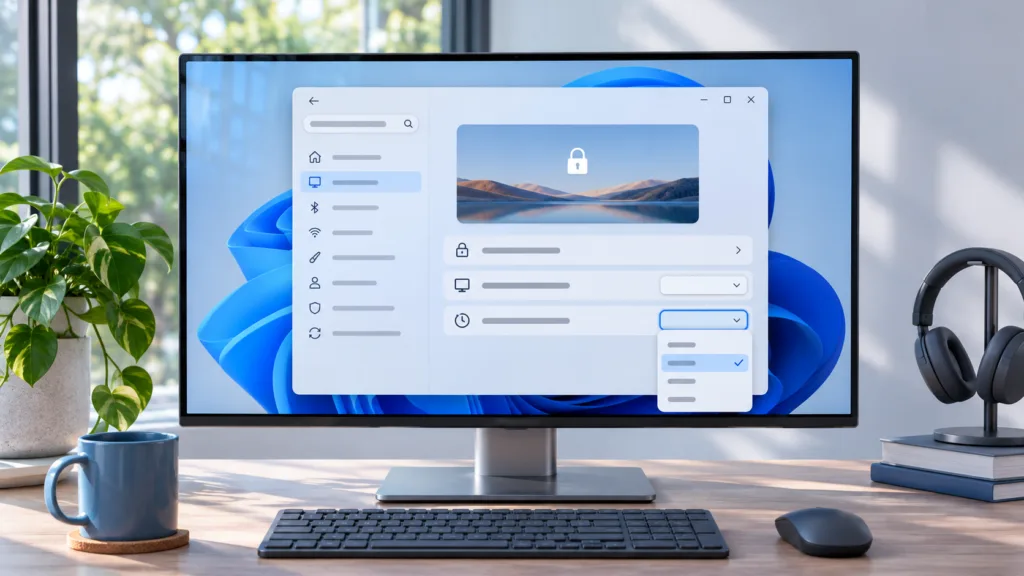
- Open Settings with Windows+I.
- Go to System > Power & battery (on desktops, the page may simply be called Power).
- Expand the Screen and sleep section.
- Set Turn off my screen after to your preferred value.
On a laptop you will see two dropdowns: one for “On battery power” and one for “When plugged in.” Desktop PCs usually show only the plugged-in option. The available choices typically run from one minute up to five hours, plus “Never.” Choosing a longer value for plugged-in use and a shorter one for battery is the most practical arrangement for most people.
While you are on this page, look at Put my device to sleep after directly below. Sleep is a deeper state than a dark screen, and if sleep is set to a shorter interval than your screen timeout, the PC will suspend before the display ever times out. Many “my timeout isn’t working” reports turn out to be a sleep timer that fires first.
If you use a screen saver, open Settings > Personalization > Lock screen, scroll to Related settings, and select Screen saver. Check the wait time and whether the logon-on-resume box is enabled. A screen saver set to 5 minutes will lock your PC long before a 15-minute screen timeout expires.
Enable and Adjust the Hidden Console Lock Display Off Timeout
This is the setting that solves the original problem. Windows 11 ships with a power setting called Console lock display off timeout, which controls how long the lock screen stays lit before the display switches off. It is hidden from the graphical interface by default, and its default value is short — often just one minute. That is why your lock screen goes dark almost immediately no matter what you choose in Settings.
To make it visible, you need to flip a single registry value. Back up first if you are not comfortable editing the registry; creating a restore point is a quick safety net, and our guide to creating a System Restore point in Windows walks through it step by step.
- Press Windows+R, type
regedit, and press Enter. Approve the administrator prompt. - Navigate to
HKEY_LOCAL_MACHINE\SYSTEM\CurrentControlSet\Control\Power\PowerSettings\7516b95f-f776-4464-8c53-06167f40cc99\8ec4b3a5-6868-48c2-be75-4f3044be88a7. - In the right pane, double-click the Attributes value.
- Change the value data from
1to2and click OK. A value of 1 hides the setting; 2 reveals it. - Close the Registry Editor. The change takes effect without a reboot.
Now open Control Panel > Hardware and Sound > Power Options and click Change plan settings next to your active plan, then Change advanced power settings. Expand Display and you will find Console lock display off timeout with separate values for battery and plugged in. Set it to the number of minutes you want the lock screen to remain visible.
One important detail: this setting applies only while the console is locked. It does not affect how long the display stays on during normal desktop use, and it does not change when Windows locks itself. If you want the lock screen to stay lit for 10 minutes but the desktop to go dark after 5, these two settings work together to make that happen.
Use Control Panel Power Options for the Rest of the Timing
The advanced power settings dialog is worth knowing well, because it exposes several timers that the Settings app does not. Open it by running powercfg.cpl from the Run box, then choosing Change plan settings > Change advanced power settings.
Under Display you will find Turn off display after, which mirrors the Settings app, alongside the console lock timeout once you have unhidden it. Under Sleep you will find Sleep after and Hibernate after. These are useful when you want a precise sequence: screen off after a few minutes, sleep after fifteen, hibernate after an hour.
Remember that these values are stored per power plan. If you switch between Balanced, Power saver, and a custom plan, each one carries its own timers, and your changes will appear to vanish when the active plan changes. The advanced dialog always edits the currently active plan, so confirm which one is selected before you start.
If you have a laptop, also check the Battery and Power buttons and lid sections. Closing the lid, for example, may be set to sleep or hibernate, which will override any display timeout the moment you shut it.
Change the Timeout With powercfg in Terminal or Command Prompt
For exact values, repeatable setups, or machines where the graphical interface is unreliable, the powercfg command is the most precise tool available. Microsoft documents the full syntax in the official powercfg command-line options reference.
Open Windows Terminal or Command Prompt as administrator, otherwise the changes will be refused. Then use the following commands, adjusting the numbers to suit your needs.
To set the standard display timeout, powercfg uses minutes:
powercfg /change monitor-timeout-ac 10— display off after 10 minutes when plugged in.powercfg /change monitor-timeout-dc 5— display off after 5 minutes on battery.
To set the lock screen timer, you address the hidden setting directly by its GUID. Here the value is in seconds, which is the most common beginner mistake:
powercfg /setacvalueindex SCHEME_CURRENT SUB_VIDEO 8ec4b3a5-6868-48c2-be75-4f3044be88a7 300— lock screen stays lit for 300 seconds (5 minutes) when plugged in.powercfg /setdcvalueindex SCHEME_CURRENT SUB_VIDEO 8ec4b3a5-6868-48c2-be75-4f3044be88a7 120— 120 seconds (2 minutes) on battery.powercfg /setactive SCHEME_CURRENT— applies the modified plan.
To confirm what is stored, run powercfg /q SCHEME_CURRENT SUB_VIDEO 8ec4b3a5-6868-48c2-be75-4f3044be88a7. The output lists the current AC and DC index values in hexadecimal seconds, so 300 seconds appears as 0x0000012c. If you see 0x00000000, the setting is at zero, which generally means the display never turns off while locked — useful for a kiosk or a desktop used as a dashboard, but a poor choice for a laptop.
You can also query the whole video subgroup with powercfg /q SCHEME_CURRENT SUB_VIDEO to see every display-related timer at once, which is handy when you are trying to work out which setting is actually in control.
Troubleshooting Missing Settings, Policy Restrictions, and Reverting Changes
If the options described above are missing, greyed out, or refuse to stick, work through these causes in order.
Settings are greyed out or show “managed by your organization”
A message at the top of the Settings page indicating that some options are managed by your organization means a policy is enforcing values. This is normal on work and school devices, and the correct fix is to ask your IT administrator rather than fight the policy. On a personal PC, the same message can appear after installing management software or enabling certain security tools. Group Policy results can be inspected with gpresult /h report.html from an elevated prompt on Windows 11 Pro and Enterprise; Home editions do not include the Group Policy Editor.
Changes revert after a reboot or a few minutes
OEM utilities are the usual culprit. Lenovo Vantage, Dell Optimizer, HP Command Center, and similar tools manage power profiles independently and can reset timers when they detect a change in workload or battery state. Look for a battery or power setting inside the vendor app and align it with your Windows settings, or disable the feature that adjusts power automatically.
Also check whether another power plan is being applied at startup. Running powercfg /list shows every plan and marks the active one. If a scheduled task or a third-party tool switches plans, your edits to the previous plan will look like they were ignored.
The lock screen still goes dark quickly
Confirm you have edited the Console lock display off timeout rather than the standard display timeout, and that you changed the value for the correct power source. A laptop running on battery ignores the “plugged in” value entirely. If you edited the registry to unhide the setting but it still does not appear in the advanced dialog, reopen the dialog after closing it completely — the tree is built when the window opens.
The screen never turns off at all
Something is preventing sleep or display timeout. Media playback, a presentation mode toggle, a paused virtual machine, or a background download can all hold the system awake. Running powercfg /requests in an elevated prompt lists what is currently blocking power transitions, which is often the fastest way to identify the offender.
Choosing the Best Timeout for Security, Battery, and Convenience
There is no universally correct number, but a few principles make the decision easier.
For security, a shorter timeout is better, especially on a laptop that travels. A machine left open in a coffee shop for fifteen minutes is fifteen minutes of risk. Pair a short lock screen timer with the “Require sign-in” option under Settings > Accounts > Sign-in options so that waking the PC always demands a credential. Remember that turning off the display is not itself a security measure — the lock is what protects you, and the timeout only decides how quickly the screen goes dark.
For battery life, shorter is again better, though the returns flatten quickly. Going from 10 minutes to 5 saves less than going from 30 to 10. On OLED laptops, a shorter timeout also reduces the risk of static elements lingering on screen. On a desktop plugged into the wall, battery is irrelevant and you can be generous.
For convenience, consider how you actually use the machine. Someone reading long documents or following a recipe will be annoyed by a 2-minute timeout. Someone running a dashboard or monitoring display wants the screen on permanently. A sensible starting point for most people is 5 minutes on battery and 10 to 15 minutes when plugged in, with the lock screen timer set to 1 to 3 minutes so a locked PC does not glow in an empty room.
If you spend a lot of time at the keyboard, it is also worth learning the shortcuts that make these timers less disruptive. Our collection of Windows productivity tips covers several that pair well with a tighter power setup.
Frequently Asked Questions
Why does my lock screen turn off after one minute when my screen timeout is set to 15 minutes?
Because the two are controlled by different settings. The 15-minute value applies to normal desktop use, while the lock screen follows the Console lock display off timeout, which is hidden by default and typically set to one minute. Unhide it through the registry key described above, then change the value in Control Panel’s advanced power settings or with powercfg.
Does changing the screen timeout also change when Windows locks?
No. The screen timeout only turns the display off; it does not lock the session. Windows locks when you press Windows+L, when a screen saver with logon-on-resume triggers, when a policy enforces an inactivity limit, or when the PC wakes from sleep and the “Require sign-in” setting demands it. Treat the timeout and the lock as two separate controls.
Can I set the lock screen timeout to never?
In most cases you can, by entering a value of 0 for the console lock timeout using powercfg, or by choosing “Never” for the standard display timeout in Settings. Be aware that not every power setting treats zero identically, so verify the result by locking the PC and watching the display. Leaving a lock screen lit indefinitely is generally a bad idea on a laptop.
Getting the Timing Right
The confusion around lock screen timing in Windows 11 comes down to one hidden setting. Once you know that the Console lock display off timeout exists and that it is separate from the standard screen timeout, the behaviour stops feeling random. Unhide it, set a value that matches how you use the machine, and check your screen saver and sleep timers so nothing else fires first.
For most people, the practical setup is a moderate screen timeout, a short lock screen timer, and a sign-in requirement on wake. If a change refuses to stick, look for a policy or a vendor power utility before assuming Windows is broken — those two causes account for the large majority of stubborn settings.