How to Check Who Is Connected to Your Wi-Fi Network
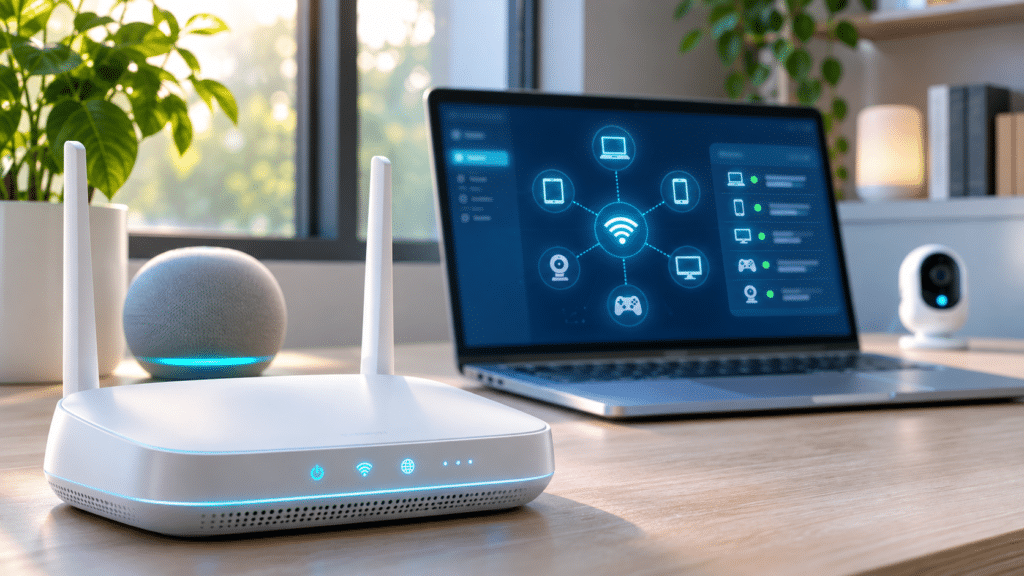
Learning how to check who is connected to your Wi-Fi network helps you spot unauthorized access, understand why your internet may feel slow, and keep smart devices under control. Your router usually maintains a connected devices list showing phones, computers, televisions, cameras, speakers, and other equipment currently using your network.
The exact labels vary by router brand and internet provider, but the basic process is similar: open the router’s management page or companion app, review the listed devices, identify anything unfamiliar, and change your access credentials if necessary. This guide explains how to do that safely without assuming that every unknown device is an intruder.
Key Takeaways
- Open your router’s connected-device list to see which equipment is using the network
- Use device names, MAC addresses, and connection details to identify unfamiliar equipment
- Confirm whether an unknown device belongs to someone in your home before blocking it
- Change your Wi-Fi password and router credentials to remove unwanted users
- Refresh the list and account for privacy settings, inactive devices, and duplicate entries
1. Open Your Router’s Connected-Device or Client List
The most reliable place to check your home network is the router itself. Depending on the manufacturer, the list may be called Connected Devices, Client List, Network Map, Attached Devices, Device Manager, or DHCP Clients. These labels describe broadly similar information: devices that the router has recently detected or assigned a network address.
Find your router’s management address
First, connect your phone or computer to the Wi-Fi network you want to inspect. You can often open the router admin page by entering a local address such as 192.168.1.1 or 192.168.0.1 in a web browser, but not every router uses the same address. Check the router’s label, setup paperwork, manufacturer instructions, or your operating system’s network details instead of guessing repeatedly.
On a Windows computer, the router is usually shown as the Default Gateway in network information. On macOS, it may appear as the router address in the active Wi-Fi connection’s TCP/IP details. Android, iPhone, and other devices generally show the router or gateway address in the details for the connected Wi-Fi network, although the exact menu names vary by device and operating system.
Sign in to the router admin page
Enter the local router address in the browser’s address bar, not into a search field. You should see a login screen for the router’s administrative interface. This login is separate from your Wi-Fi password on many devices, although some newer systems use one account for both the app and router management.
If you have never changed the administrator password, do not assume the default credentials are safe. Look for the credentials printed on the router, supplied by your internet provider, or documented by the manufacturer. After you regain access, change the router administrator password to a unique password that is not used for email, shopping, or any other account.
Open the connected devices list
Look through the router menu for a device, network, status, or map section. The list may show the device name, IP address, MAC address, connection type, connection band, or time of last activity. Some routers separate wired Ethernet devices from wireless clients, while others display everything together.
Take a screenshot or write down the entries before making changes. Recording the current list is useful if you need to compare it after restarting the router, changing the Wi-Fi password, or reconnecting household equipment. Avoid blocking a device immediately just because its name looks unfamiliar; many legitimate devices identify themselves with a manufacturer name, model code, or generic label.
2. Check Connected Devices Through Router and Network-Management Apps
Many modern routers are managed primarily through a smartphone app rather than a traditional browser page. Mesh Wi-Fi systems and equipment supplied by internet providers commonly show a network map, device inventory, or usage dashboard in the app. The app may be easier to use, but it can also organize information differently from the router’s local management page.
Use the official router app
Install the official application for your router or internet provider from the appropriate app store. Sign in with the account used during setup, then look for sections named Devices, Network, Clients, Family, or Security. The app may let you pause a device’s internet access, rename it, assign it to a person, or move it to a profile.
These controls are useful, but a pause command is not always the same as permanent removal. A device may remain visible in the app even after access is paused, and some systems retain recently seen devices for reference. Read the status carefully so you know whether the device is currently connected, recently connected, or merely saved in the router’s history.
Understand wireless network scanner apps
A wireless network scanner can provide another view of nearby devices, especially when the router’s own interface is limited. However, a scanner on your phone or computer may not see every device the router knows about. It can also detect equipment on the local network without telling you who owns that equipment.
Use scanner results as supporting information rather than absolute proof. The router’s connected-device list is normally the better source for identifying clients that have authenticated to your Wi-Fi network. Avoid installing unknown networking apps that request unnecessary access to personal data, and use a reputable provider if you decide to scan your own network.
Check each Wi-Fi network separately
If your router broadcasts a main network, guest network, and possibly separate 2.4 GHz or 5 GHz names, check how the router groups them. Some systems combine all bands into one device list, while others display separate views. A guest device may be legitimate even though it is not familiar to you, particularly if you shared the guest password with visitors.
Mesh systems also deserve special attention. A device connected to a satellite node may still appear in a central network list, but its access point or room label can help you locate it. If your home network has several access points, do not mistake a satellite unit for an unknown client.
If a smart device keeps appearing or disappearing while you investigate, it may be a connectivity issue rather than unauthorized access. Our guide to fixing smart home devices that keep going offline covers common causes such as weak signal, power interruptions, and outdated setup information.
3. Identify Unfamiliar Devices Using Names, MAC Addresses, and Connection Details
An unfamiliar entry is not automatically an intruder. Phones may use privacy features that change the identifying address they present to a Wi-Fi network, while televisions, streaming boxes, printers, and smart plugs may appear under short model codes. The goal is to match each entry with a real device in your home before taking disruptive action.
Start with device names
Look at the hostname or device name first. Entries such as “John-iPhone,” “Living-Room-TV,” or a recognizable computer name are easier to confirm than a code such as “ESP” followed by several numbers. Unfortunately, names are not always reliable: a device owner may have renamed the equipment, and some products provide no useful name at all.
Walk through the home and make an inventory of equipment that uses Wi-Fi. Include phones, tablets, laptops, game consoles, smart televisions, streaming players, printers, cameras, thermostats, watches, speakers, robot vacuums, appliances, and Wi-Fi extenders. Remember that a household with several people can accumulate more connected devices than expected.
Compare MAC addresses carefully
A MAC address is an identifier used by a network interface. Routers often show it as six groups of letters and numbers, such as AA:BB:CC:11:22:33. The first part may indicate the equipment manufacturer, which can provide a useful clue, but it does not prove who owns the device.
To compare an entry, open the Wi-Fi details on the suspected phone, computer, or smart device and locate its Wi-Fi or hardware address. The menu differs by platform and model. Some phones use a private or randomized Wi-Fi address for each network, so the address shown on the phone may not match a permanent identifier printed on its packaging or hardware.
Do not publish your full MAC address or share screenshots containing it unnecessarily. A MAC address is not a password, but it is still network information that can help identify your equipment. If you rename devices in the router app, choose names that help you recognize them without exposing sensitive personal information.
Use IP address and connection details
The local IP address can help you distinguish entries and understand whether a device is active, but it usually does not identify the owner. A router may assign a different local IP address after a device disconnects or the network restarts. Treat the address as a tracking detail within your network, not as a permanent label.
Connection details can still be useful. A wired device may be a desktop computer, network printer, access point, or television connected by Ethernet. A wireless entry may show the connected band, signal strength, access point, or last-seen time. If an entry has a weak signal and was last active hours ago, it may be a device in a distant room rather than a nearby intruder.
4. Verify Whether Unknown Devices Are Legitimate or Unauthorized
Before blocking an unknown device, verify it methodically. Start by asking everyone in the household whether they recently connected a phone, laptop, game console, wearable, or guest device. Also check devices that are easy to forget, such as an older phone, a temporary work laptop, a smart speaker, or a streaming stick behind the television.
Use a safe device test
If the router app allows you to rename or pause a device, use a reversible test. Ask a household member to check whether a particular device has lost internet access, or pause one suspected device while watching for a known phone, television, or speaker to stop working. Restore access immediately if you have identified the wrong equipment.
Another approach is to turn off your own devices one at a time and refresh the router list. Wait long enough for the router to update, because some interfaces do not remove an entry instantly. If an entry remains after the associated device is powered down, it may be cached, inactive, or associated with a different device.
Look for signs of unauthorized access
An entry deserves closer attention when it appears during a time nobody was using the network, has a manufacturer that does not match anything you own, or returns after you have disconnected all known equipment. Unexpected network slowdowns, repeated router login alerts, and unexplained settings changes can also justify a security review, although none of these signs alone proves that someone is connected without permission.
Do not confront a person or attempt to access another device based only on a router entry. Focus on securing your own network. If you believe your account or router has been compromised, save relevant screenshots, change credentials from a trusted device, update the router, and contact your internet provider or the router manufacturer for assistance.
Distinguish duplicates from separate devices
One physical device can appear more than once if it uses different Wi-Fi bands, has changed its private address, or has both wired and wireless connections. A phone may also generate a new network identity after you forget and reconnect to the network. Duplicate-looking entries do not necessarily mean that multiple people are using your connection.
Rename confirmed devices and record their MAC addresses or other details. Over time, a labeled list makes it much easier to recognize genuine changes. If your router provides a device history, compare new entries with the time you added or replaced equipment.
5. Remove Unwanted Users by Changing Wi-Fi Access and Router Credentials
If you confirm that someone should not have access, the most effective general solution is to change the Wi-Fi password. Changing the password disconnects devices that still use the old credentials, although you will need to reconnect every authorized phone, computer, television, camera, and smart home product afterward.
Change the Wi-Fi password
Open the wireless settings in the router admin page or official app and create a new, unique password. Use a long passphrase that household members can type accurately, but do not base it on your address, family name, phone number, or a password used on another service. Save the new credentials in a trusted password manager if that is convenient.
After changing the password, reconnect your own devices one at a time. This process can reveal equipment you forgot about, and it gives you a chance to remove old phones or devices that no longer belong in the home. Smart home products may need additional setup if they cannot automatically receive the new credentials.
For a deeper security checklist, see our guide to securing your home Wi-Fi network. If you need to share access with visitors, a guest Wi-Fi network keeps visitor credentials separate from your main password on routers that support guest access.
Change the router administrator password
The Wi-Fi password protects wireless access, while the router administrator password protects settings such as security mode, DNS configuration, port forwarding, and firmware controls. Change both when you suspect unauthorized access, especially if the router still uses a default administrator password.
Use a different password for router administration than for Wi-Fi. If your router supports a separate management account or multifactor authentication, enable those protections according to the manufacturer’s instructions. Never send administrator credentials through an untrusted message or enter them into a website that is not your router’s local page or official management service.
Block devices with caution
Some routers offer a block, deny, pause, or access-control feature. This can be useful for a confirmed unwanted device, but it should not replace changing the Wi-Fi password. Device-based blocking may be bypassed by a new network identity, and an accidental block can disrupt your own equipment.
Use blocking as a targeted control after you have identified the device. If the entry is clearly unauthorized, change the password first, then remove old access-control rules that might interfere with reconnecting legitimate devices.
6. Strengthen Your Network With Secure Settings, Updates, and Guest Access
Checking the connected-device list is most useful when combined with basic Wi-Fi network security. Keep the router’s firmware updated through its official app or administrative interface, and replace equipment that no longer receives security updates when practical. Firmware menus vary, so follow the manufacturer’s instructions rather than enabling settings based on an unfamiliar online guide.
Use current wireless security
Choose the strongest wireless security option supported by your router and your household devices. Modern routers may offer WPA3, while some mixed-device networks use WPA2 or a compatibility mode. Avoid leaving the network open, and do not rely on hiding the Wi-Fi name as a substitute for a password.
If an old device only supports outdated security, consider replacing the device or placing it on a separate network if your router provides that option. Disabling older protocols can improve protection, but it may also disconnect older equipment, so make a note of what changes you make.
Use guest access for visitors and less-trusted devices
A guest network gives visitors a separate Wi-Fi password and can limit their access to your main network. It is also useful for certain internet-connected devices that do not need to communicate with computers, storage drives, or other personal equipment. The exact isolation features vary by router, so confirm what the guest network can access before relying on it.
Give the guest network a different name and password from your primary network. Change the guest password when it has been shared widely or is no longer needed. If you use smart home equipment, check the manufacturer’s setup requirements before moving a device because some products need access to a phone, hub, or local controller during setup.
Review additional router protections
Disable remote administration unless you have a specific reason to manage the router from outside your home and understand how to secure that feature. Review unfamiliar DNS, port-forwarding, or administrator settings, but do not change advanced options blindly. If you find unexpected changes and cannot restore the router confidently, contact your provider or perform a documented factory reset after saving only the settings you trust.
Place the router where it can receive adequate ventilation and where unauthorized people cannot easily access its reset button or cables. Physical access matters because a person who can reset the equipment may be able to reconfigure it, even if the Wi-Fi password is strong. For general placement and coverage advice, the FCC’s home network tips provide useful guidance.
7. Troubleshoot Missing, Duplicate, or Inactive Devices in the Network List
Router lists are not always live, perfect inventories. Some update immediately, while others refresh every few minutes or retain inactive devices for hours. Before assuming that a device has disappeared or that a duplicate represents an intruder, refresh the app or page and check the device’s status and last-seen time.
When a known device is missing
Confirm that the device is powered on and connected to the correct Wi-Fi name. It may be using cellular data, Ethernet, a guest network, a different access point, or a neighbor’s similarly named network. Restarting Wi-Fi on the device can force it to reconnect, but avoid resetting a smart product unless you have its setup instructions and credentials available.
Some devices sleep deeply and stop reporting activity until they need network access. Battery-powered cameras, sensors, e-readers, and accessories may therefore appear inactive even though they are functioning normally. A device that is absent from the active list but works when you use it may simply be reported only during network activity.
When old devices remain listed
Look for labels such as offline, inactive, recently seen, or disconnected. These entries are often historical records rather than current connections. Restarting the router may clear temporary information, but not every system removes its device history after a reboot.
If you have changed the Wi-Fi password, an old device may remain listed even though it can no longer connect. Check the connection status rather than counting every visible entry. When in doubt, compare the list after all known equipment has been powered down and allow time for the router to update.
When devices appear duplicated
Compare the names, MAC addresses, IP addresses, and connection types of the duplicates. A phone with a private Wi-Fi address may appear as a new client after network settings change. A mesh system can also show the same client under different access points, and a computer connected through both Wi-Fi and Ethernet may create separate records.
Rename confirmed entries and remove stale profiles only if the router provides a clear option to do so. If duplicates continue to multiply, update the router firmware, restart the network, and check whether a device is repeatedly disconnecting and reconnecting. Persistent connection problems may be more relevant than the number of entries itself.
Frequently Asked Questions
Can I check who is connected without logging in to the router?
You can use a reputable network scanner on a device connected to your Wi-Fi, but it may not show the same information as the router and may miss clients that are inactive or isolated. For the most complete view, sign in to the router’s official app or local management page. If you cannot access either, contact your internet provider or router manufacturer for account-recovery help.
Why does my own phone look like an unknown device?
Phones may use a private or randomized Wi-Fi address, and the router may display a generic hostname or manufacturer code. Compare the phone’s Wi-Fi details with the MAC address shown by the router, then check whether the router entry is active while your phone is connected. Renaming the device in the router app can prevent confusion later.
Does changing my Wi-Fi password remove unauthorized users?
Changing the Wi-Fi password disconnects devices that rely on the old password, making it the primary step for removing unwanted wireless access. Also change the router administrator password, review settings, install available firmware updates, and reconnect only equipment you recognize. If unauthorized entries return, seek help from your provider or the router manufacturer.
Conclusion
To check who is connected to your Wi-Fi network, start with the router’s connected-device list or official network-management app. Identify each entry using its name, MAC address, connection details, and last-seen status, while remembering that privacy features, smart home products, and inactive records can make legitimate devices look unfamiliar.
If you confirm unwanted access, change both the Wi-Fi password and router administrator password, then reconnect only trusted devices. Regular firmware updates, a strong wireless security setting, and a separate guest network make future checks easier and reduce the chance that an unknown device will gain access again.