How to Share a WiFi Password from iPhone to Android
Apple makes it easy to share a WiFi password between two Apple devices, but that feature stops working as soon as an Android phone is involved. If a friend with a Samsung, Pixel, or other Android device asks to join your network, you need a different approach. This guide explains how to share a WiFi password from iPhone to Android by revealing the saved password, sending it manually, or turning it into a QR code the Android phone can scan.
Each method works without installing anything on the Android phone. Which one you use depends on your iOS version and how comfortable you are reading out or sending a long password.
Key Takeaways
- Apple’s one-tap WiFi sharing only works between Apple devices, so Android needs a workaround
- iOS 16 and later let you view and copy a saved WiFi password in Settings after Face ID, Touch ID, or your passcode
- On iOS 18 and later, the Passwords app can show a network QR code that Android phones can scan
- On older iOS versions, you can build a WiFi QR code yourself with the Shortcuts app
- Most Android phones from Android 10 onward can scan a WiFi QR code from the camera or WiFi settings
Why iPhone-to-Android WiFi Sharing Needs a Workaround
When you share WiFi between two iPhones, a card pops up on the connected iPhone asking whether you want to share the password. That feature relies on Apple’s own system. Both devices need to be signed in to an Apple Account, Bluetooth and WiFi need to be on, and each person usually needs to be in the other’s Contacts. Android phones can’t take part in this exchange, so the pop-up never appears.
Android has its own built-in sharing, but it works differently. An Android phone that’s already connected to a network can display a QR code, and another phone scans it to join. The Android side is ready to accept a WiFi QR code. The task is getting your iPhone to produce one, or getting the password to the Android user some other way.
This is one of the more practical Apple WiFi sharing limitations to understand. It isn’t a bug or a setting you forgot to turn on. You simply need a method that both platforms understand, and plain text or a standard QR code fills that role.
Before You Start: iOS and Android Version Requirements
Your iOS version decides which methods are available to you. To check it, open Settings, tap General, then tap About and look at the iOS Version line. Here’s how the versions break down:
- iOS 18 and later: You can view the password in Settings and also open the Passwords app, which can display a QR code for a saved WiFi network.
- iOS 16 and iOS 17: You can view and copy a saved WiFi password in Settings, but there’s no built-in QR code option. You can still create one with the Shortcuts app.
- iOS 15 and earlier: The WiFi password isn’t visible in the iPhone’s Settings app. If you use iCloud Keychain and own a Mac, the password may be viewable in Keychain Access on the Mac. Otherwise, the router label or router admin page is your best source.
On the Android side, most phones running Android 10 or later can join a network by scanning a WiFi QR code from the WiFi settings screen. Many camera apps and Google Lens can also read these codes. Older Android versions may need a separate QR scanner app, and manual entry always works regardless of version.
A few other conditions apply. Your iPhone must have the network saved, which means it has connected before. Networks set up by a work or school profile may hide the password from you. Public networks that use a sign-in page in the browser, like those at hotels or cafés, often have no password to share at all.
Find and Reveal the Saved WiFi Password on Your iPhone
On iOS 16 and later, the WiFi settings screen on your iPhone has a Password field that you can unlock. Follow these steps:
- Open Settings and tap Wi-Fi.
- Find the network you want to share. If you’re connected, it appears at the top with a checkmark.
- Tap the blue i (info) button to the right of the network name.
- Tap the Password field, which shows dots by default.
- Confirm with Face ID, Touch ID, or your passcode.
- The password appears in plain text. Tap it again to see a Copy option.
The authentication step matters because it stops anyone who borrows your unlocked phone from reading every WiFi password you’ve saved. If Face ID fails, your passcode still works.
If the network isn’t nearby, you can still find its password. On the Wi-Fi screen, tap Edit in the top-right corner and authenticate. This opens a list of known networks your iPhone has saved, including ones you joined weeks or months ago. Tap the info button next to any of them to reach the same Password field.
A common mistake is confusing a similar network name with the right one. Homes with a dual-band router may show two networks, such as “SmithHome” and “SmithHome-5G,” and they don’t always share a password. Check that you’re viewing the exact network the Android user wants to join.
Share the Password Manually with the Android User
Once you can see the password, the simplest option is to give it to the Android user directly. You have two practical ways to do this.
Read It Out or Show the Screen
If the person is standing next to you, they can read the password from your screen while they type it on their phone. On the Android phone, they open Settings, go to the WiFi section, tap the network name, and enter the password. The exact menu names vary by manufacturer. Samsung phones, for example, place WiFi under Settings > Connections > Wi-Fi.
Passwords are case-sensitive, so “Sunset2024” and “sunset2024” are different. Characters that look alike cause most typing errors. A lowercase l, uppercase I, and the number 1 are easy to mix up, as are the letter O and the number 0. Ask the person to read back anything ambiguous before tapping Connect.
Send It in a Message
For long, random passwords, copying and sending is more reliable than typing. After tapping Copy in your iPhone’s WiFi settings, paste the password into a text message, chat app, or email to the Android user. They can long-press it, copy it, and paste it into their WiFi password field.
Keep privacy in mind. A password sent in a message stays in both conversation histories and on any backups. If you share your home network this way often, consider setting up a guest network on your router so your main password stays private. Our guide on how to secure your home Wi-Fi network covers guest networks and other protections worth setting up.
Generate a WiFi QR Code on iPhone Using the Passwords App
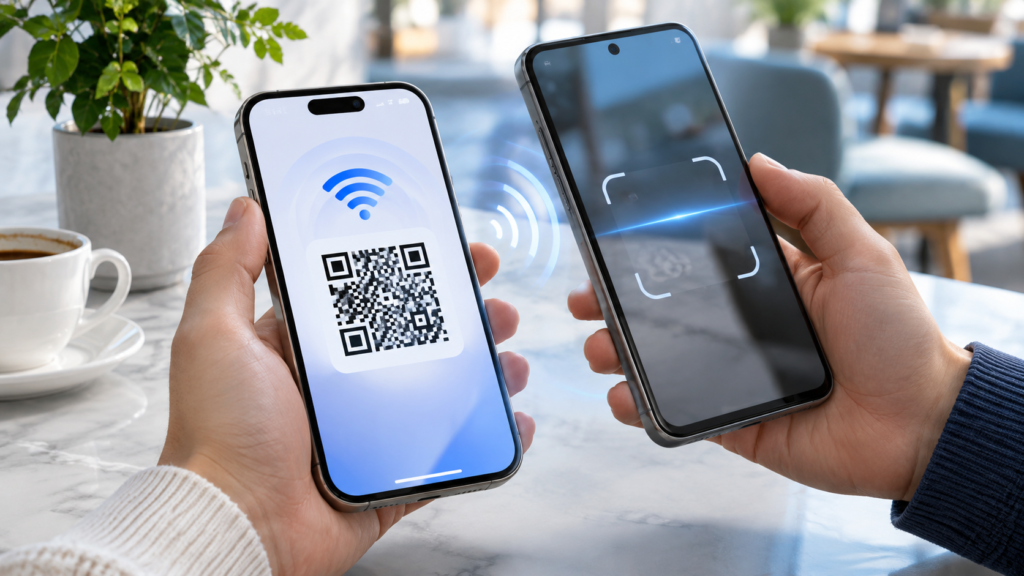
Apple introduced a standalone Passwords app with iOS 18. Besides website logins, it stores the WiFi networks your iPhone has saved, and it can display a QR code for any of them. This is the closest thing to native WiFi password sharing between devices on different platforms, because the Android user never has to type anything.
- Open the Passwords app. If you can’t find it, swipe down on the Home Screen and search for “Passwords.”
- Unlock the app with Face ID, Touch ID, or your passcode.
- Tap the Wi-Fi category.
- Select the network you want to share.
- Tap Show Network QR Code.
- Hold your iPhone so the Android user can scan the code with their phone.
The same network detail screen also shows the password itself, which is useful if the QR code won’t scan and you need to fall back to manual entry.
The QR code contains the network name, the security type, and the password in a standard format that Android phones recognize. Anyone who scans it can read the password, so treat the code like the password itself. Don’t post a screenshot of it on social media, and avoid leaving it on screen in a public place.
If you’d prefer to keep the code handy for regular visitors, you can take a screenshot and print it or display it at home. Be aware that this exposes the password to anyone who scans the printout. A guest network is again the safer choice if you plan to leave a code on the fridge.
Create a WiFi QR Code on Older iOS Versions with Shortcuts or Third-Party Tools
If your iPhone runs iOS 16 or iOS 17, there’s no built-in Show Network QR Code button. You can still create a working WiFi QR code by building it yourself. This takes a few minutes once, and you can reuse the result.
Understand the WiFi QR Code Format
A WiFi QR code is just text written in a specific pattern that phones know how to read. The pattern looks like this:
WIFI:T:WPA;S:NetworkName;P:YourPassword;;
- T is the security type. Use
WPAfor WPA, WPA2, and most mixed WPA2/WPA3 home networks. Usenopassfor an open network. - S is the network name (SSID), exactly as it appears in your WiFi list.
- P is the password.
- The text ends with two semicolons.
If your network is hidden, add H:true; before the final semicolons. If the network name or password contains a semicolon, comma, colon, backslash, or double quote, put a backslash in front of that character. For example, a password of coffee;time becomes coffee\;time. Skipping this step is the most common reason a homemade code fails to connect.
Build the Code with the Shortcuts App
The Shortcuts app is preinstalled on iPhones and can turn text into a QR code without sending your password anywhere. Here’s a simple setup:
- Copy your WiFi password from Settings using the steps in the earlier section.
- Open Shortcuts and tap the + button to create a new shortcut.
- Add a Text action and type the WiFi pattern with your own network name and password, for example
WIFI:T:WPA;S:SmithHome;P:Sunset2024;;. - Add a Generate QR Code action. It uses the text from the previous step automatically.
- Add a Quick Look or Show Result action so the code appears on screen.
- Name the shortcut, such as “Share Home WiFi,” and tap Done.
Run the shortcut whenever someone needs to connect, and the Android user scans the code from your screen. Because the password is stored inside the shortcut, anyone with access to your unlocked phone can see it. Update the shortcut if you change your WiFi password.
Use a WiFi QR Code Generator Carefully
Plenty of websites and apps offer to create a WiFi QR code for you. They work, but you’re typing your network name and password into someone else’s software. Some generators process everything in your browser, while others send the details to a server. Before using one, check whether it states clearly that data stays on your device, and avoid generators that ask you to create an account or that track scans.
For most people, the Shortcuts method is the better trade-off. It takes a little longer to set up, but your password never leaves your phone.
Consider Personal Hotspot as an Alternative
If you can’t recover the WiFi password at all, an iPhone hotspot for Android is a short-term fallback. Open Settings > Personal Hotspot on your iPhone, turn on Allow Others to Join, and give the Android user the hotspot’s Wi-Fi Password shown on that screen. Their phone then uses your cellular data, which counts against your plan, and availability depends on your carrier. Hotspot use also drains your battery quickly, so it suits brief tasks rather than a long visit.
Scan the QR Code on Android and Troubleshoot Common Connection Problems
Once your iPhone shows a QR code, the Android user has a few ways to scan it. Menu names and icons differ between manufacturers, so these are general paths rather than exact steps for every phone.
Scanning Options on Android
- From WiFi settings: On many phones running Android 10 or later, the WiFi settings screen has a QR code icon. On Pixel phones, it sits next to Add network at the bottom of the network list. On Samsung Galaxy phones, look for the QR icon near the top of the Wi-Fi screen under Settings > Connections.
- With the camera app: Many Android camera apps detect QR codes automatically. Point the camera at the code and tap the connection prompt that appears.
- With Google Lens: If the camera doesn’t react, Google Lens can read the code and offer to join the network.
Google’s help page on connecting to Wi-Fi networks on Android covers the stock Android steps, including joining by QR code. Samsung and other brands may label things differently, so if the icon isn’t where you expect, search the Settings app for “QR.”
If the person received the code as an image rather than scanning your screen, many Android phones can scan a saved image through Google Lens or the Photos app. The reverse also works on Apple devices, as explained in our guide on how to scan a QR code from a screenshot on iPhone.
Troubleshooting Common Problems
The code won’t scan. Raise your iPhone’s screen brightness and hold the phones 15 to 30 centimeters apart. Glare from overhead lights can block the scan, so tilt the screen slightly. If you’re using a printed code, make sure it isn’t blurry or creased.
The phone scans the code but says the password is wrong. For a homemade code, check for typos and missing backslashes before special characters. For any code, confirm the password is current. If someone changed the router password recently, your iPhone may still be holding the old one, even though it reconnected.
The phone connects but there’s no internet. The WiFi password is fine in this case, and the problem lies with the router or the connection to your internet provider. Restarting the router fixes many of these cases; our guide on how to restart a Wi-Fi router walks through the safe way to do it.
The network doesn’t appear on the Android phone. Some older Android phones can’t see 5 GHz or 6 GHz networks. Try the 2.4 GHz network if your router offers a separate one. Also check whether the network is hidden, which requires H:true in a homemade code or manual entry of the network name.
The router blocks the new device. Some routers use MAC address filtering, which only allows approved devices. If that’s turned on, you’ll need to add the Android phone in the router’s app or admin page. Android phones also use a randomized MAC address by default, so the address shown in the router may not match the phone’s hardware address.
It still won’t connect. Ask the Android user to forget the network if it’s already listed, then try again. A saved entry with an old password can block a fresh connection attempt.
Frequently Asked Questions
Can I share WiFi from iPhone to Android without knowing the password?
You don’t need to remember it. As long as your iPhone has connected to the network before, iOS 16 and later can reveal the saved password in Settings, and iOS 18 and later can turn it into a QR code in the Passwords app. If your iPhone has never joined the network, there’s nothing saved to share, and you’ll need the router label or the network owner.
Why doesn’t the Share Password pop-up appear for Android?
That pop-up is part of Apple’s own sharing system, which only works between Apple devices such as iPhones, iPads, and Macs. Android phones can’t receive it. Use a QR code or manual entry instead.
Is it safe to share my WiFi password with a QR code?
Scanning a code from your screen in person is about as safe as telling someone the password. The risk comes from photos or printouts of the code, because anyone who scans them can read the password. For regular guests, a separate guest network keeps your main network and its devices out of reach.
Conclusion
Apple’s automatic WiFi sharing won’t reach an Android phone, but you have reliable alternatives. On iOS 18 or later, the Passwords app’s Show Network QR Code button is the fastest route, since the Android user just scans and connects. On iOS 16 or iOS 17, reveal the password in Settings and either send it or build a QR code with Shortcuts. On older versions, check the router label or a Mac’s Keychain Access.
Whichever method you choose, treat the password and any QR code as private, and confirm the exact network name before sharing. If the Android phone still won’t connect, work through the troubleshooting steps above, starting with the password itself and moving on to the router.