15 Settings to Extend Your Smartphone Battery Life
Introduction
Your smartphone is probably one of the most used devices in your daily life, but constant screen time and background processes can drain your battery faster than you’d like. If you find yourself charging multiple times a day or running out of power before evening, the solution might not be buying a new phone or carrying a power bank everywhere. Instead, learning how to extend your smartphone battery life by adjusting key settings can make a significant difference in how long your device lasts between charges.
Many users don’t realize that their device’s default settings aren’t optimized for battery efficiency. Your screen brightness, background app activity, connectivity features, and processor speed all consume power. By making strategic changes to 15 essential settings, you can reclaim hours of battery life without sacrificing core functionality or switching to a less capable device.
Key Takeaways
- Lower your screen brightness and enable adaptive brightness to reduce the display’s power consumption
- Switch to dark mode or use an AMOLED-friendly theme to save power on compatible screens
- Reduce your screen timeout duration so your display turns off faster when idle
- Disable location services or use battery saver mode to limit GPS and tracking features
- Turn off background app refresh to prevent apps from using power when you’re not using them
- Disable push notifications for non-essential apps to reduce network activity and processing
- Turn off Bluetooth when not in use to eliminate constant wireless searching and connections
- Disable Wi-Fi scanning and location services to prevent continuous network searching
- Reduce animation and visual effects to lower processor and GPU workload
- Disable auto-sync for email and cloud services to control when data refreshes
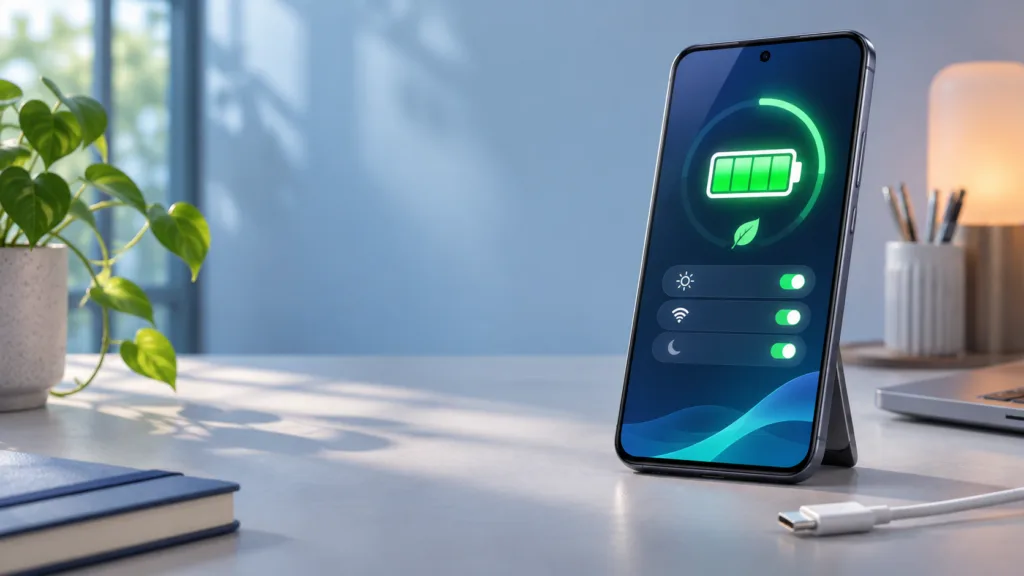
- Enable battery saver or low power mode for immediate and significant battery improvements
- Close unused apps running in the background to free up memory and processing power
- Disable 5G and use 4G LTE instead to reduce power-hungry wireless connectivity
- Turn off vibration feedback to eliminate motor-driven battery drain
- Manage CPU performance and processor speed to limit how hard your device works
1. Lower Screen Brightness and Enable Adaptive Brightness
Your phone’s display is typically the single largest power consumer on your device. Reducing screen brightness to a comfortable but lower level can extend your battery life by several hours. Most users keep brightness at maximum by default, which is unnecessary in most indoor and even outdoor conditions.
Beyond manual adjustment, enable adaptive brightness (also called auto-brightness) on both Android and iOS devices. This feature uses your phone’s ambient light sensor to automatically adjust brightness based on your environment. In a dimly lit room, your screen will dim automatically, and in bright sunlight, it will increase just enough to remain readable. This intelligent adjustment prevents wasting power on unnecessarily bright displays.
To enable this feature on most Android devices, go to Settings > Display > Brightness level, then enable the toggle for Adaptive brightness. On iPhones, navigate to Settings > Display & Brightness and turn on Auto-Brightness. Start with manual brightness at 30-40% and let adaptive brightness handle the rest. You’ll quickly adjust to this lower setting and save significant battery power daily.
2. Switch to Dark Mode or Use an AMOLED-Friendly Theme
Dark mode isn’t just easier on your eyes during nighttime browsing—it can genuinely extend battery life, especially on AMOLED and OLED screens. These display types use individual pixels that emit their own light. Black pixels consume far less energy than white pixels because they’re essentially turned off, while white pixels must shine at full brightness.
If your phone has an AMOLED screen (common on Samsung Galaxy phones and many flagship devices), enabling dark mode can extend battery life by 10-15% depending on usage patterns. Even on LCD screens, dark mode can provide modest battery savings. Beyond system-wide dark mode, many apps like Gmail, YouTube, and Twitter offer built-in dark themes that further reduce power consumption.
Enable dark mode in your phone’s display settings. On Android, go to Settings > Display > Dark theme. On iPhone, navigate to Settings > Display & Brightness and select Dark. Then manually enable dark mode in individual apps that support it. Use this setting consistently, especially in the evenings when you’re doing most of your browsing.
3. Reduce Screen Timeout Duration
Screen timeout (the time your device waits before turning off the display) directly impacts battery life. Many phones default to 2-3 minutes, which means your screen stays on longer than necessary when you set your phone down. Reducing this to 30 seconds or 1 minute ensures your display powers down quickly when you’re not actively using it.
This setting won’t significantly impact your ability to read messages or notifications—you’ll simply notice your screen turning off slightly sooner when you’re in between tasks. If you find this change too aggressive, 1-2 minutes is a reasonable middle ground that still saves meaningful battery power without feeling restrictive.
To adjust this setting, go to Settings > Display on Android and select Screen timeout or Sleep. Choose 30 seconds or 1 minute. On iPhone, go to Settings > Display & Brightness > Auto-Lock and select 30 Seconds or 1 Minute. Test this for a few days to find the timeout length that works for your habits.
4. Disable Location Services or Use Battery Saver Mode
Location services use GPS, Bluetooth, and Wi-Fi data continuously to determine your phone’s location. While this feature is useful for navigation and location-based reminders, allowing all apps to access your location drains battery rapidly. GPS is particularly power-hungry, consuming significantly more energy than cellular or Wi-Fi location methods.
Rather than disabling location services entirely, choose a more granular approach. On Android, go to Settings > Location and change the location mode to “Battery saving” mode, which relies on Wi-Fi and cellular networks instead of GPS. Then review which apps actually need location access. Navigate to Settings > Apps and disable location permission for apps that don’t require it (like games or social media apps that just want your location for ads).
On iPhone, go to Settings > Privacy > Location Services and review each app’s location permission. Set non-essential apps to “Never” or “Only While Using.” For maps and navigation apps, keep the setting as “Always” or “While Using” only during times you’re actively navigating. This selective approach maintains functionality for important apps while dramatically reducing unnecessary battery drain.
5. Turn Off Background App Refresh
Background app refresh allows apps to update their content and check for new data even when you’re not actively using them. This includes email apps downloading new messages, news apps fetching headlines, and social media apps refreshing feeds. While this feels convenient, it’s a major battery drainer because apps wake up periodically throughout the day.
Disabling background app refresh entirely is one option, but a better approach is selective management. Identify which apps genuinely benefit from background updates—like email, messaging apps, or fitness trackers—and disable it for everything else. You can manually refresh apps when you open them, and they’ll still receive notifications.
On Android, go to Settings > Apps and open each app’s settings, then disable “Allow background activity” or “Battery” permissions. On iPhone, navigate to Settings > General > Background App Refresh and toggle off the feature entirely, or disable it for individual apps. If you disable it completely, you can selectively re-enable it for essential apps like email or messaging.
6. Disable Push Notifications for Non-Essential Apps
Every time an app sends you a push notification, your phone’s screen powers on, the network activates to fetch the notification, and your processor wakes to display the alert. Apps constantly sending notifications—social media, games, shopping apps, news apps—create frequent small battery drains that add up throughout the day.
Review your installed apps and disable notifications for anything non-essential. Keep notifications enabled only for messaging apps, calls, work-related apps, and anything that serves a time-sensitive purpose. Gaming notifications, promotional alerts from shopping apps, and social media likes don’t need to interrupt your day.
On Android and iPhone, go to Settings > Apps (Android) or Settings > Notifications (iPhone). Review each app and either disable notifications entirely or customize them to “critical alerts only.” Some apps let you disable sound and vibration notifications but keep silent notifications, which is an excellent compromise if you want to maintain awareness without battery drain.
7. Turn Off Bluetooth When Not in Use
Bluetooth is a convenient wireless technology, but it consumes power by continuously broadcasting and searching for nearby devices to connect with, even when you’re not actively pairing anything. If you only use Bluetooth occasionally for headphones or a car stereo, leaving it on perpetually is wasteful.
The simplest approach is turning off Bluetooth entirely in your phone’s settings or quick settings menu and enabling it only when you actually need wireless headphones or speaker connection. Many phones default to leaving Bluetooth on, so you’ll see meaningful battery savings just by turning it off.
Access Bluetooth through your phone’s Settings > Connected Devices > Bluetooth, or use the quick settings panel by swiping down from the top of the screen. Toggle Bluetooth off when you’re not using it. If you use wireless earbuds or headphones regularly, consider leaving Bluetooth on during active periods and disabling it overnight or at other times when you’re not using wireless audio.
8. Disable Wi-Fi Scanning and Location Services
Your phone continuously scans for available Wi-Fi networks in the background, even when Wi-Fi is turned off. This feature is designed to help your phone quickly connect to known networks and improve location accuracy, but the constant scanning drains your battery. Additionally, some location services use Wi-Fi scanning data to triangulate your position.
Disabling Wi-Fi scanning doesn’t prevent you from connecting to Wi-Fi—you can still manually select networks or have your phone reconnect to previously saved networks. It simply eliminates the background searching when Wi-Fi is off or you’re between known networks.
On Android, go to Settings > Location > Location Services and disable “Wi-Fi scanning.” You may also find this under Settings > Wi-Fi > Advanced or Settings > About Phone > Advanced settings, depending on your device manufacturer. On iPhone, go to Settings > Privacy > Location Services and scroll down to find “Wi-Fi Networking” and disable it. These granular controls prevent unnecessary power drain from background wireless searching.
9. Reduce Animation and Visual Effects
Animations and visual effects—like transition animations between screens, app opening animations, and parallax effects—require your phone’s GPU (graphics processor) to work harder. While these effects make your phone feel responsive and polished, they consume more power than a simpler interface.
Reducing animations doesn’t mean losing all visual feedback; it means disabling unnecessary flourishes that don’t impact functionality. Your phone will still respond normally to your touches and open apps just as quickly—the transition will simply appear less animated.
On Android, go to Settings > Developer Options (if you don’t see this, go to Settings > About Phone and tap “Build Number” seven times to enable it). Then find “Animation scale” or “Window animation scale” and set it to 0.5x or Off. On iPhone, go to Settings > Accessibility > Display & Text Size and enable “Reduce motion.” You’ll immediately notice faster interface responsiveness and reduced battery drain from GPU activity.
10. Disable Auto-Sync for Email and Cloud Services
Auto-sync keeps your email, contacts, calendar, and cloud services continuously updated by downloading new data at regular intervals. Each sync event activates your wireless radio, retrieves data from servers, and processes the information. If you have multiple email accounts or cloud services set to sync, this happens frequently throughout the day.
Disabling auto-sync means you can still access your email and files anytime you want—you’ll simply manually refresh when you open those apps instead of having everything updated constantly in the background. For many users, checking email or calendar a few times a day rather than receiving updates every five minutes is perfectly acceptable.
On Android, go to Settings > Accounts and disable Sync for accounts or individual services. You can also go to Settings > Apps > Gmail (or your email provider) and disable background data. On iPhone, navigate to Settings > Mail > Accounts and turn off Mail, Contacts, Calendar sync, or set sync frequency to Manual or Hourly instead of automatic. Consider keeping sync enabled only for critical work accounts if your job requires immediate email access.
11. Enable Battery Saver or Low Power Mode
Both Android and iOS include system-level battery saver modes designed to extend battery life significantly by reducing performance, limiting background activity, and disabling non-essential features. These modes can extend your battery life by 24-48 hours in some cases, though with performance trade-offs.
Many users avoid battery saver mode thinking it will make their phone unusable, but modern implementations are quite functional. Your phone still runs all apps normally, browsing is fast, and calls and messages work perfectly. The main differences are slightly slower animations and reduced background activity.
Enable this feature before your battery drops to critical levels. On Android, go to Settings > Battery and Device Care > Battery > Power Mode and select “Medium Power Saving” or “Maximum Power Saving.” On iPhone, go to Settings > Battery > Low Power Mode and toggle it on. You can enable this mode permanently if you don’t mind the slight performance reduction, or activate it once your battery reaches 20-30% remaining.
12. Close Unused Apps Running in the Background
Even when you’re not actively using an app, it may continue running in the background, consuming memory and processor resources. Some apps are aggressive about this behavior, particularly social media apps, games, and weather apps that constantly check for updates.
Your phone’s operating system manages background apps automatically, but you can be more aggressive about which apps you allow. The most practical approach is identifying which apps you actually use daily versus which are just taking up space and consuming resources.
On Android, regularly check Settings > Apps > Running apps to see what’s currently active. Consider uninstalling apps you haven’t used in weeks. If you want to keep an app but disable its background activity, you can use more granular controls to stop apps from running in the background on Android. On iPhone, review Settings > General > iPhone Storage to see which apps are largest and use most data, then uninstall ones you don’t actively need.
13. Disable 5G and Use 4G LTE Instead
5G networks offer faster speeds but consume significantly more power than 4G LTE, especially in areas with weak 5G signals where your phone must work harder to maintain the connection. If you’re not in a strong 5G coverage area or don’t regularly need the speed advantages, disabling 5G can extend battery life by 15-25%.
The practical reality is that most day-to-day tasks—browsing websites, checking email, using apps, and streaming music—work perfectly fine on 4G LTE. 5G becomes beneficial only for large file downloads, video streaming, or other bandwidth-intensive activities. If you’re not doing those things regularly, 4G LTE is more battery-efficient.
On most Android phones, go to Settings > Network & Internet > Mobile networks > Preferred network type and select LTE instead of 5G. On iPhone, navigate to Settings > Cellular > Cellular Data Options > Voice & Data and select LTE. You can toggle this setting on and off easily—enable 5G only when you need it for specific tasks, then switch back to LTE to preserve battery.
14. Turn Off Vibration Feedback
Your phone’s vibration motor is surprisingly power-hungry. Every time you receive a notification, touch a button on the screen, type on the keyboard, or trigger any haptic feedback, that motor activates and consumes battery power. While each individual vibration is brief, they add up when you’re using your phone heavily throughout the day.
Disabling vibration entirely means you lose tactile feedback, but you’ll still receive audio notifications and see visual indicators on your screen. For heavy phone users, this change alone can add 20-30 minutes to daily battery life. Even if you value the tactile feedback, selectively disabling vibration for some notifications (like every keystroke in the keyboard) while keeping it for calls and messages is a good compromise.
On Android, go to Settings > Sound and Vibration and disable Vibration or Haptic Feedback, then customize individual apps if you want selective vibration. On iPhone, navigate to Settings > Sounds & Haptics and disable Vibration for different notification types. You can keep vibration enabled for calls while disabling it for keyboard feedback and other notifications.
15. Manage CPU Performance and Processor Speed
Your phone’s processor (CPU) uses more power when it’s running at higher speeds. The CPU automatically boosts performance when needed, but allowing it to run at maximum speed constantly wastes battery. Some phones allow manual control over CPU performance settings through developer options.
This is the most technical setting on our list, and it’s not available or recommended for all users. However, if you’re comfortable with developer options, you can limit maximum CPU frequency to reduce power consumption. This may make your phone feel slightly slower, but most users won’t notice a significant difference in daily usage.
On Android, enable Developer Options (go to Settings > About Phone and tap “Build Number” seven times), then navigate back to Settings > Developer Options. Look for settings like “CPU max frequency” or similar performance throttling options. Some phones don’t expose these controls directly. On iPhone, there’s no user-accessible CPU speed control. Instead, low power mode automatically manages processor speeds, so using that setting is your best option on iOS devices.
Frequently Asked Questions
Will these battery-saving settings make my phone slower or less functional?
Most of these settings won’t impact performance noticeably. Features like lower brightness, dark mode, and reduced animations might feel slightly different, but you’ll adapt quickly. Screen timeout and disabling background app refresh won’t affect performance at all—you’ll simply notice your screen turns off slightly sooner or apps won’t update unless you manually refresh them. Only the most aggressive settings, like battery saver mode or CPU frequency limiting, may cause slightly slower app launches, but modern phones handle this well. The key is balancing battery life with your personal preferences.
Can I enable all these settings at once or should I do them gradually?
You can safely enable most of these settings simultaneously without issues. However, enabling them one or two at a time makes it easier to notice the actual battery improvement and understand which settings matter most to your usage patterns. Start with the high-impact ones like reducing screen brightness, enabling battery saver mode, and disabling background app refresh. After a few days, enable additional settings. This gradual approach helps you find the right balance between battery life and convenience for your specific needs.
Why is my battery still draining quickly even after changing these settings?
If battery drain persists after implementing these settings, the problem may be app-specific rather than system-wide. if your phone battery is draining so fast, check which specific apps are consuming the most power in your phone’s battery usage settings. Apps with memory leaks or aggressive background behavior can cause excessive drain. Additionally, check if your battery health is degraded (especially if your phone is several years old), as degraded batteries drain quickly even with optimized settings. If neither explains the issue, your phone’s system software may need an update.
Conclusion
Extending your smartphone battery life doesn’t require buying new hardware or sacrificing core functionality. By systematically adjusting these 15 settings—from display brightness and dark mode to background app management and processor speed—you can easily add several hours to your daily battery life. Start by implementing the changes that have the biggest impact on your usage patterns, then customize the rest to match your preferences.
The key to sustainable battery improvement is understanding why each setting matters and finding the balance between battery life and convenience that works for your life. Some people prioritize maximum battery life and don’t mind using battery saver mode constantly, while others prefer slightly more frequent charging to maintain full performance. Experiment with different combinations of these settings until you find the right fit. Within a week of implementing these changes, you’ll likely find yourself charging your phone significantly less frequently while maintaining all the functionality you actually use.