How to Schedule Emails in Gmail: A Practical Guide
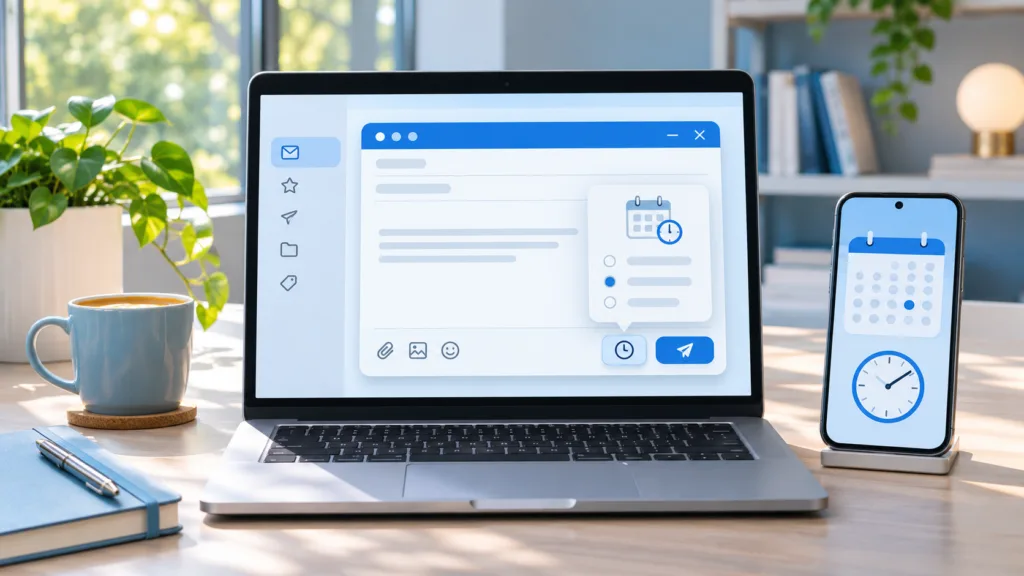
Learning how to schedule emails in Gmail can help you send messages at the right time without needing to remember them later. Gmail’s built-in scheduling feature works on a computer and in the Gmail mobile app, allowing you to prepare an email now and choose when it should be delivered.
This guide explains how to use schedule send in Gmail, select a delivery time, change or cancel a scheduled message, and troubleshoot emails that do not appear to send. The steps apply to regular Gmail accounts, although some Google Workspace administrators may apply additional account policies.
Key Takeaways
- Schedule an email from Gmail on a computer by using the arrow next to Send.
- Use the Gmail mobile app to schedule messages from an Android phone or iPhone.
- Choose a delivery time that matches the recipient’s working hours and time zone.
- Open the Scheduled folder to edit, reschedule, or cancel a message.
- Check time zones, account limits, drafts, and connectivity when a scheduled email does not send.
Schedule an Email in Gmail on a Computer
Gmail desktop email scheduling is available in Gmail through a web browser. You do not need to install an extension or keep the Gmail tab open after scheduling the message. Gmail stores the message and sends it at the selected time through your account.
How to schedule the message
- Open Gmail in your browser and sign in to the account you want to use.
- Click Compose on the left side of the Gmail window.
- Write the email, add the recipient or recipients, and enter a subject.
- Add any attachments, links, or other content you want included.
- Click the small arrow beside the Send button.
- Select Schedule send.
- Choose one of the suggested delivery times, or select the option to pick a date and time.
- Confirm the date, time, and time zone shown by Gmail, then click the scheduling button.
After the message is scheduled, Gmail normally displays a confirmation notice. The email will no longer appear in Drafts. Instead, it will be listed under Scheduled in the left navigation area. If the navigation menu is collapsed, click More to reveal additional labels.
Before scheduling, check the recipient field carefully. Gmail may save an incomplete message as a draft, but it will not schedule a message successfully if you have not chosen a delivery time or completed the scheduling action. It is also worth reviewing attachments and links because changing the email later requires you to cancel the scheduled send and edit the resulting draft.
What happens after you select Schedule send?
A scheduled message is held by Gmail until its delivery time. It is not placed in the recipient’s inbox immediately, and the recipient generally cannot see that the email was prepared in advance. When Gmail sends it, the message normally appears in your Sent folder like other sent email.
Scheduling is useful for more than reminders. You can write a message during your own working hours and arrange for it to arrive when a colleague begins work, send a follow-up at a specific time, or prepare a birthday message in advance. However, schedule send is not a substitute for checking urgent messages; delivery can occasionally be delayed by service or account issues.
If you use multiple Gmail accounts in the same browser, confirm which account is active before composing. A scheduled message belongs to the account that created it. This is a common source of confusion when a user expects to find an email in one account’s Scheduled folder but created it in another.
Schedule an Email in the Gmail Mobile App
Gmail mobile app scheduling works on supported versions of the Gmail app for Android and iPhone. The wording and appearance can vary slightly by device, app version, and screen size, but the schedule send control is available from the message’s menu near the Send button.
Schedule send on Android or iPhone
- Open the Gmail app and select the correct Google account if you use more than one.
- Tap Compose, usually shown as a pencil icon or a compose button.
- Enter the recipient, subject, and message text.
- Add an attachment or other content if needed.
- Tap the three-dot menu in the upper-right corner of the compose screen.
- Tap Schedule send.
- Select a suggested time or choose a custom date and time.
- Review the delivery details and confirm the schedule.
Depending on the app layout, the three-dot menu may be near the top of the screen rather than beside the Send control. If you do not see Schedule send, make sure you are composing a new message in Gmail rather than replying through a notification or another mail app.
After scheduling, open Gmail’s navigation menu by tapping the three horizontal lines. Look for Scheduled in the mailbox list. If it is not visible immediately, scroll through the menu or use Gmail search to locate the message. A scheduled message should not remain in Drafts once the scheduling process is complete.
Mobile scheduling tips
Review the message on a larger screen when the email includes several recipients, a long attachment, or important formatting. The mobile app can schedule the message, but a smaller display makes it easier to overlook a misspelled address, an incorrect attachment, or a missing subject.
Do not force-stop or uninstall the Gmail app just because a scheduled message is not visible on your phone. Scheduled messages are associated with your Gmail account and can also be checked from Gmail on a computer. If the app is temporarily offline, wait for it to reconnect and refresh the mailbox before assuming the message was lost.
For other mobile productivity ideas, see this guide to stopping apps from running in the background on Android. That topic is separate from Gmail scheduling, but managing background activity can make a phone easier to use when you are preparing messages on the go.
Choose a Delivery Date and Time That Works
Choosing a Gmail delivery time is more than selecting the first suggested option. The best time depends on the message’s urgency, the recipient’s location, their normal working hours, and whether the email is meant to be read immediately or simply delivered after a deadline.
Use Gmail’s suggested times carefully
Gmail may offer suggestions such as the next morning or the following afternoon. These options are convenient, but they are not necessarily ideal for every recipient. A message scheduled for the morning in your local time may reach someone during the middle of the night if they live in a different time zone.
Use the custom date and time option when the delivery moment matters. Select the date first, then choose the hour and minutes. Before confirming, read the complete date and time displayed in the scheduling dialog rather than relying on the position of the calendar or a general phrase such as “tomorrow morning.”
Consider the recipient’s time zone
For work-related messages, aim for a time when the recipient is likely to be available, unless there is a reason to send outside working hours. If you are scheduling an email to someone in another country, check the time difference independently and confirm that Gmail is displaying the time you intend.
Be especially careful when daylight-saving time changes are involved. The difference between two locations can change during the year, so a time that worked for a previous meeting or email may not be correct several months later.
Leave room for delays
Schedule send is designed to deliver a message at a chosen time, but delivery may occur a few minutes after the scheduled time. Do not use it for a deadline that requires proof of delivery at the final second. For a time-sensitive submission, schedule the email early enough to allow for a short delay, attachment processing, or an unexpected account problem.
Large attachments can also make a message less suitable for last-minute scheduling. Upload the attachment before setting the delivery time and confirm that it is actually attached. If the file is still processing, wait until it is ready before scheduling.
Use scheduling for communication, not emergency alerts
A scheduled email can be useful for a planned announcement, reminder, or follow-up. It should not be used as the only way to notify someone about an urgent safety, financial, or time-critical issue. If immediate attention is required, use a channel that the recipient is expected to monitor right away.
For recurring communication, remember that Gmail’s standard Schedule send feature schedules individual messages. It is not the same as creating an automated recurring campaign or a mailing list. Prepare each message separately unless you are using a separate, appropriate service with features designed for recurring mail.
View, Edit, Reschedule, or Cancel a Scheduled Email
Gmail scheduled messages are collected in the Scheduled folder. You can open that folder on a computer from the left navigation panel or in the Gmail app from the main menu. The folder lets you confirm the delivery date, inspect the message, and cancel it before Gmail sends it.
View a scheduled message
- Open Gmail and go to Scheduled.
- Select the message you want to check.
- Review the recipients, subject, body, attachments, and scheduled date and time.
Opening a scheduled email does not normally send it early. You can use this step to verify that the correct message is waiting and that it belongs to the correct account. If you cannot find the Scheduled folder, expand the Gmail navigation panel or tap the main menu in the mobile app.
Edit or reschedule a Gmail message
Gmail does not generally provide a direct “edit scheduled message” button inside the scheduled email. To edit or reschedule Gmail messages, open the scheduled message and choose Cancel send. Gmail returns the message to Drafts, where you can change the text, recipient, attachment, date, or time.
- Open the Scheduled folder.
- Select the scheduled message.
- Click or tap Cancel send.
- Find the returned message in Drafts.
- Edit the message as needed.
- Open the Send menu again and choose Schedule send.
- Select the new delivery date and time, then confirm.
Canceling the scheduled send does not mean the message has been deleted. It normally becomes a draft, but verify that it is present before closing Gmail. If the message contained an attachment, check that the attachment is still included before scheduling it again.
Cancel a scheduled email
To cancel a scheduled email permanently, open the message in the Scheduled folder and select Cancel send. Gmail should return it to Drafts. If you do not want to keep a copy, open the returned draft and delete it, or leave it in Drafts if you may use it later.
Act quickly when canceling a message close to its delivery time. Once Gmail has sent the email, it is no longer a scheduled message and canceling it through the Scheduled folder is not possible. Gmail’s short Undo Send period may help immediately after sending, but that is different from canceling a message that was scheduled for later.
If you regularly need to sort messages after canceling or editing them, Gmail filters and labels may help organize related drafts and sent mail. See this guide to creating Gmail filters and labels to sort email for ways to keep those messages easier to find.
Understand Gmail Scheduling Limits and Time Zones
Schedule send is a useful Gmail feature, but it is subject to normal Gmail account and sending rules. It does not provide unlimited bulk delivery, bypass spam protections, or guarantee that every message will arrive at exactly the selected minute.
Scheduling is different from sending
A scheduled email is waiting in Gmail until its planned send time. Because it has not been sent yet, it may not count in exactly the same way as a message that has already gone out. However, scheduling many messages does not remove Gmail’s daily sending limits or other restrictions that can apply when the messages are eventually sent.
Limits can depend on the type of account, the number of recipients, recent sending activity, and Google’s anti-abuse systems. If you need to send a large number of messages, do not assume that scheduling them over a short period will avoid account restrictions. Gmail is intended for personal and ordinary business communication, not unsolicited bulk email.
How time zones affect scheduled messages
The scheduling dialog displays the date and time Gmail will use. Read that information carefully, especially if you travel, use a computer configured for a different region, or switch between devices. The device, browser, account, and organization settings can affect how dates and times are displayed, so do not rely only on the word “tomorrow” or on a remembered local time.
If the displayed time looks wrong, check the time and time-zone settings on the device you are using and review your Google account or Google Workspace settings where applicable. In a managed work account, an administrator may control certain account settings. If you are unsure, schedule a low-priority test message to another address and compare the actual delivery time.
Attachments, drafts, and account access
Scheduled messages depend on the Gmail account that created them. If you sign out, switch accounts, or open Gmail in a different browser, the message remains associated with its original account. The message also remains subject to Gmail’s attachment size and file-type rules.
Scheduling does not create a separate backup of the email. If the content is important, keep a copy of the text or attachment elsewhere until you confirm that the message has been sent. This is particularly useful for contracts, travel documents, or messages that would be difficult to recreate.
Troubleshoot Scheduled Emails That Do Not Send
If a scheduled email does not appear to send, first avoid scheduling a duplicate. Check the Scheduled folder, Sent folder, and recipient details before creating another message. Gmail may send a message a little later than the selected time, and sending it again could result in duplicate emails.
Check the scheduled folder and Sent folder
Open Gmail on the web if the mobile app is not showing the message. Look in Scheduled to see whether the message is still waiting. If it is no longer there, check Sent and use Gmail search with a distinctive word from the subject or message.
If Gmail returned the message to Drafts, the scheduling action may not have completed. Open the draft, confirm the recipient and content, and schedule it again. Watch for a confirmation notice after selecting the date and time.
Verify the date and time
A time-zone mismatch is one of the most common reasons a message appears late or early. Reopen the scheduled message and read the full delivery date and time. Also check whether the selected date was interpreted using a different regional setting, particularly when traveling or working with people in another country.
Check the account and recipient
Make sure you are looking at the same Gmail account used to create the message. In Gmail, click or tap your account profile image and verify the active address. Then check that the recipient’s address is correct and that you did not accidentally schedule the message to an old contact or an unintended address.
If the recipient reports that the email never arrived, ask them to check Spam, Promotions, or other filtered categories. A message can leave your Scheduled folder and appear in your Sent folder without landing in the recipient’s primary inbox. Delivery to another person’s mailbox is also affected by their provider’s filtering rules.
Refresh the app or browser
If Gmail looks outdated, refresh the browser page or close and reopen the app. On a phone, confirm that Gmail has an internet connection and that the app is signed in to the correct account. Updating the app through the device’s normal app store can also resolve display problems, but an update is not required for every scheduling issue.
Do not delete Gmail data or remove the account from your phone before checking the web version. Those actions can remove locally stored information or create additional sign-in work without fixing a message that is already stored on Gmail’s servers.
Look for account restrictions or service problems
If multiple scheduled messages fail, the account may have reached a sending limit, triggered a security review, or encountered a temporary Gmail service problem. Check for warning messages in Gmail, including bounce notices or alerts about suspicious activity. Avoid repeatedly sending the same message while the account status is unclear.
For broader connectivity problems, you can also review this guide to common causes of slow Wi-Fi and possible fixes. A poor connection usually does not stop a message that has already been scheduled on Gmail’s servers, but it can prevent the app or browser from refreshing and showing the latest status.
For Gmail’s current instructions and account-specific guidance, consult the official Google Gmail Help page about scheduling emails. Google may adjust labels or interface details over time, so the official help page is useful when your screen does not exactly match these steps.
Frequently Asked Questions
Can I schedule an email in Gmail without keeping my computer turned on?
Yes. After Gmail confirms that the message is scheduled, it is stored with your Gmail account. You do not need to leave the browser open or keep the computer powered on. You can close the browser and check the message later from Gmail on another device.
Can I edit a Gmail scheduled message directly?
To edit it, open the message in the Scheduled folder and select Cancel send. Gmail normally returns it to Drafts, where you can edit the content and schedule it again with a new delivery time.
Why is my scheduled email a few minutes late?
Gmail scheduling is intended to send a message around the selected time, but delivery can sometimes take a few minutes longer. Check the time zone shown for the message, then look in Sent and ask the recipient to check filtered folders. For a strict deadline, schedule the message early rather than relying on delivery at the exact final minute.
Conclusion
Gmail makes it easy to prepare an email now and send it later from either a computer or the Gmail mobile app. Use the arrow beside Send or the compose menu to choose Schedule send, then confirm the date, time, and account before closing Gmail.
When plans change, open the Scheduled folder and cancel the message to return it to Drafts. From there, you can edit or reschedule it, or delete it if it is no longer needed. Checking time zones, attachments, recipients, and account limits before scheduling will help your Gmail scheduled messages arrive as intended.