How to Share Smart Home Devices With Family Members
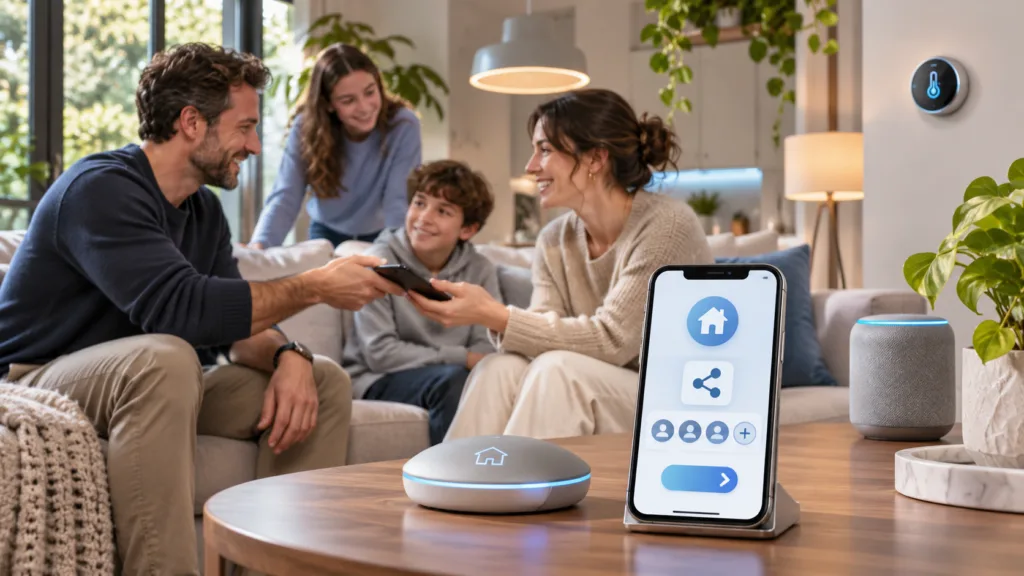
Learning how to share smart home devices with family members lets everyone use the lights, thermostat, cameras, speakers, and locks they need without passing around one master password. The safest approach is to invite people through the platform or manufacturer’s built-in sharing feature, give each person only the access they need, and review that access whenever household circumstances change.
The exact process depends on whether your devices are managed through Apple Home, Google Home, Amazon Alexa, Samsung SmartThings, a manufacturer app, or more than one ecosystem. The names of menus and permission levels vary, but the principles are the same: use individual accounts, separate administrators from regular members, and be especially careful with cameras, doorbells, and smart locks.
Key Takeaways
- Choose a platform invitation instead of sharing your main account password
- Secure and organize your accounts before inviting family members
- Send invitations through the correct smart home platform or manufacturer app
- Limit access by role, room, and device type
- Review privacy, security, and user access after sharing
1. Choose the Right Sharing Method for Your Smart Home
Before sending an invitation, decide what kind of access each person actually needs. A spouse or housemate may need everyday control of nearly every device, while a child, cleaner, babysitter, guest, or short-term visitor may need access to only a few lights or a smart lock for a limited period.
Smart home family sharing can use several different arrangements. Choosing the right one prevents both unnecessary restrictions and excessive access.
Household members and shared home access
A household-member arrangement is usually the best choice for people who live in the home permanently. The owner or administrator invites each person using that platform’s account, and the invited user signs in with their own credentials. Depending on the ecosystem, members may be able to control devices, view rooms, use routines, and manage some settings.
This method is safer than creating one shared household account because each person can have a separate login. It also makes it possible to remove one user later without changing the password for everyone else.
Shared accounts
A shared account means two or more people use the same email address and password for a smart home service. This may be the only option for an older device or a manufacturer app with limited sharing features, but it should not be your first choice.
Shared credentials make it difficult to identify who changed a setting, viewed a camera, unlocked a door, or created an automation. They also create a larger problem when someone moves out or loses a phone: changing the password becomes necessary, and every legitimate user must sign in again.
Guest access for smart devices
Guest access is appropriate when someone needs temporary or limited control. For example, you might allow a visitor to control living-room lights, give a dog walker temporary smart lock access, or let a house sitter view a thermostat without giving access to indoor cameras.
Guest access is not standardized. Some platforms offer explicit guest roles or time-limited credentials, while others require you to use a device manufacturer’s sharing tool or create a separate code. If the platform cannot set an expiration date, record when access should be removed so it does not remain active indefinitely.
Device-specific sharing
Some manufacturers let you share one product, such as a doorbell, camera, lock, or robot vacuum, without sharing the entire home. This can be useful when a family member needs a specific function but does not need access to every room or automation.
Device-specific sharing may be managed in the manufacturer’s app rather than the central smart home platform. A device can also appear in one ecosystem while its advanced permissions remain controlled by its original app. Check both places if a user can control a device but cannot access its settings, history, or camera feed.
2. Prepare Your Smart Home Accounts Before Inviting Family
A few minutes of preparation can prevent confusing invitations, duplicate homes, and accidental over-sharing. Start by identifying which account owns the home and which service manages each device.
Confirm device ownership and the primary home
Make a list of the platforms involved. A home might contain Matter devices connected to Apple Home, Google Home, or Alexa, alongside cameras and locks that still depend on their own manufacturer apps. The account that originally set up a product may remain its owner even after the device is linked to another platform.
Confirm that you are inviting people to the correct home, property, or household. If your app contains an old apartment, vacation property, or test setup, check the home name before sending an invitation. A family member who accepts an invitation to the wrong home may appear to have no devices or may gain access to a location they should not see.
Update apps and device firmware
Update the relevant smart home apps on your phone and ask invited family members to do the same. Also check for available firmware updates for hubs, cameras, locks, and other important devices. Sharing features and permission controls can depend on the current version of an app or device software.
Do not factory-reset devices merely because a sharing option is difficult to find. Resetting a product can remove its network configuration, routines, history, or ownership relationship. Look first in the app’s home, household, people, members, or device-sharing area.
Enable two-factor authentication
Turn on two-factor authentication for the main smart home account and any manufacturer accounts that support it. Two-factor authentication adds a second verification step when someone signs in, helping protect the account if its password is exposed.
Each person should secure their own account rather than relying only on the administrator’s protection. Encourage family members to use an authenticator app, security key, or other method supported by their service, and make sure account recovery information is current.
If you need help securing a Google account, see this guide to turning on two-step verification. The same general principle applies to Apple, Amazon, Samsung, and device manufacturer accounts.
Use individual accounts where supported
Ask each family member to create or use their own account before you invite them. Their account may be based on an email address, phone number, Apple Account, Google Account, Amazon account, Samsung account, or another identity supported by the platform.
Avoid using your account on another person’s phone just to make setup faster. That approach can expose saved passwords, camera feeds, household details, purchase information, and administrative controls. It also makes later access removal much harder.
3. Add Family Members Through Your Smart Home Platform
The general invitation process is similar across smart home ecosystems, but the available roles and controls are not identical. Use the platform that currently owns the home or the manufacturer app that controls the device. Do not assume that adding someone to one service automatically shares every device linked to another service.
Apple Home sharing
In Apple Home, the person who owns or manages the home typically invites another person through the Home app. The invited person accepts the request using their Apple Account and then opens the home from their own device.
Before inviting someone, verify that both people are using compatible Apple software and that the invitation is being sent to the correct Apple Account. The home owner can then adjust the access available through the Home settings. Options and remote-control behavior may depend on the Apple Home configuration, connected home hubs, and the type of device being shared.
Apple Home sharing does not necessarily replace the original manufacturer account. A camera, lock, or appliance may still require the family member to accept a separate invitation in the maker’s app for features such as video history, detailed settings, or access codes.
Google Home household members
Google Home generally uses a household or home-member invitation. The home manager sends an invitation to the other person’s Google Account, and that person accepts it before opening the Google Home app.
After joining, the family member may see the home, rooms, and compatible devices made available through Google Home. Permission levels can differ from the owner’s, and certain account, home, or device-management actions may remain restricted to the manager.
Check which devices are actually linked to Google Home. A product may be visible in the Google Home app but still use a separate manufacturer account for detailed controls. If the invited user needs access to those controls, share the product through the manufacturer’s app as well.
Amazon Alexa household access
Amazon Alexa can provide shared control through household features, profiles, and linked smart home services, but these functions should not be treated as one universal permission system. A person’s Alexa profile, access to an Echo device, and access granted by a light, camera, or lock manufacturer may be separate.
Use the Alexa app to review the relevant household or device settings, then follow the sharing process provided by the manufacturer for products that require their own account. For example, a family member may be able to use voice control through a shared Alexa setup but still need a separate invitation to view a camera feed or manage a lock.
Pay attention to voice profiles and personal results. If multiple people use the same speaker, review which account is associated with purchases, calendars, messages, and other private information. Device access and personal account access are related but not always the same.
SmartThings and other compatible ecosystems
Samsung SmartThings and other smart home platforms commonly let an administrator invite members to a home or location. The invited person usually needs the platform’s account and app, then accepts the invitation before devices and rooms appear.
For other ecosystems, look for labels such as Home members, People, Users, Share home, Invite member, or Device sharing. If no sharing feature exists, check the official support information for the device manufacturer rather than sending your password.
Devices connected through Matter may be shared through the platform where they were added, but compatibility does not guarantee identical sharing behavior across Apple Home, Google Home, Alexa, SmartThings, and manufacturer apps. If a family member cannot see a Matter device, confirm that the device was added to the same home and that the person accepted the invitation to that specific platform.
4. Set Appropriate Roles, Permissions, Rooms, and Device Access
Once a family member accepts an invitation, resist the temptation to give every user administrator access. The smart home administrator should be able to manage ownership, members, hubs, integrations, and security settings, while everyday users usually need only normal device control.
Administrators, members, and guests
An administrator may be able to add or remove users, change home settings, connect services, manage automations, and reset devices. Give this role only to people you trust to make major changes to the home.
A regular member is usually better for an adult who lives in the property. They may control lights, thermostats, plugs, speakers, and routines without being able to change ownership or remove other users. A guest role, where available, should be reserved for temporary or narrowly defined access.
Permissions can be more complicated than they appear. A person may have control through the central platform, separate access through a camera app, and a physical keypad code for a lock. Review all three forms of access instead of assuming that removing one automatically removes the others.
Organize devices by room
Place devices in accurate rooms and use clear names. “Bedroom ceiling light” is easier to understand than “Light 4,” especially when a family member uses voice control. Consistent room names also reduce the chance of controlling the wrong device.
Separate sensitive areas where the platform allows it. Indoor cameras, nursery monitors, home offices, and private rooms should not be treated like ordinary lights. If room-level sharing is unavailable, use device-specific sharing or leave sensitive devices out of the shared platform.
Limit access by household responsibility
Match permissions to the person’s role in the household. A teenager may need control of bedroom lights and a thermostat but not the front-door lock. A house sitter may need lights, heating, and a temporary lock code but no access to indoor camera recordings. A relative who helps with maintenance may need administrator access temporarily, followed by immediate removal when the task is complete.
For smart locks, use individual codes or user profiles whenever possible rather than giving everyone the same PIN. Set schedules or expiration dates if the lock supports them, and avoid using easily guessed codes such as birthdays or house numbers.
For cameras and doorbells, distinguish between live viewing, recorded video, notifications, two-way audio, and device settings. Someone who needs to answer the door may not need access to continuous indoor video or the ability to delete recordings.
5. Protect Privacy and Security After Sharing Access
Sharing access is not a one-time task. After invitations are accepted, review what each person can see and do, and explain the household rules for cameras, microphones, locks, and notifications.
Use strong, unique credentials
Every user should have a unique password for their smart home and manufacturer accounts. Do not reuse the Wi-Fi password, email password, or a password used for shopping and social media. A password manager can create and store different credentials without requiring everyone to memorize them.
Do not send passwords through a group chat or write them on a note beside a hub. If an account must be shared because a device offers no user management, change that password when a resident leaves and enable two-factor authentication if available.
Review camera and smart lock access
Cameras and locks deserve the strictest review because they reveal private activity or control physical entry. Check who can watch live video, view recordings, receive motion alerts, speak through a doorbell, create unlock codes, or change lock settings.
Ask whether every invited user needs access at all times. For example, a family member may need the front-door camera while traveling but not an indoor camera, and a visitor may need a temporary lock code without access to the camera history.
If you are setting up a smart doorbell, decide access levels during installation rather than adding every household member automatically. This guide to setting up a smart doorbell camera can help you think through camera placement, notifications, and user access.
Check activity logs and notifications
Where available, review activity logs for lock events, camera access, user changes, and automation changes. Logs can help you identify whether an unexpected action came from a person, a routine, a voice command, or a device malfunction.
Configure notifications so they are useful rather than overwhelming. The administrator may need alerts for new members, lock activity, and camera access, while other family members may prefer notifications only for deliveries or alarms. Remember that notifications can reveal household routines on a person’s lock screen.
Review voice assistant recognition
Voice assistants can make shared control convenient, but voice commands may be heard by anyone nearby. Check whether the platform distinguishes family members by voice and which commands remain available without recognition.
Use extra caution with commands that unlock doors, open garage doors, make purchases, disclose personal information, or change security settings. If the platform cannot restrict those actions reliably, disable voice control for them or require an additional confirmation method.
Secure the home network
Smart home sharing depends on account security, but the network matters too. Use a strong router password, current router firmware, and a separate guest network for visitors when appropriate. Avoid giving a temporary visitor the main Wi-Fi password simply to control one device.
Periodically check which devices are connected to your network and remove unfamiliar equipment. You can also review these practical steps to secure your home Wi-Fi network. Network security will not replace account permissions, but it reduces opportunities for unauthorized access.
6. Troubleshoot Common Family-Sharing Problems
Sharing problems often look like device failures when the real issue is an account, home, region, or permission mismatch. Work through the following checks before removing and reinstalling every device.
The invitation was not received or has expired
Confirm that the invitation was sent to the exact account the family member uses in the app. An invitation sent to one email address may not appear when the person is signed in with a different Apple Account, Google Account, Amazon account, or manufacturer account.
Ask the recipient to check the app itself, email, spam folders, and pending invitations. If the invitation expired, cancel it and send a new one. Avoid sending repeated invitations to several addresses because that can create confusion about which account has access.
The family member joined but cannot see devices
First check that both users are viewing the same home, location, or household. Then confirm that the device is online and assigned to a room. Some devices may not be shareable through the central platform and may require a separate manufacturer invitation.
Make sure the family member has accepted all required permissions in the app and that the app has permission to use the local network or Bluetooth when the platform requests it. Do not grant unrelated permissions automatically; provide only what the app needs for the relevant feature.
Accounts or regions do not match
Some devices, services, and household features depend on country or region settings. A family member using an account registered in another region may not see the same products, integrations, or options. Confirm that the product is officially supported in the relevant locations before changing account-region settings, because region changes can affect subscriptions and purchases.
The hub is offline or duplicate homes appear
An offline hub can prevent invitations from completing or keep shared devices from appearing correctly. Check the hub’s power, network connection, and status in the app before attempting to reset devices. If the home has recently changed Wi-Fi, use a targeted guide to fix smart home devices that keep going offline.
Duplicate homes often result from creating a new home instead of joining the existing one. Compare home names and addresses, leave the accidental duplicate if appropriate, and invite the user to the original home. Do not move or reset devices until you know which home owns them.
A device does not support shared access
Some older or inexpensive devices support only one account, while others allow sharing only through the manufacturer’s app. If no official sharing method exists, consider whether the device should be used for a sensitive function such as a lock or camera.
Do not install unofficial tools or give an unknown third party your credentials to work around a missing sharing feature. Replacing a device with one that supports individual users may be safer than maintaining a permanent shared password.
7. Remove or Update Access When Circumstances Change
Review smart home family sharing whenever someone moves out, loses a phone, changes accounts, or no longer needs access. Treat access removal as a security task, not merely an administrative cleanup.
Revoke access for former residents and guests
Remove the person from the central home platform, then check every manufacturer app connected to the home. Review camera sharing, smart lock users, temporary PINs, voice assistant profiles, automations, and shared subscriptions.
If the person used a shared account, change the password and sign out other sessions where the service provides that option. Also remove saved credentials from shared tablets, smart displays, browsers, and phones that remain in the home.
Respond to a lost or stolen phone
If a family member loses a phone, secure the account from another trusted device. Change the account password if there is any concern that the phone was unlocked or credentials were stored locally, revoke active sessions where possible, and remove the lost device from the account’s trusted-device list if the service supports that control.
For a lost phone belonging to someone with smart lock access, consider temporarily disabling their lock profile or code until the account is secure. Do not rely only on the phone’s screen lock when physical access to the home is involved.
Change roles and reset credentials
When a family member no longer needs administrator privileges, demote them to a regular member if the platform supports different roles. If you are transferring ownership of the home, follow the platform’s official transfer process and document which account becomes the new administrator.
After changing roles, test the result from the affected user’s phone. Confirm that ordinary controls still work and that administrative settings, camera feeds, lock management, and sensitive rooms are no longer available when they should be restricted.
Verify that removed users no longer have control
Check the home’s member list, each manufacturer app, active sessions, smart lock codes, camera sharing list, and voice assistant profiles. Look at activity logs after removal for unexpected commands or access attempts.
If a removed person can still control a device, identify the separate path they may be using. They could still have the manufacturer app, a shared account password, a physical lock code, a linked voice assistant service, or access through another household member’s phone. Remove every path, then test the device yourself.
Frequently Asked Questions
Can I share smart home devices without sharing my password?
Usually, yes. Use the platform’s household invitation or the manufacturer’s device-sharing feature so each person signs in with their own account. If a device supports only one account, change its password after someone leaves and consider replacing it if it controls a sensitive device such as a lock or camera.
Can I share only one smart home device?
Sometimes. Some manufacturers support device-specific sharing, while others share an entire home, location, or household. Check the device’s original app as well as the central platform, because a camera or lock may have separate permissions for live viewing, recordings, codes, and settings.
Why can my family member see the home but not a device?
The device may be offline, assigned to a different home, unsupported for shared access, or controlled through a separate manufacturer account. Confirm the invitation was accepted by the correct account, check the device status, verify room assignment, and send a separate manufacturer invitation if required.
Conclusion
The safest way to share smart home devices with family members is to use individual accounts and official invitations instead of distributing one household password. Start by identifying the platform that owns each device, prepare the accounts and software, and then give each person a role that matches what they need to do.
Keep cameras, doorbells, smart locks, voice assistants, and administrator controls under close review. When someone loses a phone, moves out, or no longer needs access, remove them from every connected service and verify that their codes, sessions, and device permissions are gone. A short access review now can prevent a much larger privacy or security problem later.