Why Your Chromebook Keeps Disconnecting from Wi-Fi: 5 Fixes
The most common answer to why does my Chromebook keep disconnecting from Wi-Fi is that the router or the signal is at fault, not the Chromebook. The next most likely causes are a saved-network conflict, outdated ChromeOS, a VPN, proxy or IP setting, and a hardware fault. If your phone drops off the same network, start with item 1. If only the Chromebook drops, start with item 2. If it drops on every network, jump to item 5.
Random dropouts are maddening. You reconnect, work for ten minutes, and the connection vanishes again. Some Chromebooks get stuck in a loop of dropping and reconnecting every few seconds. That pattern usually points to a settings conflict rather than a dead wireless chip.
This guide goes through five causes, ordered from the easiest fix to the hardest. Each item explains what causes the problem and how to fix it, using the ChromeOS Settings menus. Menu labels can differ slightly between ChromeOS versions, but the steps are the same on Acer, Lenovo, HP, Samsung and other Chromebooks.
1. Weak signal or a struggling router
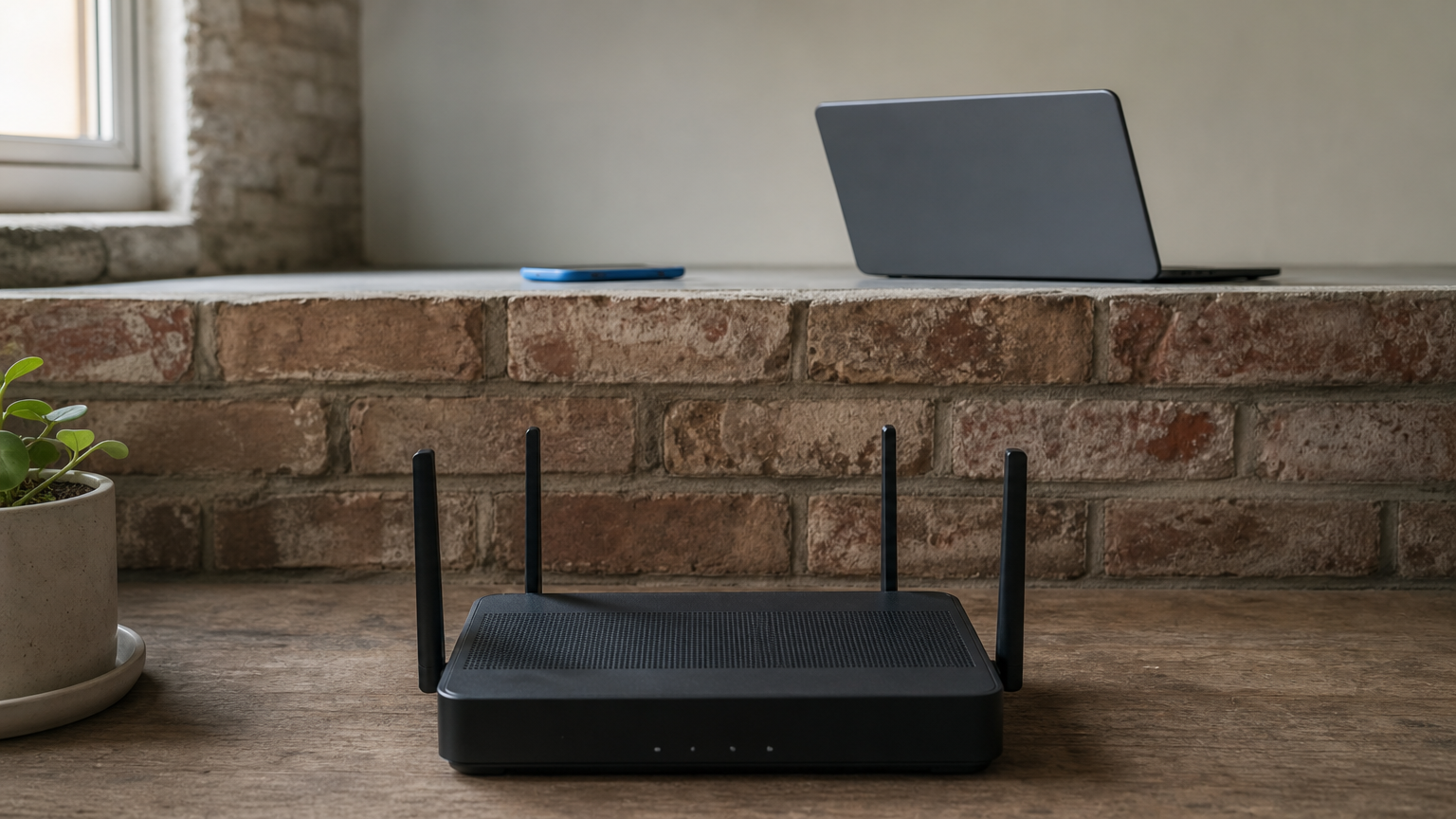
A weak signal or an overloaded router is the most frequent reason your Chromebook keeps disconnecting from Wi-Fi, and it often explains a connection that drops and reconnects every few seconds. Rule it out first, because it takes two minutes.
What causes it
Distance, walls and floors weaken the signal. A router serving many phones, TVs and tablets can also start dropping clients it cannot keep up with. The 2.4 GHz band is crowded in most homes, which makes brief disconnects more likely.
Test it by checking whether your phone or another laptop drops on the same network. If it does, your Chromebook is fine.
If other devices drop too, fix the router before you touch the Chromebook.
How to fix it
Work through these steps and test the connection after each one. Then pick the right band for your distance, using the table below.
- Move within one room of the router and see if the connection holds.
- Unplug the router for 30 seconds, plug it back in, and wait a few minutes.
- Turn off Wi-Fi on devices you are not using to cut congestion.
- Update the router firmware and check your provider for an outage.
- On the Chromebook, open Settings > Network > Wi-Fi, select your network, and expand Advanced. A frequency near 2400 means 2.4 GHz. Near 5000 means 5 GHz.
| Band | Range | Stability | Pick it when |
|---|---|---|---|
| 2.4 GHz | Longer | More congested | You are far from the router |
| 5 GHz | Shorter | Usually steadier | You are in the same room or one room away |
2. Saved networks fighting each other
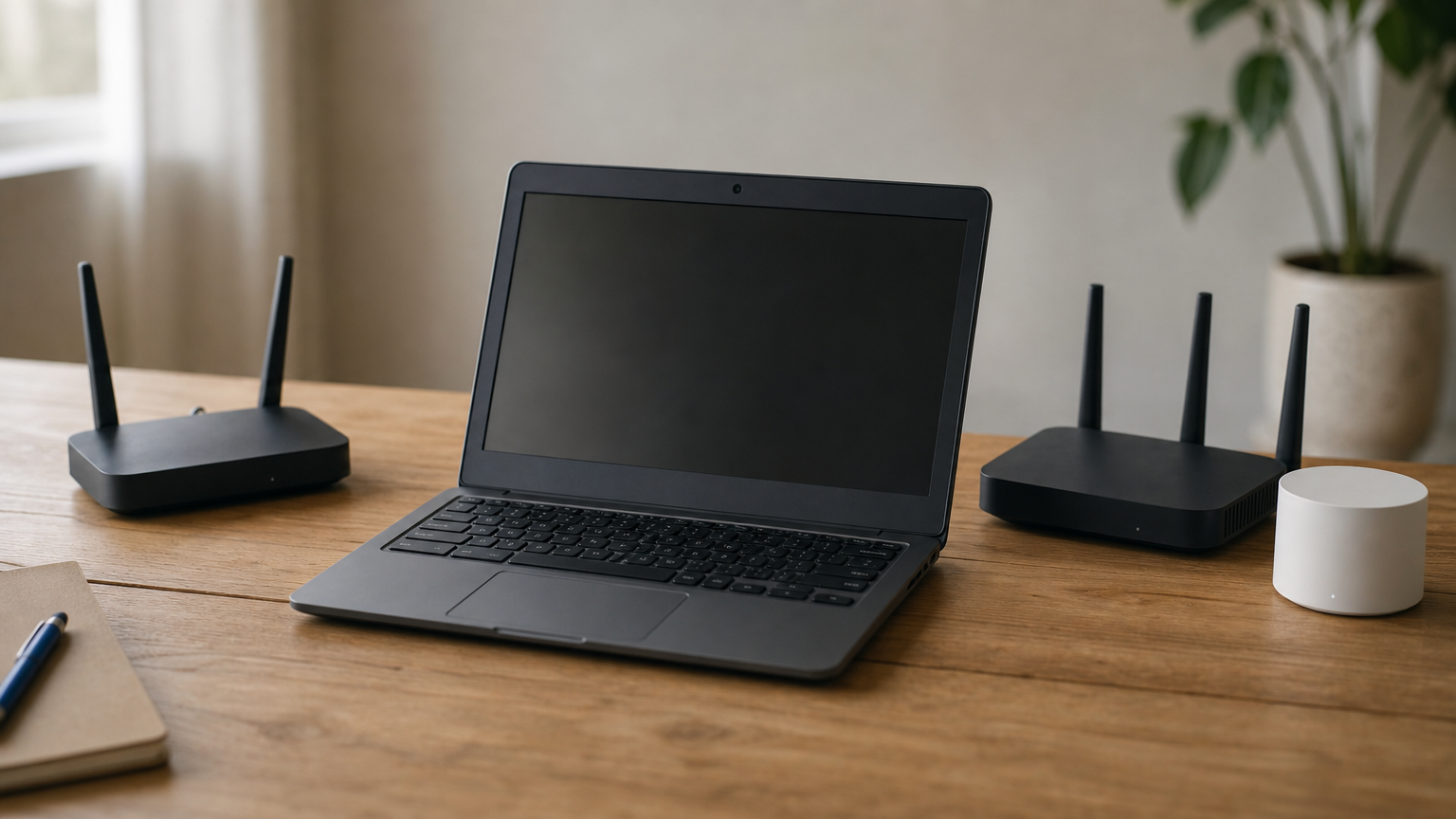
If only your Chromebook keeps disconnecting from Wi-Fi, the next suspect is its list of saved networks. Chromebooks remember every network you have joined and can prefer one over another, which causes silent switching.
What causes it
Each saved network can carry a Prefer this network setting. Suppose you are on your main network and a preferred one comes into range, such as a second router, a mesh node or a neighbor you once joined. The Chromebook leaves your current network and joins that one. You see this as a disconnect followed by a reconnect.
Stale saved details cause trouble too. If you changed your router password or settings, the old entry can fail without warning.
A Chromebook that drops and reconnects is often just switching to a different saved network.
How to fix it
Start by finding the network your Chromebook jumps to. Then remove its priority and clear out old entries.
- Open Settings > Network > Wi-Fi and select the network the Chromebook switches to.
- Turn off Prefer this network.
- Select the network you actually want and turn that toggle on.
- Open Known networks, click the three dots beside each old network, and choose Forget.
- Forget your main network too, then rejoin it with the password.
Check your Wi-Fi password before you forget the network, so you can enter it again.
3. Outdated ChromeOS or a software glitch
A temporary software fault or an old ChromeOS build can break the Wi-Fi connection without any visible error. Updates and a restart fix a surprising share of these cases.
What causes it
ChromeOS runs for days without a full restart, and background processes can get stuck. An outdated build can also carry bugs that an update has already fixed. Both look the same to you: the Wi-Fi icon shows a connection, but traffic stops or the link drops.
Chromebooks also stop receiving updates once they pass their auto update expiration date. Older models past that date can develop connection problems that no update will fix.
Restart and update before you change any network setting.
How to fix it
Follow these steps in order. They are quick and safe, and they do not erase anything.
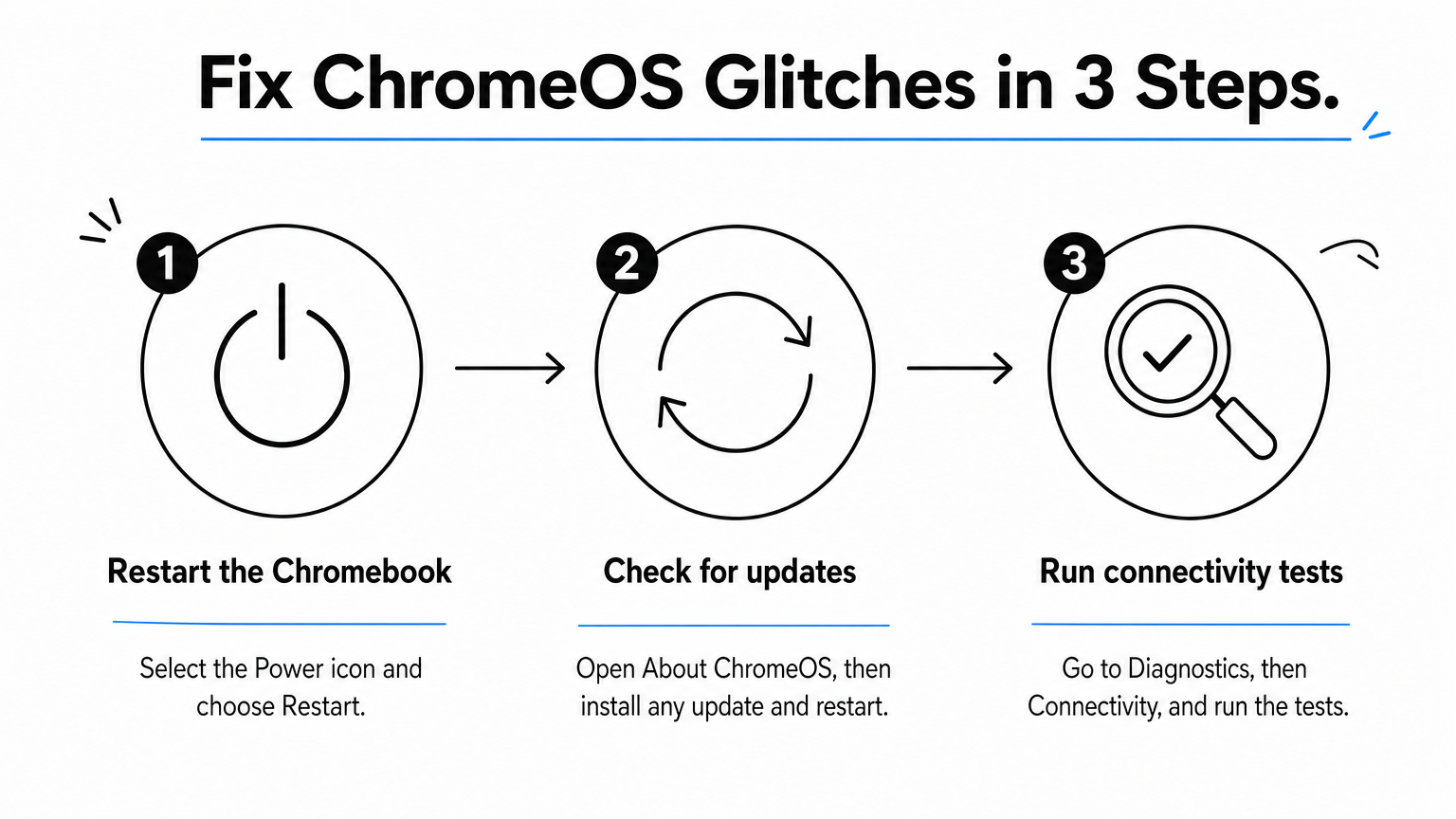
- Click the time in the bottom-right corner, select the Power icon, and choose Restart.
- Open Settings > About ChromeOS and select Check for updates. Install any update and restart when prompted.
- Go to Settings > About ChromeOS > Diagnostics > Connectivity and run the tests. Follow the recommended steps if a test fails.
If the diagnostics show a problem at the router or gateway stage, go back to item 1. That tells you the fault sits outside the Chromebook.
4. VPN, proxy or IP settings
VPN, proxy and IP address settings can cut your connection even when the Wi-Fi signal is strong. This is easy to miss because the Wi-Fi icon often still looks healthy.
What causes it
A VPN with an overloaded server can stall or drop your traffic. A proxy that is misconfigured or offline blocks pages entirely. An IP address conflict is rarer, but it happens when the router hands your Chromebook an address that another device already holds.
Many work and school Chromebooks must use a VPN or proxy, so check with your IT team before you change either.
If the drops started after you installed a VPN or changed a proxy, undo that change first.
How to fix it
Check each setting in turn. Only touch the IP settings if the first two checks change nothing.
- Click the time in the bottom-right corner and look at the VPN status. If it is on, click Disconnect and test.
- Go to Settings > Network > Wi-Fi, select your network, expand Proxy, and choose Direct Internet Connection.
- For a suspected IP conflict, reserve a fixed address for the Chromebook in your router settings.
- Or turn off Configure IP address automatically under the network’s settings and enter the details yourself.
Be careful with a manual IP. A wrong address or gateway cuts you off completely, so use it only if you are comfortable with it.
5. A hardware fault or managed network
If the Chromebook drops on every network you try, suspect the device itself. If it fails only on one managed network, the network rules are the likelier cause.
What causes it
A damaged wireless card or antenna can cause constant dropouts. Drops, spills and age are the usual triggers, especially if the trouble began after an incident. Managed networks at schools, offices and libraries add another cause, because security rules and device policies can cut connections.
Run a few tests to separate these causes. The table shows what each result points to.
| Test | Result | Likely cause |
|---|---|---|
| Phone drops on the same network | Yes | Router or provider |
| Chromebook on a phone hotspot | Stable | Home router or its settings |
| Fine at home, drops at school or work | Yes | Managed network or device policy |
| Drops on every network | Yes | Hardware or ChromeOS |
A Chromebook that drops on every network, hotspot included, points to the device.
How to fix it
Start with the free option. If it fails, move to the physical checks.
- Run a Powerwash. Search for it in Settings. It erases local data, so back up anything stored only in your Downloads folder first.
- Look for cracks, dents and loose parts, and think about any recent drop or spill.
- On a school or work Chromebook, report the problem to IT and avoid changing settings you do not understand.
- If a Powerwash does not help and the Chromebook is under warranty, contact the manufacturer. Otherwise, take it to a repair technician.
Where to start
Most Chromebook Wi-Fi drops come from the network, not the laptop. Test another device first, then check saved networks, ChromeOS updates and VPN or proxy settings. Treat a Powerwash or repair as the last step, once your tests show the problem follows the Chromebook to every network.
Work down the list in order and stop as soon as the connection holds. If you want more step-by-step fixes for home networks and devices, browse the Wi-Fi and networking guides on Today Tech Tips.