Set Up Matter Devices on Alexa, Google Home & Apple Home
Matter was designed to end the frustration of buying a smart plug or bulb only to discover it works with one voice assistant but not another. Learning how to set up Matter-enabled devices across Alexa, Google Home, and Apple Home is now straightforward, because a single Matter-certified product can be controlled by all three ecosystems at the same time. You simply pair it with one platform first, then share it to the others using a feature called multi-admin. This guide walks through the entire process, from checking your hardware to troubleshooting a stubborn pairing.
Key Takeaways
- You need a Matter controller for each ecosystem — and a Thread border router if your devices use Thread
- Matter multi-admin lets one device work on Alexa, Google Home, and Apple Home simultaneously
- Pair the device with your primary ecosystem first, then share it to the others
- A fresh Matter pairing code from the first app is what links the second and third platforms
- Most pairing failures come down to network settings, an expired code, or missing Thread coverage
What You Need Before Setting Up Matter Devices: Controllers, Border Routers, and Network Requirements
Before scanning any codes, confirm three things: that your device is Matter-certified, that you have the right controller for each ecosystem, and that your network is configured correctly.
A Matter-certified device. Look for the Matter logo (three arrows pointing inward) on the packaging or product listing. Some older products gained Matter support through firmware updates, and bridges such as the Philips Hue Bridge can expose their connected lights as Matter devices. If you’re unsure whether a product is certified, check the official Connectivity Standards Alliance product database.
A Matter controller for each ecosystem you want to use. A Matter controller is the hardware that commissions and manages your devices. The good news is that you probably already own at least one:
- Alexa: Most recent Echo speakers and displays act as Matter controllers, including the Echo (4th generation and later), recent Echo Dot models, Echo Pop, Echo Show devices, and Echo Hub.
- Google Home: Nest Mini, Nest Audio, Nest Hub, Nest Hub Max, and Nest Wifi Pro all serve as Matter controllers through the Google Home app.
- Apple Home: A home hub is required — specifically a HomePod, HomePod mini, or Apple TV — before the Home app will let you add Matter accessories.
A Thread border router (only for Matter-over-Thread devices). Matter devices connect either over Wi-Fi/Ethernet or over Thread, a low-power mesh protocol. If your device says “Matter over Thread” on the box, each ecosystem needs a Thread border router to reach it:
- Apple: HomePod mini, HomePod (2nd generation), or an Apple TV 4K model with a Thread radio.
- Google: Nest Hub (2nd generation), Nest Hub Max, or Nest Wifi Pro.
- Amazon: Echo (4th generation), Echo Hub, and select Eero mesh routers.
One important point: Thread border routers from different brands join the same Thread mesh in most setups, so your Apple TV and Nest Hub can back each other up rather than competing. If your devices are Wi-Fi-based, you don’t need any border router at all — which is one reason Matter can work without a dedicated standalone hub in many homes.
Network requirements. Matter is designed around your local network, which means a few conditions must be met:
- Your phone, controller, and the new device must be on the same home network during pairing. Guest networks and access point isolation will block discovery.
- Bluetooth must be enabled on your phone — Matter uses it during the initial commissioning handshake.
- IPv6 should be enabled on your router. It’s on by default on most modern routers, and disabling it breaks Matter.
- Multicast/mDNS traffic must be allowed. Most home networks permit this, but aggressive IoT VLAN setups can interfere unless configured correctly.
- Most Wi-Fi Matter devices join the 2.4 GHz band, so make sure that band is active on your router.
Finally, keep the setup code handy. Every Matter device ships with a QR code and an 11-digit manual pairing code printed on the device, a sticker, or the quick-start card. Photograph it before installing anything in a hard-to-reach spot.
How Matter Multi-Admin Lets One Device Work on Multiple Platforms
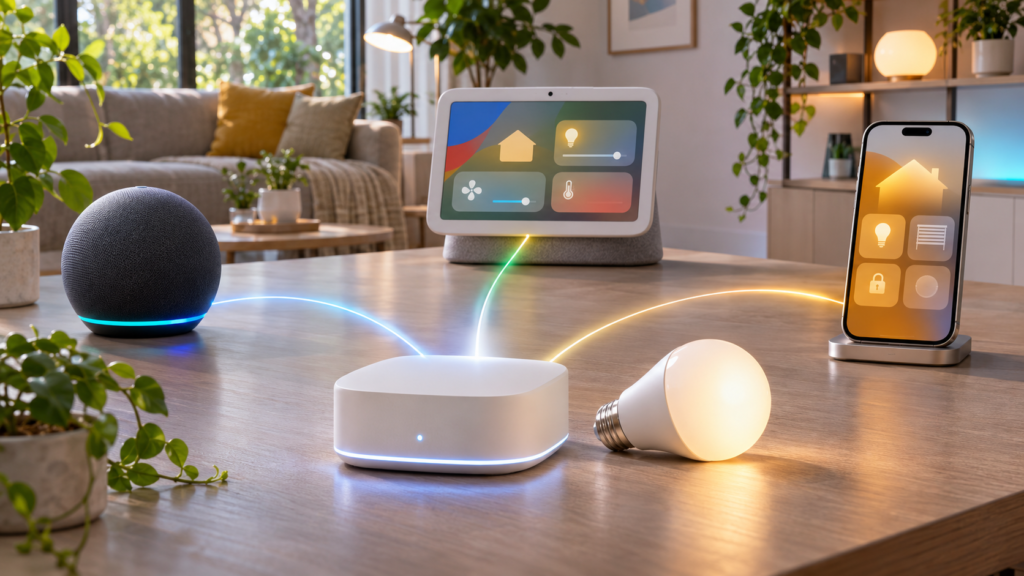
Multi-admin is the feature that makes cross-platform setup possible. In Matter’s architecture, each ecosystem forms what the Connectivity Standards Alliance calls a “fabric” — a trusted group of controllers and devices. When you pair a device with Alexa, it joins the Alexa fabric. Multi-admin lets that same device join Google’s fabric and Apple’s fabric too, without being reset or removed from the first one.
The practical benefit is significant. A Matter door sensor can trigger an Alexa routine, appear in a Google Home automation, and send a notification through Apple Home — all at once. Households where one person uses an iPhone and another uses Android finally get shared control of the same hardware.
The general flow looks like this:
- Commission the device into your first (primary) ecosystem normally.
- Open that device’s settings inside the first ecosystem’s app and enable pairing mode, which generates a new setup code.
- Enter that code in the second ecosystem’s app to add the device to a second fabric.
- Repeat the process — from any already-connected app — to add a third.
A few limitations are worth knowing. Device names, rooms, and automations do not sync between fabrics; each platform maintains its own organization. Feature exposure can also vary — a platform might support on/off and dimming for a device but not its energy-reporting features, depending on what that platform has implemented. And firmware updates are typically handled by whichever ecosystem or manufacturer app commissioned the device first.
Pair Your First Matter Device With Your Primary Ecosystem
Your “primary” ecosystem should be whichever one your household uses most — usually the one matching your smart speakers and phones. The pairing process is nearly identical across all three apps:
- Update everything first. Install the latest version of the ecosystem app (Alexa, Google Home, or Home via iOS), update your controller’s firmware, and check the device manufacturer’s app for firmware updates on the accessory itself.
- Power on the device. Most Matter devices enter pairing mode automatically when first powered up, usually indicated by a flashing LED. If it’s been powered before, consult the manual — a button press or hold typically reactivates pairing mode.
- Open the ecosystem app and add a device. Look for “Add Device,” the “+” button, or “Set up device,” then choose the Matter option when asked for a device type.
- Scan the QR code or enter the 11-digit code. Scanning is faster; the numeric code is your fallback in low light or with a damaged label.
- Wait for commissioning. Your phone hands the device its network credentials over Bluetooth, then the device joins your Wi-Fi or Thread network. This usually takes 30–90 seconds. Keep the app open and stay near the device.
- Name it and assign a room. Pick a simple, voice-friendly name like “Desk Lamp” rather than “TP-Link Kasa Plug 2.”
Test basic control — turn it off and on from the app — before moving on. Confirming the first fabric works cleanly makes troubleshooting far easier later.
Share the Same Device to a Second or Third Platform With a Pairing Code
This is where multi-admin does its work. You never reset the device; instead, the first ecosystem’s app generates a fresh Matter pairing code that the next platform uses.
Generate a new code from the first app:
- Apple Home: Open the accessory’s settings, scroll down, and tap Turn On Pairing Mode. The Home app displays a new setup code.
- Google Home: Open the device, tap the settings gear, then choose Linked Matter apps & services and follow the prompt to link another app.
- Alexa: Open the device, tap the settings gear, select Other Assistants and Apps, and request a new code.
Add the device in the second app: In that ecosystem’s app, start the normal “add device” flow and choose the Matter option. When asked, indicate the device is already set up elsewhere or simply scan/enter the new code. The app commissions the device onto its fabric — typically within a minute — while the original connection stays intact.
Repeat for a third platform. You can generate the code from either connected app; it doesn’t have to come from the original one.
Two common mistakes to avoid: these codes expire, usually after about 15 minutes, so generate the code right before you enter it. And keep the device powered and in range the whole time — if it drops off Wi-Fi or Thread mid-commissioning, the process fails silently and you’ll need to start the share flow again.
Platform-Specific Setup Notes for Alexa, Google Home, and Apple Home
Amazon Alexa
In the Alexa app, go to Devices, tap +, choose Add Device, and select the device type — or choose the Matter option to scan a code directly. Alexa can also detect new Matter devices automatically on the network and prompt you to set them up.
An Echo device that supports Matter must be on your account and online for the pairing to work. For Thread accessories, the Echo (4th generation), Echo Hub, or a compatible Eero system must be within range. Once added, devices behave like any other Alexa accessory — they’re available for routines, groups, and voice control. If you want broader guidance on Alexa integrations beyond Matter, see our guide on how to connect Alexa to smart home devices.
Google Home
Open the Google Home app, tap Devices → Add → Matter-enabled device, then scan the QR code. On Android phones, the process is especially smooth because the app can detect nearby Matter devices automatically. On iPhone, the Google Home app also supports Matter pairing, though you may see slightly different prompts.
Make sure at least one compatible controller — a Nest speaker, Nest Hub, or Nest Wifi Pro — is powered on and assigned to your home in the app. For multi-admin sharing, the Linked Matter apps & services menu is also where Google lets you connect supported third-party apps beyond the big three ecosystems.
Apple Home
Apple’s one firm requirement is a home hub: a HomePod, HomePod mini, or Apple TV must be set up in the home before the Home app will add a Matter accessory. This trips up people who try to pair devices on an iPhone alone with no hub present.
Otherwise, setup is simple: open the Home app, tap +, choose Add Accessory, and scan the QR code or tap More Options to enter the code manually. Once paired, the accessory works with Siri, scenes, and automations, and it’s manageable from any iPhone, iPad, or Mac signed into the same Apple account. To share it onward to Alexa or Google, use the Turn On Pairing Mode option in the accessory’s settings — it’s easy to miss because it sits near the bottom of the settings page.
Organize Devices Across Ecosystems: Rooms, Names, and Voice Commands
Here’s the part nobody warns you about: nothing syncs between fabrics. A device called “Hallway Lamp” in the Bedroom in Google Home can simultaneously be “Lamp 2” in the Office in Alexa. That’s flexible, but it gets confusing fast.
The fix is deliberate consistency:
- Use identical names everywhere. When you share a device to a second platform, name it exactly the same thing. “Desk Fan” should be “Desk Fan” in all three apps.
- Mirror your room structure. Keep room names consistent too, so a glance at any app tells you where things are.
- Voice commands work per ecosystem. “Alexa, turn off the desk fan,” “Hey Google, turn off the desk fan,” and “Hey Siri, turn off the desk fan” all control the same physical device — as long as the names match, muscle memory carries across assistants.
- Avoid duplicate automations. If Alexa turns a light on at sunset and a Google Home routine does too, that’s fine — but if they set different brightness levels, you’ll get flickering or unexpected behavior. Pick one ecosystem to own each automation when possible.
Troubleshoot Common Matter Pairing and Connectivity Problems
“Device not found” during pairing. Confirm the device is actually in pairing mode (check for the flashing LED and re-trigger it if needed), that your phone’s Bluetooth is on, and that the phone is on the same Wi-Fi network as your controller. Move closer to the device and controller — commissioning has limited range.
Pairing code rejected or expired. Multi-admin codes typically last around 15 minutes. Generate a fresh one and enter it immediately. Also double-check you’re using a code generated for sharing — the original code on the box won’t work once the device is already commissioned.
Device works in one app but won’t add to another. Verify the second ecosystem actually has a Matter controller online. For Apple Home, that means a HomePod or Apple TV is set up. For Alexa, a compatible Echo must be on your account. Also update the second app — older app versions are a common culprit.
Thread devices go offline or won’t pair. A Thread device is unreachable without a border router in range. Confirm your hub model actually includes a Thread radio — for example, a first-generation Nest Hub or a Wi-Fi-only Apple TV 4K won’t work — and restart the border router if the device still won’t join.
Everything worked, then devices dropped after a router change. Changing your Wi-Fi name or password strands Wi-Fi Matter devices; you’ll likely need to re-commission them. Disabling IPv6 or enabling AP isolation on a new router will also break things. Many of these issues overlap with common smart home setup mistakes that are easy to prevent.
Last resort — a clean reset. Remove the device from every app it’s joined to (this clears each fabric binding), factory reset it per the manufacturer’s instructions, then pair it fresh. Most devices reset via a button hold of around ten seconds, but check the manual.
Maintain Your Setup: Firmware Updates, Security, and Removing a Device Safely
Keep firmware current. Devices usually update through the ecosystem that commissioned them or through the manufacturer’s own app. Controllers update themselves, but check occasionally — Echo speakers, Nest hubs, and HomePods all receive updates that improve Matter reliability and security.
Treat setup codes like keys. Anyone with your Matter pairing code can add the device to their own ecosystem. Don’t leave code stickers on devices visible through windows, and don’t post unboxing photos showing the QR code. Since Matter traffic runs locally over your home network, your network itself is the main line of defense — a strong Wi-Fi password and updated router firmware matter here, and our guide to securing your home Wi-Fi network covers the essentials.
Remove devices properly. When selling or replacing a device, remove it from every app it’s connected to — deleting it in Alexa alone leaves the Google and Apple fabric bindings in place. After removing it everywhere, factory reset the device so the next owner starts clean.
Frequently Asked Questions
Can one Matter device work with Alexa, Google Home, and Apple Home at the same time?
Yes — that’s exactly what multi-admin is for. Pair the device with one ecosystem first, then generate a new pairing code from that app’s device settings to add it to the other platforms. All three can control it simultaneously.
Do I need a hub to set up Matter devices?
Each ecosystem needs a Matter controller, which in practice means a compatible Echo for Alexa, a Nest speaker or hub for Google Home, or a HomePod/Apple TV for Apple Home. If your device uses Matter over Thread, you’ll also need a Thread border router such as a HomePod mini, Nest Hub (2nd gen), or Echo (4th gen).
What if my smart home device doesn’t support Matter?
It can’t join a Matter fabric, but check for a firmware update — some manufacturers added Matter to existing products. Otherwise, the device keeps working through its own app or its native ecosystem integration, and you simply won’t get multi-platform control through Matter.
Conclusion
Setting up Matter-enabled devices across Alexa, Google Home, and Apple Home boils down to a simple pattern: make sure each ecosystem has a working controller, pair the device with your primary platform, then use multi-admin pairing codes to share it with the rest. Keep names consistent across apps, protect your setup codes, and update firmware regularly, and a single device will respond reliably to whichever assistant happens to be closest.