Find a Lost or Stolen Phone: Find My Device & Find My iPhone
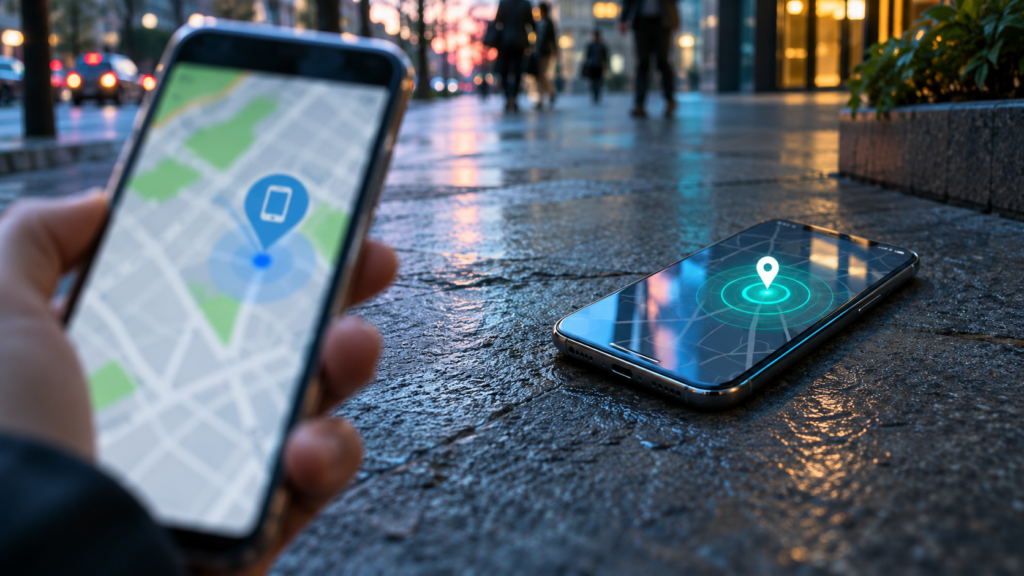
Losing a phone is one of the most stressful tech emergencies there is — your photos, messages, banking apps, and two-factor codes all live on that little slab of glass. The good news is that both Google and Apple build free tracking tools into their platforms, and this guide shows exactly how to find a lost or stolen phone using Find My Device or Find My iPhone. You’ll learn how to locate the phone on a map, make it ring, lock it, erase it if necessary, and what to do when the phone shows as offline or was taken in a theft.
Key Takeaways
- Find My Device and Find My must be enabled before the phone goes missing — check your settings now
- Android phones can be located at google.com/android/find from any browser
- iPhones can be located through the Find My app or iCloud.com/find, even without your own device
- Lock the phone and display a contact message first; erase only as a last resort
- After a theft, contact your carrier, file a police report, and watch for phishing scams targeting your Apple ID or Google password
What Find My Device and Find My iPhone Can and Can’t Do
Google’s tool for Android is called Find My Device — on newer phones and app updates it may appear as Find Hub, the name Google adopted in 2025, but it does the same job. Apple’s version lives inside the Find My app on iPhone, iPad, and Mac (older references call it Find My iPhone). Both services let you see your phone on a map, play a sound, lock the screen with a message, and remotely wipe the device.
What they can do:
- Show the phone’s current or last known location on a map, with a timestamp
- Ring the phone at full volume even if it’s set to silent or vibrate
- Lock the screen remotely and display a callback number or message
- Erase everything on the phone if you can’t recover it
- In some cases, locate the phone even when it’s offline, using crowdsourced Bluetooth signals from other nearby devices
What they can’t do:
- They can’t be switched on remotely after the phone is already lost — the feature must have been enabled beforehand
- The location is approximate. GPS, Wi-Fi, and cell towers get you close, sometimes within a few meters, but not down to a specific room in a building
- They can’t force a powered-off phone to ring — the sound plays when the device comes back online (with exceptions noted below)
- They can’t physically retrieve the phone. Recovery, especially after a theft, is a job for the police
On Android, the feature is usually turned on automatically when you sign in with a Google account, but it’s worth confirming under Settings > Google > Find My Device (the exact menu path varies by manufacturer). On iPhone, check Settings > your name > Find My > Find My iPhone, and make sure Find My network and Send Last Location are both on.
How to Find a Lost Android Phone Using Google Find My Device
You don’t need another Android phone to do this — any web browser on any computer, tablet, or phone works.
- Open a browser and go to google.com/android/find. Alternatively, open the Find My Device (or Find Hub) app on another Android device.
- Sign in with the same Google account that’s on the missing phone. If you have multiple Google accounts, use a private or incognito window to avoid sign-in confusion. On a borrowed phone, you can sign in temporarily and sign back out afterward.
- If you have several devices on the account, select the missing phone from the list at the top.
- Wait a few seconds. The map shows the phone’s current location, or its last known location with a timestamp if it can’t be reached right now.
The info panel next to the map is more useful than most people realize. It shows the phone’s battery level — helpful for judging how long the phone might keep reporting — and the name of the Wi-Fi network it’s connected to, if any. Seeing a network name like “Marriott_Guest” or a friend’s home network can instantly tell you where the phone is even before you look at the map.
From here you have three buttons: Play sound, Secure device, and Factory reset device. The first two are covered below.
For location to work, the missing phone needs to be powered on, signed into your Google account, connected to mobile data or Wi-Fi, visible on Google Play, and have Location and Find My Device turned on. If any piece is missing, you’ll see the last place it was reachable instead.
How to Find a Lost iPhone Using Find My on iCloud or Another Apple Device
You have two main routes, plus a couple of clever extras.
Using the Find My app
On any iPhone, iPad, or Mac signed in with your Apple ID, open the Find My app and tap the Devices tab. Select your missing iPhone from the list to see it on the map. If a family member shares their location with you through Family Sharing, they can open Find My on their own device and see your iPhone there too — often the fastest option of all.
Using iCloud.com in a browser
On any computer or phone, go to iCloud.com/find and sign in with your Apple ID. If you’re asked for a two-factor verification code that’s being sent to the missing phone itself, look for the option to access just the Find Devices feature — Apple lets you locate devices without completing the full sign-in. Once inside, click your iPhone in the All Devices list.
Quick ways to ping an iPhone that’s nearby
If you think the phone is just buried in the couch, you may not need the full map at all:
- Apple Watch: open Control Center and tap the phone icon — your iPhone emits a ping even on silent. Press and hold the button to also flash the iPhone’s LED.
- HomePod or another Apple device: ask Siri “Where’s my iPhone?” and it will trigger a sound.
- A friend’s iPhone: in the Find My app, they can tap the Me tab and scroll to “Help a Friend,” which opens iCloud sign-in for you without touching their account.
Play a Sound, Get Directions, and Check the Last Known Location
Once your phone appears on the map, the first question is whether it’s nearby or far away.
Playing a sound is the right move when the map shows the phone at home, at your office, or somewhere you trust. On Android, tapping Play sound rings the phone at maximum volume for five minutes — even if it’s set to silent or vibrate. On iPhone, Play Sound does the same, overriding silent mode and Do Not Disturb. Walk through the space while it rings; it’s remarkable how often the phone turns up in a jacket pocket or under a car seat.
Getting directions makes sense when the phone is across town. On iPhone, tapping Directions opens Apple Maps with turn-by-turn navigation to the device’s location. On Android, you can tap the location pin and open it in Google Maps. Treat the pin as a search area rather than an exact address — location accuracy ranges from a few meters outdoors to a wide circle indoors.
The last known location is what you see when the phone can’t be reached right now. Both services display where and when it was last online. An iPhone shows “last seen” timing, and Android displays a timestamp with the pin. Pay attention to that timestamp — a location from 40 minutes ago is far less useful than one from two minutes ago, but it still tells you the phone’s last confirmed whereabouts.
On iPhone, also turn on Notify When Found in the device’s info panel. If the phone is offline, you’ll get an alert the moment it reappears on the network instead of having to refresh the map yourself.
Secure the Phone: Lock, Lost Mode, and On-Screen Messages
If the phone is somewhere you can’t quickly reach — or you suspect it’s been picked up by a stranger — your next move is to lock it down before someone gets into your apps, email, or photos.
Android: Secure device
Tap Secure device in Find My Device. This locks the phone with your existing PIN, pattern, or password — and lets you create one on the spot if you never set a lock screen. You can also add a message and a phone number that appear on the lock screen, plus optionally sign your Google account out of the device. Even while locked, the phone stays locatable.
iPhone: Mark As Lost
Select the iPhone and choose Mark As Lost (called Lost Mode in older versions). This immediately locks the phone with its passcode, displays your custom message and contact number, suspends Apple Pay cards and passes stored in Wallet, keeps the device tracking its location, and quiets notifications so a finder can’t snoop. If the phone had no passcode, you’re prompted to set one remotely.
Tips for the on-screen message:
- Keep it short and neutral: “This phone is lost. Please call 555-0134 to return it.” works better than anything accusatory
- Use a number that isn’t the lost phone’s own — a family member’s line, your work number, or a free Google Voice number
- Never include your home address
- A small reward offer genuinely improves return rates
When the phone comes back, just unlock it normally and the message and Lost Mode turn off automatically.
When and How to Erase Your Phone Remotely
Remote erase is the nuclear option. It makes sense when the phone was clearly stolen, contains sensitive work or financial data, or has been missing long enough that recovery is unlikely — and locking it isn’t enough peace of mind.
On Android: choose Factory reset device in Find My Device. The phone wipes itself the next time it connects. Two consequences matter: after the erase completes, Find My Device can no longer locate it, and content on an SD card (if the phone has one) may survive the wipe. However, Factory Reset Protection stays active — anyone who tries to set the phone up again will need your Google account credentials, which makes the phone near-worthless to a thief.
On iPhone: select the device and tap Erase This Device. If the phone is offline, the erase queues and executes the next time it connects. Critically, erasing does not remove Activation Lock — the phone remains tied to your Apple ID and can’t be reactivated by anyone else. For that protection to hold, do not tap “Remove This Device” or delete the iPhone from your account, even after erasing it. If you have AppleCare+ with Theft and Loss, leave the device on your account until your claim is fully processed.
A few things worth knowing before you pull the trigger:
- Erasing the phone does not cancel your cellular service — you still need to contact your carrier separately
- Anything not backed up is gone for good; check that your photos and data synced to Google Photos or iCloud first
- The custom lock-screen message stays visible until the wipe happens, so an honest finder can still reach you in the meantime
If the Phone Is Offline, Powered Off, or Can’t Be Located
“Offline” doesn’t necessarily mean gone. The phone could have a dead battery, be in airplane mode, sit in a dead coverage zone, or be switched off by whoever has it. Here’s what actually works in each case.
Check the last known location first. Both services preserve it, and it’s often enough — a pin at a restaurant you visited tells you exactly where to call. On iPhone, turn on Notify When Found so you’re alerted the instant the phone reconnects. On Android, refresh the map periodically; it updates automatically when the device comes back online.
Offline finding can still locate some phones. Apple’s Find My network crowdsources Bluetooth signals from hundreds of millions of Apple devices, so an iPhone marked as lost can report its location through passing strangers’ devices even without its own connection — provided the Find My network option was on. Recent iPhones (iPhone 11 and later) can remain findable for a period even after being powered off. Google’s upgraded Find My Device network offers similar Bluetooth-based offline finding for supported Android devices, and Pixel 8 and newer models include hardware that allows powered-off locating for several hours. Check your phone’s Find My Device or Find Hub settings to confirm network participation is enabled.
Try Google Maps Timeline as a backup. If you had Location History enabled on your Google account, visit google.com/maps/timeline on the web. It shows everywhere the phone reported its position, which can reveal the route it took before dying — sometimes more revealing than a single last-seen pin.
Be patient. Phones get turned back on. A thief checking whether the device works, or a finder plugging it in to charge, will trigger a location update days later. Keep Lost Mode or Secure device active the whole time.
If the feature was never enabled in the first place, tracking isn’t possible — skip straight to securing your accounts, contacting your carrier, and filing a police report, covered next.
After a Theft: Carrier, Police Report, and Securing Your Accounts
When the location data says “stolen” — the phone is moving through an area you never visited, or sitting at an unfamiliar address — the priorities shift from finding it to containing the damage.
Don’t play detective in person. Whatever the map shows, don’t knock on doors or confront anyone. Share the location and screenshots with the police and let them handle it.
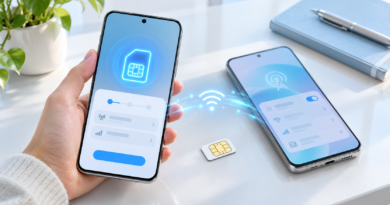
Contact your carrier. Ask them to suspend your line to stop calls, texts, and data charges on the stolen SIM, and to blacklist the phone’s IMEI so it can’t be activated on other networks. One nuance: suspending cellular service cuts the phone’s mobile data, but it can still connect to Wi-Fi and remain trackable — so you can blacklist the IMEI without completely giving up on locating it. When you get a replacement device, your carrier can move your number to a new SIM or eSIM; here’s a guide on setting up and activating an eSIM if your new phone uses one.
File a police report. You’ll need the phone’s IMEI or serial number. If you never wrote it down, find it on the original box, in your carrier account page, in your Google account dashboard under Find your phone, or at appleid.apple.com under Devices for iPhones. The report number is also required for most insurance and AppleCare+ Theft and Loss claims.
Lock down your accounts, starting with the most important one. Change your Google account or Apple ID password first — it’s the master key — then your email, banking, and social accounts. Sign out of active sessions where the service offers it. If your accounts still rely on passwords alone, this is the moment to turn on two-step verification and consider switching to passkeys, which a thief can’t phish or guess.
Beware the follow-up scam. A common theft pattern: days after a phone is stolen, the owner receives texts or emails claiming “your iPhone has been located — click to see it,” leading to a convincing fake Apple or Google login page. The goal is harvesting your credentials so the thief can disable the lock and resell the phone. Real “found” alerts arrive as Find My or Find Hub notifications — never as links asking for your password. Never enter your credentials through a link in a text, no matter how official it looks.
For iPhone owners: enable Stolen Device Protection (Settings > Face ID & Passcode) if you haven’t. It requires biometric authentication for sensitive actions like changing your Apple ID password and adds a security delay when the phone is away from familiar locations — designed specifically for thieves who watched you type your passcode before grabbing the phone.
Frequently Asked Questions
Can I find my phone if it’s turned off?
Usually you’ll see its last known location rather than a live one. However, iPhone 11 and later can remain locatable via the Find My network for a period after power-off, and Pixel 8 and newer Android phones support powered-off finding for several hours. Turn on Notify When Found (iPhone) or keep checking the map — you’ll catch it the moment it powers back on.
Can I track a lost phone by its phone number or IMEI?
No consumer tool can locate a phone by number or IMEI — those are for carriers and law enforcement. The IMEI is still essential: your carrier uses it to blacklist the phone, and police use it for the theft report. Find it by dialing *#06# on the phone itself (before it’s lost), on the original box, or in your account’s device list online.
If I erase my phone, can the thief use it afterward?
No — as long as you leave the device on your account. Android’s Factory Reset Protection and iPhone’s Activation Lock both require your account credentials during setup, so an erased phone remains a paperweight to anyone else. Just never tap “Remove This Device” until the situation is fully resolved.
Final Thoughts
The best time to prepare for a lost phone is right now, while it’s still in your hand. Take two minutes to confirm Find My Device or Find My is enabled, turn on the offline-finding network option, write down your IMEI, and make sure your photos and data back up automatically. If the phone is truly gone for good, our guide on transferring everything to a new phone will help you rebuild on a replacement quickly. Act fast, lock before you erase, and let the built-in tools do the searching for you.