How to Connect Alexa to Smart Home Devices (Full Guide)
Connecting smart home devices to Alexa transforms how you interact with your living space, letting you control lights, locks, thermostats, and more using simple voice commands. Whether you own an Amazon Echo, Echo Dot, or Echo Show, learning how to connect Alexa to smart home devices opens up a world of automation and convenience. This guide walks you through every step of the process, from verifying compatibility to troubleshooting common connection problems.
The setup process varies slightly depending on the type of device you’re connecting, but the core principles remain consistent. You’ll use the Alexa app as your central hub for discovering and linking devices, and once connected, you can create custom routines that automate multiple actions with a single command.
Key Takeaways
- Verify your devices work with Alexa before purchasing to avoid compatibility issues
- Install and configure the Alexa app as your primary control interface
- Add smart lights through the app using device discovery or manufacturer skills
- Connect thermostats for voice-controlled climate management
- Link security devices including smart locks for hands-free access control
- Set up smart plugs to make any appliance voice-controllable
- Integrate cameras to view feeds on Echo Show devices or through the app
- Build automation routines that trigger multiple devices simultaneously
- Resolve common connectivity problems with systematic troubleshooting steps
Check Device Compatibility with Alexa
Before purchasing any smart home device, confirm it works with Alexa. Not every product on the market supports Amazon’s voice assistant, and buying incompatible hardware creates unnecessary frustration. Look for “Works with Alexa” certification on product packaging or in online descriptions.
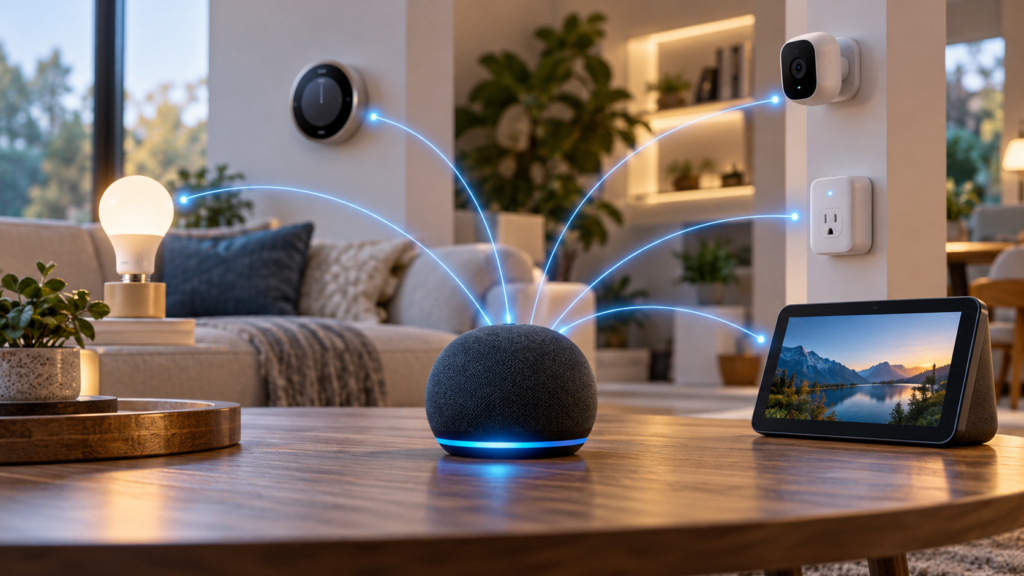
Alexa-compatible devices typically connect through one of three methods: Wi-Fi, Zigbee, or manufacturer-specific bridges. Wi-Fi devices connect directly to your home network and communicate with Alexa through the cloud. Zigbee devices use a low-power wireless protocol and require either a compatible Echo device with a built-in Zigbee hub or a separate bridge. Some manufacturers like Philips Hue use their own bridges that then connect to your network.
Check the Amazon website’s smart home compatibility page for a comprehensive list of supported brands and device types. Popular compatible brands include Philips, TP-Link, Ring, Nest, Ecobee, Wyze, and Samsung SmartThings. If you’re building your smart home from scratch, sticking with widely supported brands reduces compatibility headaches down the road.
Pay attention to specific model numbers when researching compatibility. Some manufacturers offer both Alexa-compatible and non-compatible versions of the same product line. Reading recent customer reviews often reveals real-world connectivity experiences that official specifications don’t mention.
Set Up Your Alexa Device and App
Your Alexa-enabled device serves as the command center for your smart home ecosystem. If you haven’t already set up your Echo speaker or display, plug it into power and wait for the light ring to turn orange, indicating it’s in setup mode. Download the Amazon Alexa app on your smartphone from the App Store or Google Play Store.
Open the app and sign in with your Amazon account credentials. The app will automatically detect nearby Echo devices in setup mode. Tap the device name when it appears, then follow the on-screen prompts to connect it to your Wi-Fi network. You’ll need to select your network from the list and enter your password.
Once connected, the app guides you through basic configuration including selecting your time zone, address, and measurement preferences. These settings matter because Alexa uses location data for weather reports, local search results, and smart home routines based on sunrise and sunset times. Take a moment to complete this initial setup accurately.
Verify your Echo device is working by asking a simple question like “Alexa, what’s the weather?” If you receive a response, your device is ready to connect smart home products. If you experience issues during this stage, ensure your home Wi-Fi network is functioning properly and that your router isn’t blocking new device connections.
Connect Smart Lights to Alexa
Smart lighting represents the most popular entry point into home automation, and connecting bulbs or light strips to Alexa is straightforward. First, install your smart bulbs in the desired fixtures and ensure they’re powered on. Most smart bulbs need to remain on at the wall switch to maintain their connection.
Open the Alexa app and tap the Devices icon at the bottom of the screen. Select the plus icon in the top right corner, then choose “Add Device.” Select “Light” from the device type list, then choose your bulb’s manufacturer. The app displays a list of popular brands including Philips Hue, LIFX, Sengled, and TP-Link Kasa.
For Wi-Fi bulbs that don’t require a bridge, the app searches for devices on your network. Make sure your bulbs are in pairing mode, which typically involves turning them on and off in a specific sequence outlined in the manufacturer’s instructions. The discovery process usually takes 20 to 45 seconds.
If you’re using Philips Hue or another system that requires a bridge, you’ll first need to connect that bridge to your router via Ethernet cable. The Alexa app will prompt you to press the button on the bridge to authorize the connection. Once the bridge links successfully, Alexa discovers all bulbs already registered with that bridge system.
After discovery completes, assign your lights to rooms within the Alexa app. This organizational step lets you control multiple lights with commands like “Alexa, turn off the living room lights” instead of naming each bulb individually. You can also create groups that combine lights from different rooms for scenarios like “movie mode” or “bedtime.”
Add Smart Thermostats and Climate Control
Smart thermostats offer significant energy savings while adding voice control convenience to your climate management. Popular models from Ecobee, Nest, Honeywell, and Sensibo all support Alexa integration. Installation requirements vary by model, with some requiring professional installation due to electrical complexity.
Once your thermostat is physically installed and connected to your Wi-Fi network, linking it to Alexa requires enabling the manufacturer’s skill. In the Alexa app, tap the menu icon and select “Skills & Games.” Search for your thermostat’s brand name, then tap “Enable to Use.” You’ll be redirected to the manufacturer’s login page where you’ll enter the credentials you created during thermostat setup.
After enabling the skill, the Alexa app automatically discovers your thermostat. This process imports your device settings including the name you assigned during initial configuration. You can now control temperature with commands like “Alexa, set the thermostat to 72 degrees” or “Alexa, what’s the temperature inside?”
Most smart thermostats support mode changes through voice commands. Ask Alexa to switch between heating, cooling, and auto modes, or turn on eco mode to maximize energy efficiency. More advanced models let you control individual room sensors or adjust humidity levels through voice commands.
Consider creating routines that automatically adjust your thermostat based on your schedule. For example, set the temperature to drop at night when you go to bed or warm up the house 30 minutes before your morning alarm. These automated adjustments reduce energy waste without requiring constant manual input.
Connect Smart Locks and Security Devices
Smart locks add an extra layer of convenience and security to your home by allowing voice control, remote access, and temporary guest codes. Brands like August, Yale, Schlage, and Kwikwee offer Alexa-compatible models with varying installation complexity. Most replace your existing deadbolt while reusing the same hole configuration.
After installing your smart lock according to the manufacturer’s instructions, set it up using the brand’s dedicated mobile app. This initial configuration establishes the lock’s connection to your Wi-Fi network or Bluetooth bridge. Complete this step fully before attempting to connect to Alexa, as the manufacturer’s app handles critical security settings.
In the Alexa app, navigate to Skills & Games and search for your lock manufacturer. Enable the skill and link your account credentials when prompted. The integration process requires creating a four-digit voice PIN that Alexa will request before unlocking your door through voice commands. This security measure prevents unauthorized individuals from unlocking your door simply by speaking near an Echo device.
Once connected, you can check lock status by asking “Alexa, is the front door locked?” To unlock, say “Alexa, unlock the front door,” then provide your four-digit PIN when prompted. Note that for security reasons, Alexa allows voice unlocking but most manufacturers enable voice locking by default without requiring a PIN.
Smart locks integrate well with routines. Create an automation that locks all doors when you say “Alexa, goodnight” or configure automatic locking when your security system arms. You can also receive notifications through the Alexa app when doors lock or unlock, helping you monitor access when you’re away from home.
Link Smart Plugs and Switches
Smart plugs and switches represent the most affordable way to add voice control to devices that aren’t inherently smart. These adapters sit between your outlet and any appliance, lamp, or device, giving you the ability to turn power on or off remotely. This approach works with fans, holiday lights, coffee makers, humidifiers, and countless other electronics.
Plug your smart plug into an outlet and follow the manufacturer’s app instructions to connect it to your Wi-Fi network. Most plugs have a physical button that you press and hold to enter pairing mode, indicated by a flashing LED. The setup process through the manufacturer’s app typically takes less than two minutes per device.
To add the plug to Alexa, open the Alexa app and tap Devices, then the plus icon, followed by “Add Device” and “Plug.” Select your brand from the list or choose “Other” if your specific model isn’t shown. The app scans your network and displays discovered plugs. Tap each one to add it to your Alexa ecosystem.
Assign meaningful names to each plug based on what’s connected to it. Instead of generic names like “Plug 1,” use descriptive names like “Coffee Maker” or “Living Room Lamp.” This naming convention makes voice commands intuitive and reduces confusion when you have multiple plugs throughout your home.
Smart plugs work exceptionally well in routines and schedules. Set your coffee maker to turn on automatically at 6:30 AM on weekdays, or configure holiday lights to turn on at sunset and off at 11 PM. Many smart plugs also track energy consumption, helping you identify which devices draw the most power and optimize your usage patterns.
Set Up Smart Cameras with Alexa
Integrating security cameras with Alexa provides quick access to live video feeds through voice commands or Echo Show displays. Compatible cameras from Ring, Arlo, Wyze, Blink, and Nest offer varying feature sets including motion detection, two-way audio, and cloud recording options.
Install your camera according to the manufacturer’s guidelines, ensuring it has a clear view of the area you want to monitor and reliable Wi-Fi signal strength. Cameras placed too far from your router often experience connectivity issues or poor video quality. Use the manufacturer’s app to complete initial setup including Wi-Fi connection, naming, and motion zone configuration.
Link your camera to Alexa by enabling the manufacturer’s skill in the Alexa app. Navigate to Skills & Games, search for your camera brand, and enable the skill. You’ll log in with the account credentials you created in the manufacturer’s app. After authorization, Alexa discovers your cameras and imports them with their existing names.
If you own an Echo Show or Echo Spot with a display, you can view camera feeds by saying “Alexa, show me the front door camera.” The live feed appears on the screen within seconds. Without a display-equipped Echo device, you can still view feeds through the Alexa app on your smartphone.
Set up camera-based routines for enhanced security. Configure Alexa to announce when motion is detected on your driveway camera, or create a routine that displays your doorbell camera on your Echo Show whenever someone rings the bell. These automations provide immediate awareness of activity around your home without requiring you to manually check camera feeds.
Create Routines to Automate Connected Devices
Routines represent Alexa’s most powerful feature for smart home control, allowing you to trigger multiple devices and actions with a single command or event. Instead of individually controlling lights, locks, thermostats, and music, a well-designed routine handles everything simultaneously.
To create a routine, open the Alexa app and tap the menu icon, then select “Routines.” Tap the plus icon to create a new routine. You’ll define two key components: a trigger that starts the routine and the actions that execute when triggered. Triggers include voice commands, schedules, device states, alarms, or your location arriving or departing.
For a morning routine, set the trigger to your weekday alarm time. Add actions that gradually increase bedroom light brightness, turn on the coffee maker, read your calendar events, provide a weather report, and adjust the thermostat to your preferred daytime temperature. This multi-step sequence runs automatically without any input from you.
Evening routines often focus on security and energy savings. Create a “Goodnight” routine triggered by the voice command “Alexa, goodnight.” Configure it to turn off all lights, lock smart locks, lower the thermostat, and arm your security system. You can also add a delay between actions, such as turning off bedroom lights two minutes after the routine starts to give you time to settle in.
Location-based routines activate when you arrive home or leave. Set lights to turn on and unlock the front door when your phone’s GPS indicates you’re arriving. When leaving, have Alexa turn off all devices, adjust the thermostat to away mode, and arm security cameras. These automations provide the convenience of manual control without requiring you to remember each step.
Test each routine after creation to verify all devices respond correctly. Sometimes devices fail to execute due to temporary connectivity issues or configuration errors. Running a test helps identify problems before you rely on the routine in daily use. Avoid common smart home setup mistakes by keeping routines simple initially, then adding complexity as you become comfortable with the system.
Troubleshoot Connection Issues
Even with proper setup, smart home devices occasionally lose connection to Alexa. Understanding common causes and solutions helps you restore functionality quickly without unnecessary frustration.
Wi-Fi connectivity represents the most frequent culprit behind device disconnections. When a device shows as offline in the Alexa app, first verify your internet connection is working properly. Check if other devices in your home can access the internet. If your router is experiencing issues, restart it by unplugging for 30 seconds, then plugging back in. Most connection problems resolve after the router fully reboots.
If your router is functioning but specific devices remain offline, those devices may be too far from your router or experiencing interference. Wi-Fi signals degrade through walls, floors, and metal objects. Consider repositioning devices closer to your router or adding a Wi-Fi extender to improve coverage. Devices operating on the 2.4 GHz band travel farther but offer slower speeds, while 5 GHz provides faster speeds over shorter distances.
When Alexa fails to discover new devices during setup, ensure the device is in pairing mode and connected to the same Wi-Fi network as your Echo. Many smart home devices only work with 2.4 GHz networks and won’t appear during discovery if your phone is connected to a 5 GHz network. Temporarily switch your phone to the 2.4 GHz band during setup if devices aren’t appearing.
Device firmware updates sometimes cause temporary connectivity issues. Manufacturers regularly release updates to improve performance and security, and devices typically update automatically overnight. If a previously working device suddenly stops responding, check the manufacturer’s app for pending updates or recent change logs that might explain new behavior.
For devices that respond inconsistently, disable and re-enable the manufacturer’s skill in the Alexa app. This process refreshes the connection between Amazon’s servers and the manufacturer’s cloud service. After re-enabling the skill, run device discovery again to ensure Alexa recognizes all your hardware.
If specific voice commands fail while app control works normally, the issue likely involves voice recognition or device naming. Alexa struggles with similar-sounding device names or names containing special characters. Rename devices using simple, distinct names that Alexa can easily differentiate. Avoid names that sound like Alexa’s wake word or other voice commands.
Network congestion can impact device responsiveness in homes with many connected devices. Most consumer routers support 50 to 100 simultaneous connections, but performance degrades as you approach that limit. Smart home devices maintain constant connections even when idle, consuming bandwidth. If commands experience delays, consider upgrading to a mesh network system that handles higher device counts more efficiently.
Factory resetting a device should be your last resort when troubleshooting fails to restore connectivity. This process erases all settings and requires complete reconfiguration. Consult the manufacturer’s documentation for the specific reset procedure, as methods vary significantly between products. After resetting, set up the device fresh in both the manufacturer’s app and Alexa app.
Frequently Asked Questions
Do I need a smart home hub to connect devices to Alexa?
Most modern smart home devices connect to Alexa without requiring a separate hub. Wi-Fi devices communicate directly through your home network, while some Echo devices include built-in Zigbee hubs that support compatible products. However, certain manufacturers like Philips Hue recommend using their proprietary bridges for the most reliable performance and access to advanced features. Evaluate your specific devices to determine if a hub is necessary, or explore options to connect smart home devices without a hub.
Can I control devices when I’m away from home?
Yes, the Alexa app provides remote control of your connected smart home devices from anywhere with an internet connection. You can turn lights on or off, adjust thermostats, check lock status, and view camera feeds while traveling or at work. Some manufacturers impose limitations on remote access for security reasons, particularly for smart locks which may require additional authentication steps when controlling from outside your home network.
Why won’t Alexa discover my smart home device?
Discovery failures typically occur when devices aren’t in pairing mode, aren’t connected to your Wi-Fi network, or are on a different network frequency than your phone during setup. Verify the device is powered on and in pairing mode as indicated by a flashing light or specific LED pattern. Ensure both your phone and the device connect to your router’s 2.4 GHz network, as many smart home products don’t support 5 GHz connections. If problems persist, restart your router and attempt discovery again after all devices reconnect.
Conclusion
Connecting smart home devices to Alexa creates a unified voice-controlled ecosystem that simplifies daily routines and enhances home security. By methodically setting up each device type through the Alexa app, organizing devices into logical rooms and groups, and building automated routines, you transform individual products into a cohesive smart home system. Regular maintenance including firmware updates and network optimization ensures reliable performance over time.
Start with one or two device categories that address your most pressing needs, whether that’s lighting control for convenience or smart locks for security. As you become comfortable with basic voice commands and app navigation, expand your system gradually. The flexibility of Alexa’s platform means you can add devices from different manufacturers over time without being locked into a single ecosystem, giving you the freedom to choose the best products for each application in your home.