
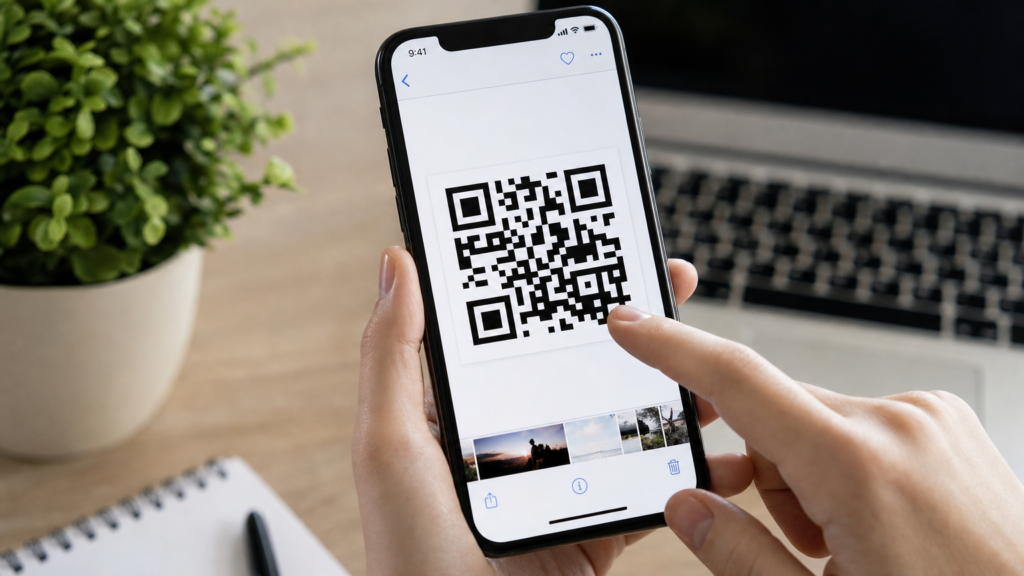
How to Scan a QR Code From a Screenshot on iPhone: 3 Ways
You’ve received a QR code in a text message, email, or social media post, and you’ve saved it as a screenshot on your iPhone. Now you need to scan it—but how? Unlike pointing your camera at a physical QR code, scanning one from a screenshot requires a different approach. Fortunately, learning how to scan a QR code from a screenshot on iPhone is straightforward, and you have several built-in and third-party options to choose from. Whether you use Apple’s native Photos app with Live Text, Google Lens, or a dedicated QR code reader, you’ll be able to extract the information quickly and safely.
Key Takeaways
- iOS 15 and later include Live Text in the Photos app, allowing you to scan QR codes directly from screenshots without additional apps.
- Google Lens provides a powerful alternative for reading QR codes from photos, with additional context and translation features.
- Third-party QR code reader apps can handle batch scanning and low-quality images more effectively than native tools.
- Always verify QR code links before opening them to avoid phishing sites and malicious content.
- If scanning fails, improve image quality by adjusting brightness, cropping closely, or requesting a fresh code.
Scan a QR Code Using the Photos App
Apple introduced Live Text with iOS 15, and this feature revolutionized how iPhones handle text and codes within images. The Photos app can now recognize QR codes in screenshots and photos automatically, making it the fastest native solution for scanning QR codes from photos.
To use this method, first ensure your iPhone is running iOS 15 or newer. Open the Settings app, tap General, then About to check your iOS version. If you’re on an older version, update through Settings > General > Software Update.
Once confirmed, open the Photos app and navigate to the screenshot containing the QR code. Tap to open it in full view. If Live Text is active and the QR code is clear, you’ll see a subtle shimmer or highlight effect around the code within a second or two. Tap directly on the QR code itself—you’ll see a contextual menu appear with options like Open in Safari, Add to Reading List, Copy, or other actions depending on the code’s content type.
For URL-based QR codes (the most common type), tapping Open in Safari will launch the link immediately. If the code contains contact information, you’ll see an option to add it to Contacts. For Wi-Fi network codes, you’ll get a prompt to join the network. The Apple Photos app handles these different formats intelligently without requiring you to specify the type in advance.
If you don’t see the shimmer effect or tapping does nothing, the image quality may be too low, or Live Text may be disabled. Go to Settings > General > Language & Region and ensure Live Text is toggled on. Also verify that your iPhone model supports the feature—Live Text requires an iPhone XS or newer with iOS 15+, or an iPhone XR or newer for full functionality.
One limitation of the Photos app method is that it works best with high-contrast, well-lit QR codes. If your screenshot is blurry, dark, or the code occupies only a small portion of the image, the iPhone QR code scanner within Photos may struggle to detect it. In those cases, cropping the image tightly around the QR code before opening it can improve recognition significantly.
Use Google Lens to Read a QR Code Screenshot
If the native Photos app doesn’t detect your QR code, or if you want additional context about the link before opening it, Google Lens on iPhone is an excellent alternative. Google Lens is integrated into the Google app and the Google Photos app, both free downloads from the App Store.
To scan a QR code screenshot using Google Lens through the Google app, first download and install the Google app from the App Store if you don’t already have it. Open the app and tap the camera icon in the search bar. You’ll see options to search with your camera—tap the photo icon in the top right to access your camera roll.
Select the screenshot containing the QR code. Google Lens will analyze the image automatically and highlight the QR code with a white bounding box. Tap the highlighted area, and you’ll see the decoded link or information appear at the bottom of the screen, along with a preview and an option to open it. Google Lens also provides context clues, showing you the domain name and a snippet of the destination page when possible, which is helpful for verifying legitimacy before clicking.
Alternatively, if you use Google Photos to back up your iPhone images, you can scan QR codes directly within that app. Open Google Photos, select the screenshot, and tap the Lens button at the bottom of the screen (it looks like a camera within a square). The process is identical—Lens will detect and decode the QR code, then offer actions like opening the URL, copying text, or sharing.
Google Lens excels at reading QR codes that are slightly damaged, skewed, or embedded in complex images like posters or event flyers. Its machine learning models are trained on billions of images, so it can often extract codes that simpler scanners miss. It also supports batch processing if you have multiple screenshots to scan, though you’ll need to process them one at a time within the app.
One advantage of Google Lens is its multilingual support. If the QR code leads to a page in another language, Lens can translate text on the fly, making it useful for travelers or international business contexts. However, keep in mind that using Google Lens does send your image data to Google’s servers for processing, which may be a privacy consideration for sensitive content.
Scan QR Codes with a Third-Party App
While Apple’s Live Text and Google Lens cover most use cases, dedicated QR code reader apps offer advanced features like batch scanning, scan history, code generation, and enhanced error correction for damaged or low-resolution images. These apps are particularly useful if you frequently work with QR codes or need to scan codes from challenging screenshots.
Popular third-party options include QR Code Reader by Scan, Quick Scan, and Qrafter. Most are free with optional in-app purchases to remove ads or unlock premium features. To use one, download your chosen app from the App Store, open it, and look for an option to scan from your camera roll or photo library rather than the live camera view.
In QR Code Reader by Scan, for example, tap the app icon to open it, then tap the small photo icon usually located in the corner of the camera viewfinder. This opens your Photos library, where you can select the screenshot. The app will decode the QR code instantly and display the contents—URLs open in an in-app browser by default, which provides an extra layer of security by sandboxing the link.
Third-party apps often include scan history, so you can revisit previously scanned codes without keeping the original screenshots. This is useful for event tickets, boarding passes, or discount codes you may need to reference multiple times. Some apps also let you create QR codes directly on your iPhone, share them via AirDrop, or export them to other apps, making them versatile tools beyond simple scanning.
Another benefit is customizable behavior. Many apps let you choose whether to open links automatically, copy them to the clipboard, or require manual confirmation. For security-conscious users, this control is valuable—it prevents accidental navigation to potentially harmful sites. Some premium apps even include link preview and reputation checking, flagging suspicious URLs before you click.
When choosing a third-party app, check reviews and permissions carefully. Avoid apps that request excessive access to your photo library, contacts, or location without clear justification. Stick to well-rated apps from established developers, and be wary of any that require payment upfront without offering a trial or clear feature list.
What to Do If Your iPhone Cannot Scan the Code
Sometimes, despite your best efforts, your iPhone simply won’t recognize the QR code in a screenshot. This usually stems from image quality issues, but there are several troubleshooting steps you can take before giving up.
First, check the image resolution and clarity. Open the screenshot in Photos and zoom in on the QR code. If the individual squares (called modules) are blurry or pixelated, the image quality is too low. QR codes rely on sharp contrast between black and white modules, so compression artifacts or low resolution can render them unreadable. If possible, request the sender to share the QR code again at a higher resolution, or ask them to send the underlying link directly.
Next, try cropping the screenshot to isolate the QR code. Open the image in Photos, tap Edit, then use the crop tool to remove all surrounding content, leaving only the code itself with a small margin. This reduces visual noise and helps the scanner focus. Save the cropped version and try scanning it again with Live Text or Google Lens.
Adjust the brightness and contrast if the QR code is too dark or faded. In Photos, tap Edit, then the adjust icon (three horizontal sliders). Increase Exposure or Brilliance to make the black modules darker and the white background brighter. This can make a marginal code scannable. Be careful not to over-expose, which can cause the black modules to bleed together.
If the QR code is part of a web page or PDF, try taking a fresh screenshot with better zoom. Open the original source, use pinch-to-zoom to enlarge the code until it fills most of the screen, then take a new screenshot. This captures the code at a higher effective resolution.
Sometimes the issue is orientation. Rotate the image in Photos if the QR code appears sideways or upside down—some scanners are orientation-sensitive, especially older third-party apps. Live Text and Google Lens generally handle rotation automatically, but it’s worth trying if other methods fail.
Check for obstructions or overlays. If the screenshot includes notification banners, status bar icons, or watermarks overlapping the QR code, these can interfere with scanning. Use the markup tool in Photos to crop them out or cover them with white brush strokes, then try again.
Finally, if the QR code is genuinely damaged or incomplete, no scanner will work. QR codes include built-in error correction that can recover from up to 30% data loss, but beyond that threshold, the code becomes unrecoverable. In such cases, your only option is to request a new code from the source.
If you frequently encounter scanning issues, consider whether your screenshots are being compressed during transfer or backup. iCloud Photos uses efficient compression, but third-party cloud services or messaging apps may degrade image quality further. Understanding how to take a screenshot on iPhone properly can also help ensure you capture the highest quality image possible from the start.
How to Open and Verify the QR Code Link Safely
QR codes are convenient, but they’re also a vector for phishing and malware. Because the encoded URL is hidden until scanned, malicious actors exploit this to disguise dangerous links. Before opening any link from a scanned QR code, especially from unknown sources, take a moment to verify its legitimacy.
When you scan a QR code with Live Text, Google Lens, or a third-party app, the decoded link is displayed before you open it. Read the full URL carefully. Check the domain name for misspellings or suspicious variations—for example, “paypa1.com” instead of “paypal.com,” or “app1e-support.com” instead of “apple.com.” Phishing sites often use look-alike domains to trick victims.
Look for HTTPS in the URL, indicated by a padlock icon in most browsers. While HTTPS doesn’t guarantee a site is safe, its absence is a red flag for any site requesting personal information or login credentials. Legitimate companies, banks, and services always use HTTPS for sensitive transactions.
If the link shortener is used (bit.ly, tinyurl.com, etc.), be extra cautious. Shortened URLs hide the true destination, making it impossible to verify the link before clicking. Some QR code scanner apps offer link preview features that expand shortened URLs, showing you the final destination. Google Lens sometimes provides this as well. If you can’t preview the link and it’s from an untrusted source, don’t open it.
Consider opening the link in a private browsing tab first. In Safari, tap and hold the link, then select Open in New Private Tab. This isolates the session from your cookies and login data, reducing the risk if the site is malicious. You can also use an in-app browser within a QR scanner app, which sandboxes the link further.
For high-stakes scenarios—like QR codes claiming to be from your bank, employer, or government agency—verify the request through an independent channel before clicking. Call the organization directly using a number you look up yourself (not one provided in the message), or log in to your account through the official app or website rather than following the QR code link.
Be especially wary of QR codes that prompt immediate action, such as “Your account will be suspended unless you verify now” or “Claim your prize within 24 hours.” These urgency tactics are hallmarks of phishing attempts. Legitimate services rarely use QR codes for urgent security notifications.
Apple provides built-in phishing protection in Safari through its Fraudulent Website Warning feature, which is enabled by default. If you accidentally visit a known phishing site, Safari will display a warning before the page loads. Keep this feature enabled by checking Settings > Safari > Privacy & Security and ensuring Fraudulent Website Warning is toggled on.
If you do encounter a suspicious QR code or link, report it. You can forward phishing attempts to the Federal Trade Commission at spam@uce.gov, or report fraudulent sites directly to Google Safe Browsing, which helps protect other users.
Frequently Asked Questions
Can I scan a QR code from a screenshot using the Control Center scanner?
No, the Control Center QR scanner only works with the live camera feed. When you open the Code Scanner from Control Center or the Camera app, it activates the rear camera to scan physical QR codes in real time. To scan a QR code from a screenshot, you must use the Photos app with Live Text, Google Lens, or a third-party app that can read from your photo library.
Does scanning a QR code from a screenshot use mobile data?
Scanning itself is local and doesn’t require data, but opening the decoded link will use data or Wi-Fi. If you’re using Google Lens, the image is sent to Google’s servers for analysis, which consumes a small amount of data—typically a few hundred kilobytes per image. Apple’s Live Text processes QR codes entirely on-device, so it doesn’t use any data for the scanning process itself.
Why does my iPhone not show the Live Text option for QR codes?
Live Text requires iOS 15 or later and an iPhone XS, XR, or newer model. If you meet these requirements but still don’t see the feature, check that it’s enabled in Settings > General > Language & Region > Live Text. Also ensure the screenshot is clear and high-resolution—very blurry or low-contrast images may not trigger Live Text recognition. Restarting your iPhone can also resolve temporary glitches with Live Text detection.
Conclusion
Scanning a QR code from a screenshot on your iPhone is simple once you know which tools to use. Apple’s Live Text feature in the Photos app offers the fastest built-in solution for iOS 15 and later, while Google Lens provides robust scanning with added context and link previews. For power users or challenging images, third-party QR code reader apps deliver advanced features and better error correction. Whichever method you choose, always verify the decoded link before opening it to protect yourself from phishing and malicious sites. With these techniques in your toolkit, you’ll never be stuck with an unreadable QR code screenshot again.