
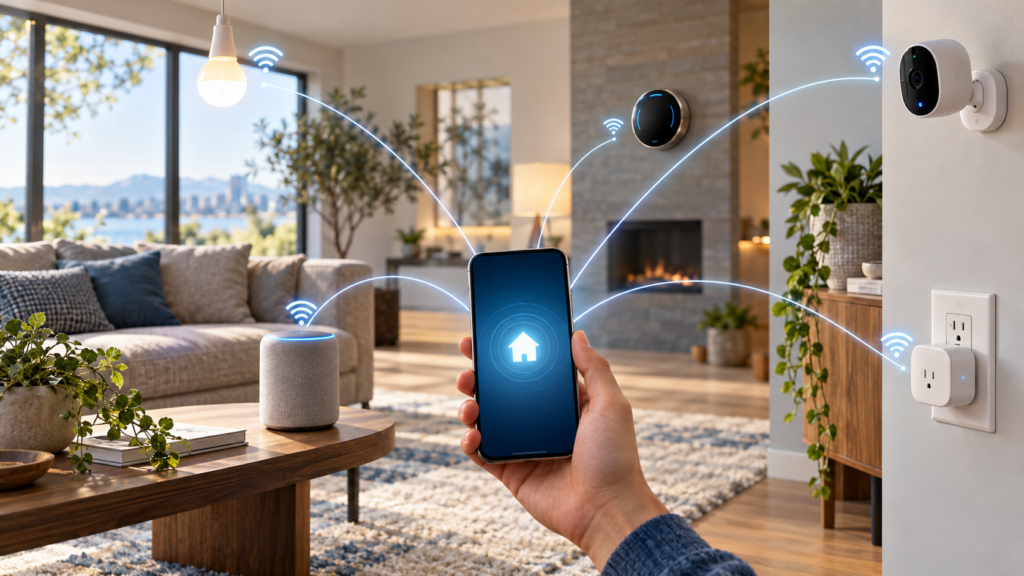
How to Connect Smart Home Devices Without a Hub
Building a smart home doesn’t always require investing in expensive hubs or complex control systems. Many modern smart devices connect directly to your home network using Wi-Fi or Bluetooth, allowing you to control lights, thermostats, cameras, and more without additional hardware. Learning how to connect smart home devices without a hub simplifies setup, reduces costs, and still delivers powerful automation capabilities for everyday convenience.
Hub-free smart home technology has matured significantly, with manufacturers designing devices that communicate directly with your router and smartphone. This approach eliminates the middleman, letting you manage everything through manufacturer apps or voice assistants like Amazon Alexa and Google Assistant.
Key Takeaways
- Hub-free devices connect directly to Wi-Fi or Bluetooth without additional hardware
- Compatible devices use common protocols like Wi-Fi, Bluetooth, or Matter
- A strong 2.4 GHz network is essential for reliable smart device connections
- Manufacturer apps guide you through pairing and initial configuration
- Voice assistants consolidate control across multiple device brands
- Automation works through app routines and voice assistant scenes
- Connection problems often stem from network bands or device placement
- Some advanced features and device types still benefit from dedicated hubs
Understanding Hub-Free Smart Home Technology
Hub-free smart devices communicate directly with your home Wi-Fi router or pair via Bluetooth to your smartphone. Unlike hub-dependent systems such as Zigbee or Z-Wave that require a central bridge, these devices eliminate the extra step by connecting to infrastructure you already own.
Wi-Fi smart devices join your wireless network the same way your phone or laptop does. Once connected, they receive commands from apps or voice assistants over the internet. Bluetooth devices operate differently, pairing directly with your phone for local control within a limited range, typically around 30 feet.
The Matter protocol has emerged as a unifying standard that allows hub-free devices from different manufacturers to work together seamlessly. Matter-certified products communicate over Wi-Fi, Thread, or Ethernet, and integrate with major platforms including Apple Home, Google Home, and Amazon Alexa without requiring proprietary hubs.
This direct-connect approach offers clear advantages. Setup takes minutes rather than requiring hub installation and network configuration. Costs stay lower since you’re not purchasing additional hardware. Your smartphone becomes the primary control interface, and most devices allow multiple family members to access controls through shared app permissions.
Choosing Compatible Hub-Free Devices
Not all smart devices work without hubs, so verifying compatibility before purchase prevents frustration. Check product specifications for “Wi-Fi enabled” or “Bluetooth” connectivity. Avoid devices labeled as requiring Zigbee, Z-Wave, or proprietary hubs unless you plan to add that infrastructure later.
Wi-Fi smart bulbs from brands like Wyze, TP-Link Kasa, and Philips Wue (the Wi-Fi version, not Hue which requires a bridge) connect directly to your network. Smart plugs from WeMo, Kasa, and Amazon work the same way, turning any appliance into a controllable device. Wi-Fi thermostats from ecobee and Google Nest manage climate without extra hardware.
Bluetooth devices suit specific use cases. Smart locks often use Bluetooth for local phone-based unlocking, though many also include Wi-Fi for remote access. Bluetooth sensors work well for temperature monitoring in single rooms where you don’t need remote notifications.
Matter certification indicates broad compatibility. These devices work across ecosystems, so a Matter smart bulb functions with Apple HomeKit, Google Home, and Alexa simultaneously. As manufacturers adopt Matter more widely, mixing brands becomes simpler without worrying about hub requirements.
Consider network requirements when shopping. Most smart devices connect only to 2.4 GHz Wi-Fi bands, not the faster 5 GHz band. Verify your router broadcasts a 2.4 GHz network, or consider setting up a mesh Wi-Fi network for better coverage throughout your home.
Setting Up Your Network for Smart Devices
A reliable network foundation determines whether your hub-free devices stay connected or drop offline repeatedly. Start by confirming your router broadcasts both 2.4 GHz and 5 GHz bands separately, or uses a dual-band network with clear band steering that allows devices to join the appropriate frequency.
Position your router centrally in your home, elevated on a shelf rather than tucked in a cabinet. Smart devices distributed across multiple rooms need consistent signal strength. Walls, metal appliances, and distance weaken Wi-Fi, so devices more than 30-40 feet from the router or separated by multiple walls may struggle to maintain connections.
Check your network’s device limit. Consumer routers typically handle 20-50 connected devices simultaneously. Each smart bulb, plug, camera, and phone counts toward this total. If you’re planning extensive automation with dozens of devices, router upgrades may become necessary before connectivity problems emerge.
Security settings matter for both protection and compatibility. Use WPA2 or WPA3 encryption rather than outdated WEP. Avoid hiding your network SSID, as many smart devices struggle with hidden networks during setup. Create a separate guest network if you’re concerned about device security, though this may limit some automation features that require devices on the same network.
Bandwidth allocation rarely causes issues for smart home devices since most send tiny data packets for commands like “turn on” or “set to 72 degrees.” The exception is smart cameras streaming continuous video, which can consume significant bandwidth depending on resolution and recording settings.
Connecting Devices Using Manufacturer Apps
Every hub-free smart device includes a companion app that guides you through initial setup. Download the manufacturer’s app from the App Store or Google Play Store before unpacking your device. Creating an account is typically required, even though the device connects directly to your network rather than relying on cloud servers for basic functions.
The pairing process follows a similar pattern across most devices. Power on your smart device, which usually enters pairing mode automatically indicated by a blinking light. Open the manufacturer app and select “Add Device” or a similar option. The app searches for nearby devices in pairing mode, then prompts you to select your Wi-Fi network and enter the password.
Smart bulbs require slightly different handling. Screw the bulb into a socket and turn the switch on. Many bulbs enter pairing mode after being switched on and off three times in succession. The app detects the bulb, you assign it to a room and give it a name, then it joins your network.
Smart plugs typically have a physical button you hold for 5-10 seconds until an LED blinks rapidly. The app connects to the plug’s temporary setup network, then transfers it to your permanent Wi-Fi. Once connected, the plug appears in your app where you can toggle power, set schedules, or monitor energy usage if supported.
Thermostats involve more detailed setup since they replace existing wall controls. Follow included wiring diagrams carefully, photograph your old thermostat’s wiring before disconnecting, and match wires to labeled terminals on the new device. Once powered, the thermostat’s built-in screen guides you through Wi-Fi connection, after which the app takes over for detailed configuration.
Location permissions and Bluetooth access are commonly requested during app setup. Granting these allows the app to detect nearby devices more reliably and customize behavior based on whether you’re home or away. You can often revoke these permissions after initial setup if privacy concerns outweigh convenience features.
Using Voice Assistants as Control Centers
Voice assistants transform how you interact with hub-free devices by consolidating control across different brands into a single interface. Amazon Alexa, Google Assistant, and Apple Siri each connect to hundreds of smart device brands, eliminating the need to open separate manufacturer apps for every light or plug.
Linking devices to Alexa starts in the Alexa app. Tap Devices, then the plus icon, and select “Add Device.” Choose your device type and brand, then follow prompts to link your manufacturer account. Alexa imports all devices associated with that account, making them immediately controllable by voice. Commands like “Alexa, turn off the living room lights” work once devices are assigned to appropriate rooms in the app.
Google Assistant integration follows a similar path through the Google Home app. Tap the plus icon, select “Set up device,” then “Works with Google.” Search for your device manufacturer, sign into your account, and authorize Google to control those devices. Google Assistant excels at natural language processing, understanding commands like “turn the temperature down a bit” without requiring exact phrasing.
Apple HomeKit requires devices specifically certified for HomeKit compatibility, which is more restrictive than Alexa or Google platforms. HomeKit-compatible devices display a code you scan with your iPhone camera. The device automatically adds to your Home app, organized by rooms and zones. Siri control activates immediately, and HomeKit’s local processing means many commands work even when your internet connection drops.
Voice assistants enable cross-brand automation that individual manufacturer apps can’t achieve. You can create routines that dim Kasa lights, lock a Wyze lock, and lower a Google Nest thermostat with a single “Goodnight” command. This integration is the primary advantage of using voice assistants over standalone apps.
Smart speakers and displays serve as physical control points throughout your home. An Echo Dot in the bedroom, a Nest Hub in the kitchen, and a HomePod in the living room give you voice access wherever you are. These devices also act as Bluetooth bridges for some ecosystems, extending control range beyond your phone’s immediate proximity.
Automating Hub-Free Devices
Automation transforms individual smart devices into a coordinated system that responds to schedules, conditions, or triggers without manual intervention. Hub-free devices support automation through manufacturer apps, voice assistant routines, and Matter-based scenes depending on your ecosystem.
Manufacturer apps offer device-specific automation. The Kasa app lets you schedule plugs to turn on at sunset and off at sunrise, useful for outdoor lighting. Smart bulb apps create gradual wake-up routines that slowly brighten over 30 minutes. Thermostat apps adjust temperatures based on time of day or whether your phone’s GPS indicates you’re home or away.
Voice assistant routines provide more powerful cross-device automation. In the Alexa app, create a routine by tapping More, then Routines, then the plus icon. Choose a trigger like a specific time, voice command, or sensor detection. Add actions that control any linked smart device, adjust volume, play music, or announce messages. A “Leaving Home” routine might lock doors, turn off all lights, and set the thermostat to eco mode when you say “Alexa, I’m leaving.”
Google Home routines work similarly through the Routines section of the Google Home app. Google’s strength lies in contextual automation based on sunrise/sunset times that adjust seasonally, or location-based triggers that activate when your phone enters or leaves a defined area around your home. Starters like “When I say ‘Movie Time'” can dim lights, close smart blinds, and switch your TV to a streaming device.
Apple HomeKit automation uses the Automation tab in the Home app. HomeKit’s advantage is local execution—automations run on your HomePod or Apple TV hub rather than cloud servers, providing faster response and continued operation during internet outages. Triggers include time of day, arrival/departure, sensor conditions, or when you control a specific device. An automation might turn on entryway lights when a HomeKit door sensor detects the door opening after sunset.
Conditional logic adds intelligence to basic automation. Set lights to turn on at sunset only if a motion sensor hasn’t detected activity in the last hour, preventing unnecessary activation when you’re already home. Temperature-based conditions start a fan when a sensor reads above 75 degrees, then stop it when the temperature drops.
Start with simple, single-purpose automations and gradually layer complexity. A schedule that turns off all lights at midnight works reliably and saves energy. Once that’s stable, add conditions that skip the automation if a TV is still on, indicating someone is awake. This iterative approach prevents creating overly complicated routines that behave unpredictably.
Troubleshooting Common Connection Issues
Connection problems with hub-free devices usually trace back to network configuration, device placement, or app-specific quirks. When a device won’t connect during initial setup, verify you’re on the 2.4 GHz network band. Many phones automatically switch to 5 GHz for faster speeds, but smart devices can’t see 5 GHz networks during pairing.
Temporarily disable 5 GHz in your router settings during device setup if your network uses the same SSID for both bands. After the device successfully connects to 2.4 GHz, re-enable 5 GHz so your other devices regain full speed. Some routers offer an option to broadcast separate network names for each band, which permanently solves band-switching confusion.
Distance and physical barriers cause devices to repeatedly disconnect or respond slowly. Smart plugs behind large appliances or in metal junction boxes struggle with signal penetration. Relocate devices closer to your router or add a Wi-Fi extender to strengthen coverage in problem areas. Avoid placing devices near microwave ovens, cordless phones, or baby monitors that operate on the 2.4 GHz frequency and create interference.
Router firmware updates occasionally change settings that break smart device connections. After updating your router, check that the 2.4 GHz band remains enabled, SSID broadcast is active, and security settings haven’t shifted to an incompatible protocol. Outdated device firmware causes similar issues—check manufacturer apps for firmware updates and install them when available, as these often resolve persistent connection problems.
When devices appear offline in your voice assistant app but work fine in the manufacturer app, the account linking has usually expired. Reauthorize the connection by going to your voice assistant’s device settings, finding the manufacturer skill or integration, and signing in again. This re-establishes the bridge between platforms without requiring device re-pairing.
Factory resetting a device solves problems that persist despite troubleshooting. Most devices have a physical reset button you hold for 10-15 seconds, or a sequence of power cycles that returns the device to its original state. After resetting, you’ll need to reconnect the device as if it were new, but this often clears corrupted settings that prevent normal operation. For additional network troubleshooting, you might need to restart your Wi-Fi router to refresh all connections.
Limitations and When You Might Need a Hub
Hub-free smart homes work well for straightforward automation, but limitations emerge as you scale up or pursue advanced features. Understanding these boundaries helps you decide whether to stick with direct-connect devices or invest in a hub-based system.
Device count becomes problematic as your smart home grows. Routers limit simultaneous connections, and dozens of Wi-Fi devices create network congestion even if you haven’t hit the hard limit. Hub-based protocols like Zigbee create separate mesh networks that remove smart devices from your Wi-Fi entirely, preserving bandwidth and improving reliability for phones, computers, and streaming devices.
Response speed matters for certain applications. Wi-Fi devices send commands through your router to the cloud, then back to the device—a round trip that introduces noticeable delay. Hubs with local processing execute commands in milliseconds because everything happens within your home network without internet involvement. This difference is minor for turning on lights but significant for security applications where a fraction of a second matters.
Battery-powered devices rarely use Wi-Fi because the constant connection drains power too quickly. Zigbee and Z-Wave devices sleep between communications, extending battery life to months or years. If you need door sensors, motion detectors, or leak sensors throughout your home, hub-based systems prove more practical than replacing batteries every few weeks in Wi-Fi equivalents.
Advanced automation features like scenes that activate based on multiple sensor inputs or complex conditional logic often require hub processing power. While voice assistants offer routines, dedicated smart home hubs like Home Assistant or Hubitat provide vastly more sophisticated automation engines with variables, delays, and state tracking that simple app-based automation can’t match.
Interoperability improves with hubs when you’re mixing many device brands. A Zigbee hub allows bulbs, switches, and sensors from different manufacturers to communicate directly with each other rather than routing everything through cloud services. This local mesh creates a more resilient system that continues functioning if your internet connection drops, unlike Wi-Fi devices that often become unresponsive without cloud access.
Privacy considerations favor hub-based systems for users concerned about cloud dependence. Hub-free devices typically require internet connections for app control, meaning your usage data passes through manufacturer servers. Local hubs process everything within your home network, keeping data private and reducing exposure to potential security breaches or service shutdowns if a company goes out of business.
Cost comparison becomes favorable for hubs when you’re controlling many devices. A $50 hub plus $15 Zigbee bulbs costs less than $25 Wi-Fi bulbs when you’re outfitting an entire house. The initial hub investment pays for itself after a dozen or so devices, especially for bulbs and switches where the price difference per unit is most significant. However, be mindful of common smart home setup mistakes that can affect either approach.
Frequently Asked Questions
Can hub-free smart devices work without internet?
Most hub-free devices require internet for app control and voice assistant integration, though some Bluetooth devices offer local control within range of your phone. Matter devices with Thread support can maintain local control during internet outages if you have a Thread border router like certain Apple HomePods or Google Nest devices. Check individual product specifications for offline functionality, as capabilities vary significantly between manufacturers.
Do I need separate apps for each smart device brand?
You’ll need manufacturer apps for initial setup and device-specific features, but voice assistants like Alexa or Google Assistant consolidate daily control across brands. Most users keep manufacturer apps installed for firmware updates and accessing advanced settings, while using voice commands or assistant apps for routine operation. Matter-certified devices offer even better integration by working natively across multiple platforms without manufacturer apps.
Will hub-free devices slow down my Wi-Fi?
Smart devices send small data packets that consume minimal bandwidth compared to streaming video or downloading files. However, each device occupies one of your router’s connection slots, and too many simultaneous connections can cause instability. If you experience network slowdowns after adding many smart devices, consider upgrading to a router with higher device limits or implementing security measures to segment your network appropriately.
Conclusion
Connecting smart home devices without a hub delivers accessible automation using your existing Wi-Fi network and smartphone. By choosing compatible Wi-Fi or Bluetooth devices, preparing your network properly, and leveraging manufacturer apps alongside voice assistants, you can build a functional smart home without investing in additional hardware. While hub-free systems have limitations in scale and advanced features, they provide an ideal entry point for most households beginning their smart home journey with straightforward, cost-effective automation that works reliably for everyday needs.