
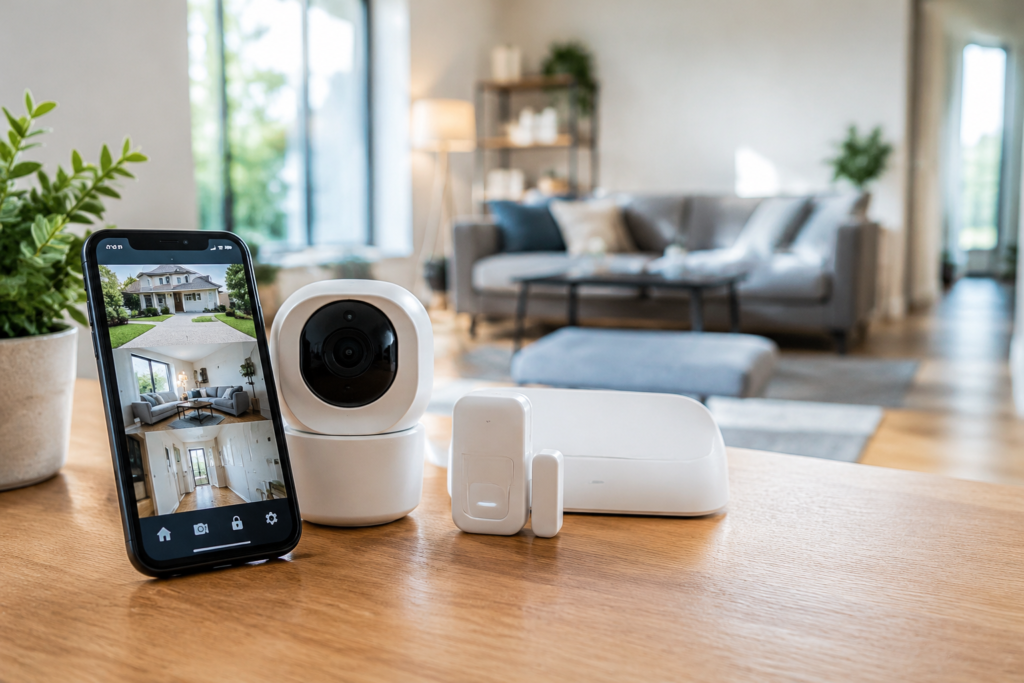
10 Smart Home Security Tips to Protect Your House
10 Smart Home Security Tips to Protect Your House
Connected devices make daily life easier, but every smart lock, camera, and sensor you add is also a potential doorway into your home network. If you’ve been collecting gadgets without thinking much about how they’re protected, you’re not alone, and it’s worth pausing to tighten things up. These smart home security tips cover the practical steps that actually matter, from locking down your Wi-Fi to choosing devices with real encryption and setting up monitoring you can trust. Whether you’re just starting your automation setup or already have a house full of connected gear, these tips will help you close the common gaps that intruders and hackers tend to exploit.
1. Secure Your Wi-Fi Network First
Your Wi-Fi router is the foundation everything else sits on. If it’s weak, every smart lock, camera, or sensor connected to it inherits that weakness. Start by changing the default administrator username and password on your router, since these defaults are widely known and are one of the first things an attacker will try.
Use WPA3 encryption if your router supports it, or WPA2 at minimum. Avoid older WEP or open networks entirely. Set a long, unique Wi-Fi password rather than something tied to your address or phone number. It’s also a good habit to restart your router periodically to clear temporary issues and apply any pending updates; our guide on how to restart a Wi-Fi router walks through the process if you’re not sure how.
If you’ve forgotten which network your devices are using, you can look it up through Windows rather than guessing. See how to find saved Wi-Fi passwords on Windows 11 for the steps. And if your connected devices seem sluggish or drop out, slow Wi-Fi can sometimes look like a security problem when it’s really a performance one, so it’s worth ruling out common causes first.
2. Choose Devices with Strong Encryption
Not all smart home products are built to the same security standard. Before buying a lock, camera, or sensor, check whether the manufacturer documents how it encrypts data, both in transit (between the device and your phone or the cloud) and at rest (stored on the device or in the manufacturer’s servers).
Look for products that mention industry-standard protocols such as AES-128 or AES-256 encryption, and TLS for communication with apps and cloud services. Reputable brands typically publish this information in a security whitepaper or FAQ section on their support site. If a manufacturer is vague or silent about encryption, treat that as a warning sign rather than an oversight.
It’s also worth considering the communication protocol itself. Zigbee, Z-Wave, Thread, and Matter all have different security models, and newer standards like Matter were specifically designed with stronger device-to-device authentication in mind. This doesn’t mean older protocols are unsafe, but newer, well-supported standards generally receive more consistent security attention from manufacturers.
3. Set Up Smart Locks on Entry Points
Smart locks replace traditional keys with PIN codes, mobile app access, or biometric unlocking, and they can be a meaningful upgrade over a standard deadbolt when installed and configured correctly. The physical installation matters just as much as the software: a smart lock mounted on a weak door frame or paired with flimsy strike plates doesn’t offer much real protection, no matter how advanced its app is.
When setting one up, follow these practical steps:
- Confirm the lock is compatible with your door thickness and existing deadbolt before purchasing.
- Create unique PIN codes for family members instead of sharing one universal code, so you can revoke access individually if needed.
- Enable auto-lock so the door secures itself after a set period, reducing the risk of someone forgetting to lock up.
- Keep a physical backup key in a safe place in case of battery failure or connectivity issues.
Smart lock installation is generally straightforward with basic tools, but if your door has an unusual frame or you’re not comfortable with the wiring on more advanced models, a locksmith or handyman can handle it safely.
4. Install Motion-Activated Security Lighting
Motion sensor lighting is one of the simplest and most cost-effective deterrents available. Well-placed lights that activate when someone approaches your home can discourage prowlers before they get close to a door or window, and they also make it easier for you to see who’s outside at night.
For the best coverage, install motion-activated lights near entry points: front and back doors, side gates, and any dark areas along the perimeter of your property. Many smart lighting systems let you adjust sensitivity and detection range through a companion app, which helps cut down on false triggers from passing cars, pets, or blowing branches.
Pairing motion lighting with other smart devices adds another layer of value. For example, you can set lights to flash briefly if a connected camera detects motion after dark, drawing attention to the area without requiring you to be watching a live feed.
5. Add Video Doorbells for Visitor Monitoring
A video doorbell camera lets you see and often speak with whoever is at your door, whether you’re home, at work, or away entirely. Beyond convenience, this creates a visual record of who approaches your entryway, which can be useful for both everyday package deliveries and potential security incidents.
When choosing a video doorbell, consider:
- Field of view: A wider angle captures more of your porch and walkway, reducing blind spots.
- Night vision quality: Many incidents happen after dark, so clear low-light footage matters.
- Storage options: Some models offer local storage, while others rely on cloud subscriptions; weigh the ongoing cost against your privacy preferences.
- Two-way audio: Being able to speak to visitors remotely adds a practical layer of control.
Keep in mind that video doorbells only help if you actually review the footage or respond to alerts, so take a few minutes after installation to tune motion sensitivity and notification settings to a level you’ll actually pay attention to.
6. Use Multi-Factor Authentication on Hub Accounts
Your smart home hub, whether it’s from Amazon, Google, Apple, or a dedicated security brand, is the central account that controls your locks, cameras, and sensors. If that account is compromised, an intruder could potentially unlock doors or disable cameras remotely. This makes multi-factor authentication (MFA), also called two-factor authentication, one of the most important protections you can enable.
MFA requires a second verification step beyond your password, typically a code sent to your phone or generated by an authenticator app. Even if someone guesses or steals your password, they can’t access the account without that second factor. Most major hub providers support this feature in their account security settings.
If you use a Google account to manage any part of your smart home setup, our guide on how to turn on two-step verification for a Google account covers the setup process in detail. The same general principle applies across most other platforms: look for “two-factor authentication” or “two-step verification” in the account or security menu, and enable it for every connected hub account, not just your primary email.
7. Segment Your Smart Devices on a Separate Network
Wi-Fi network segmentation means creating a separate network, often a guest network, specifically for your smart home devices rather than running them on the same network as your computers and phones. This limits the damage if a lower-security device, like a budget camera or smart plug, is ever compromised, because an attacker on that device still can’t reach your laptop, files, or financial accounts.
Most modern routers support this through a built-in guest network feature. The general setup looks like this:
- Log into your router’s admin panel and locate the guest network or secondary SSID option.
- Create a distinct network name and strong password separate from your main Wi-Fi.
- Enable client isolation if available, which prevents devices on that network from talking to each other unnecessarily.
- Connect your smart locks, cameras, sensors, and hubs to this network instead of your primary one.
This step takes a bit more setup time than other tips on this list, but it’s one of the most effective ways to contain risk if a single device turns out to have a vulnerability.
8. Keep Firmware and Apps Updated Regularly
Device firmware updates often patch security vulnerabilities that manufacturers discover after a product ships. Skipping these updates leaves known weaknesses open, even after the company has already released a fix. The same applies to the companion apps you use to control your devices.
Set a recurring reminder to check for firmware updates on your hub, locks, cameras, and other connected devices, ideally once a month. Many smart home apps let you enable automatic updates, which is generally the easiest way to stay current without having to remember manual checks. On your phone, keep the operating system and app store updates current as well, since outdated mobile software can sometimes introduce its own vulnerabilities.
If you manage several apps across different devices and notice your phone or tablet feels sluggish after updates pile up, clearing cached data can help. On a computer, clearing browser cache occasionally resolves login or display issues with web-based device dashboards; see how to clear Chrome cache for the steps if you manage your smart home system through a browser.
9. Set Up Automated Away-Mode Routines
An away-mode routine automatically adjusts your smart devices when you leave the house, locking doors, arming cameras, turning off unnecessary lights, and sometimes adjusting your thermostat, all in one action instead of checking each device individually. This reduces the chance of leaving something unsecured, like a door you forgot to lock on your way out.
Common elements worth including in an away routine:
- Auto-lock all smart locks a few minutes after the routine triggers.
- Switch cameras and motion sensors to active monitoring mode.
- Turn off lights and non-essential devices to save energy.
- Send a confirmation notification to your phone once the routine completes.
Many platforms let you trigger this routine automatically based on your phone’s location leaving a defined radius around your home, or manually through a single tap or voice command. If you want a structured walkthrough for building routines like this from scratch, our guide on how to set up smart home routines breaks the process down step by step.
10. Monitor Devices with a Centralized Security App
As your device count grows, checking each lock, camera, and sensor through separate apps becomes impractical. A centralized home monitoring app brings your devices into one dashboard, making it easier to spot unusual activity, review footage, and respond quickly if something looks wrong.
When evaluating a centralized app or platform, consider how well it integrates with the brands you already own, whether it sends real-time push notifications for events like door unlocks or motion detection, and how it handles activity logs. A good monitoring app should let you review a timeline of events, not just the most recent alert, so you can spot patterns like repeated motion at odd hours.
Also check the app’s own account security settings. Since this app often has control over your entire connected home, it deserves the same multi-factor authentication and strong password practices discussed earlier. Treat it as a high-value target, because that’s exactly what it would be to someone trying to gain access to your house.
Conclusion
Smart home security isn’t about buying every available gadget. It’s about building a few solid layers: a locked-down Wi-Fi network, devices with real encryption, strong account authentication, and routines that keep everything working together without requiring constant manual attention. Start with the fundamentals, your network and your hub account security, before adding more hardware, since a houseful of cameras and locks won’t help much if the network underneath them is unprotected. Work through these tips at your own pace, prioritizing the entry points and accounts that matter most to your household.
Key Takeaways
- Securing your Wi-Fi router with a strong password and WPA3 or WPA2 encryption is the foundation for every other smart home security step.
- Choose devices that clearly document strong encryption standards rather than ones that are vague about how they protect your data.
- Smart locks improve entry point security, but proper installation and backup access matter as much as the lock itself.
- Motion-activated lighting is a low-cost, effective deterrent for entry points and dark areas around your property.
- Video doorbells add visual monitoring and two-way communication, but their value depends on reviewing alerts and footage.
- Multi-factor authentication on your hub account prevents attackers from gaining remote control even if they obtain your password.
- Segmenting smart devices onto a separate network limits the damage if any single device is compromised.
- Regular firmware and app updates close known security vulnerabilities that manufacturers have already patched.
- Automated away-mode routines reduce the risk of human error, like forgetting to lock a door before leaving.
- A centralized monitoring app simplifies oversight of your entire system, but it needs the same strong account protections as your hub.
Frequently Asked Questions
Is it safe to control my smart home devices over public Wi-Fi?
Most reputable smart home apps encrypt communication between your phone and the cloud, which provides some protection on public networks. That said, it’s generally safer to use a trusted mobile data connection or a VPN when managing locks or cameras away from home, since public networks carry higher risk of interception.
Do I need to replace all my devices to improve security?
No. You can significantly improve your security posture by focusing on your Wi-Fi network, account authentication, and firmware updates before replacing any hardware. Device replacement is only necessary if a product is discontinued, no longer receives security updates, or lacks basic encryption.
How often should I check for firmware updates?
Checking monthly is a reasonable baseline for most households, though enabling automatic updates where available removes the need to check manually. Critical security patches are sometimes released outside a regular schedule, so automatic updates offer better protection than relying solely on manual checks.
Can smart home hubs be hacked remotely?
It’s possible if an account lacks strong authentication or if a device has an unpatched vulnerability, though manufacturers generally respond to known issues with security patches. Enabling multi-factor authentication and keeping firmware current are the two most effective ways to reduce this risk.
What’s the difference between Wi-Fi segmentation and a guest network?
A guest network is one common way to achieve network segmentation. Both create a separate connection isolated from your main devices, but using your router’s guest network feature specifically for smart home devices accomplishes the same security goal without needing additional hardware.